This website uses cookies. By clicking Accept, you consent to the use of cookies. Click Here to learn more about how we use cookies.
RUCKUS Community Forums are now in READ-ONLY mode while we migrate to a new platform.
You will still be able to read posts and knowledge articles, but will be unable to post new content until Go Live on the new platform Monday August 17.
Lennar Smart Home customers: please contact [email protected] for assistance during the week of August 9-17.

- Community
- RUCKUS Technologies
- RUCKUS Lennar Support
- Community Services
- RTF
- RTF Community
- Australia and New Zealand – English
- Brazil – Português
- China – 简体中文
- France – Français
- Germany – Deutsch
- Hong Kong – 繁體中文
- India – English
- Indonesia – bahasa Indonesia
- Italy – Italiano
- Japan – 日本語
- Korea – 한국어
- Latin America – Español (Latinoamérica)
- Middle East & Africa – English
- Netherlands – Nederlands
- Nordics – English
- North America – English
- Poland – polski
- Russia – Русский
- Singapore, Malaysia, and Philippines – English
- Spain – Español
- Taiwan – 繁體中文
- Thailand – ไทย
- Turkey – Türkçe
- United Kingdom – English
- Vietnam – Tiếng Việt
- EOL Products
Turn on suggestions
Auto-suggest helps you quickly narrow down your search results by suggesting possible matches as you type.
Showing results for
- RUCKUS Forums
- RUCKUS Technologies
- RUCKUS Self-Help
- How to enable SSH public key authentication on Sma...
Options
- Subscribe to RSS Feed
- Mark Topic as New
- Mark Topic as Read
- Float this Topic for Current User
- Bookmark
- Subscribe
- Mute
- Printer Friendly Page
How to enable SSH public key authentication on SmartZone/ vSZ

Options
- Mark as New
- Bookmark
- Subscribe
- Mute
- Subscribe to RSS Feed
- Permalink
- Report Inappropriate Content
04-10-2023
09:07 AM
- last edited on
04-11-2023
01:21 AM
by
 Anusha_Vemula
Enabling SSH public key authentication on SmartZone controllers restricts admin SSH access of the controller to a specific PC/ user device. The addition of Public Key - private key pairs enhances security when compared to the username-password combination.
Here are the steps to enable SSH public key authentication on 6.x and above SZ/ vSZ controllers:
- Download the whole putty suite, which includes Putty, Puttygen and Pageant.
- Generate public key and private key pair using Puttygen. ECDSA is the preferred digital signature algorithm for the SZ controller
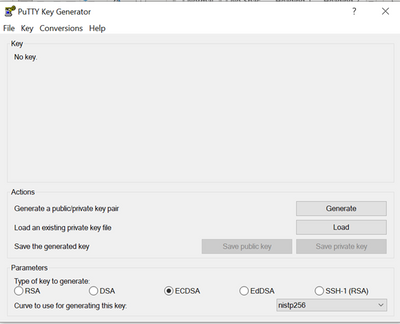
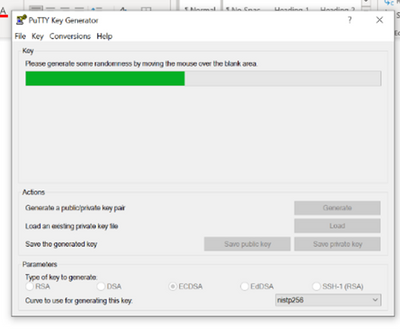
3. Generate the keys by moving the cursor over the mentioned area.
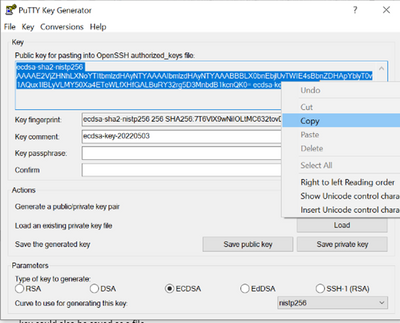
4. Copy the public key generated to a notepad file and save the private key to your PC. The public key could also be saved as a file.
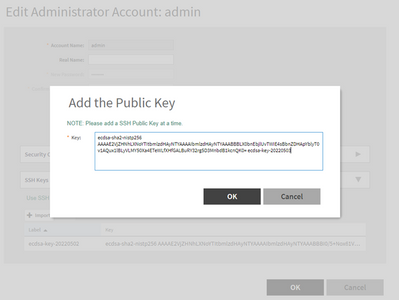
5. Take a GUI session to the SZ > Administration > Admins and Roles > Administrators> choose domain > select an existing administrator name (“admin” used in this case) > click configure > expand “SSH Keys”> click import > paste public key from step 4 here.
6. Under Administration > Admin and Roles > Account Security > Global security > Set SSH authentication method to Public Key or Password.
7. Open Putty Pageant > Find pageant on the task bar as shown:
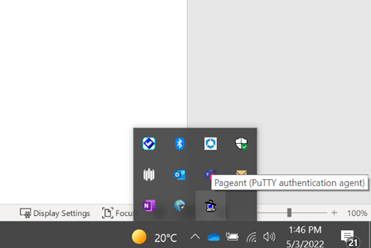
8. Right click on the Pageant icon and select “add key”> choose the private key that was saved to the PC (from step 4).
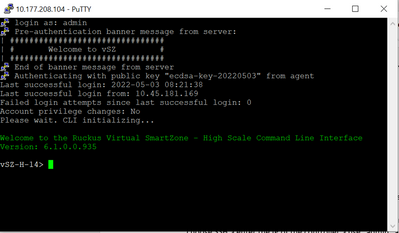
9. Once the private key has been successfully added to Pageant, open a new Putty window > choose SSH > enter the IP of the controller > use “admin” as username. The SSH session would not prompt for password and directly go ahead with authentication, as shown below:
Labels:
- Labels:
-
RUCKUS Self-Help
-
SmartZone or vSZ
Reply
0 REPLIES 0

Labels
-
AAA
2 -
Access points
48 -
Analytics
3 -
AP Certificate error
1 -
AP Controller Connectivity
5 -
AP Management
8 -
AP migration
1 -
AP reporting
1 -
API
2 -
Authentication Server
2 -
Client Management
1 -
Cloud
20 -
Cloud ICX
1 -
Cloudpath
23 -
Cluster synchronization
1 -
Deployment
2 -
Firmware Recommendation
1 -
Firmware Upgrade
5 -
Guest Access
2 -
ICX
73 -
ICX Switch Management
7 -
Installation
5 -
IoT
1 -
Licensing
1 -
Mobile Apps
2 -
Monitoring
1 -
Poe
2 -
RADIUS
2 -
Ruckus Cloud
1 -
RUCKUS Self-Help
209 -
Security
6 -
SmartZone or vSZ
64 -
Stacking
1 -
SZ ICX Connectivity
1 -
Traffic Management-
1 -
UMM
3 -
Unleashed
15 -
User Management
1 -
Venue Management
1 -
Wired Throughput
2 -
Wireless Throughput
1 -
WLAN Management
5 -
ZoneDirector
15
- « Previous
- Next »
