This website uses cookies. By clicking Accept, you consent to the use of cookies. Click Here to learn more about how we use cookies.
RUCKUS Community Forums are now in READ-ONLY mode while we migrate to a new platform.
You will still be able to read posts and knowledge articles, but will be unable to post new content until Go Live on the new platform Monday August 17.
Lennar Smart Home customers: please contact [email protected] for assistance during the week of August 9-17.

- Community
- RUCKUS Technologies
- RUCKUS Lennar Support
- Community Services
- RTF
- RTF Community
- Australia and New Zealand – English
- Brazil – Português
- China – 简体中文
- France – Français
- Germany – Deutsch
- Hong Kong – 繁體中文
- India – English
- Indonesia – bahasa Indonesia
- Italy – Italiano
- Japan – 日本語
- Korea – 한국어
- Latin America – Español (Latinoamérica)
- Middle East & Africa – English
- Netherlands – Nederlands
- Nordics – English
- North America – English
- Poland – polski
- Russia – Русский
- Singapore, Malaysia, and Philippines – English
- Spain – Español
- Taiwan – 繁體中文
- Thailand – ไทย
- Turkey – Türkçe
- United Kingdom – English
- Vietnam – Tiếng Việt
- EOL Products
Turn on suggestions
Auto-suggest helps you quickly narrow down your search results by suggesting possible matches as you type.
Showing results for
- RUCKUS Forums
- RUCKUS Lennar Support
- RUCKUS Support for Lennar Homes
- Re: Ruckus switch ICX 7150 - IP lost after hard re...
Options
- Subscribe to RSS Feed
- Mark Topic as New
- Mark Topic as Read
- Float this Topic for Current User
- Bookmark
- Subscribe
- Mute
- Printer Friendly Page

Options
- Mark as New
- Bookmark
- Subscribe
- Mute
- Subscribe to RSS Feed
- Permalink
- Report Inappropriate Content
09-15-2025 05:33 PM
Hi,
As you asked me to create a new ticket, so here it is. There was a power outrage in my home. After that, the wifi got really slow. Before that, the switch ICX 7150 used to show 'disconnected' in the unleashed dashboard. Also, it didn't have the latest firmware to work with unleased. However, I had ignored it because the wifi was working fine, and I got busy at work.
After the recent power outrage, I went through some topics here and found similar issue raised by members. I tried to fi it myself so I did hard reset on switch because I didn't have login/password credentials and none of the default credentials worked. After the hard reset, the switch has no IP address. I would need your help to configure the switch to its latest firmware, and to be able to connect it in the unleased. I hope after this fix, the wifi should start functioning properly. I have Macbook and no windows laptop to work with.
Thank you,
Solved! Go to Solution.
1 ACCEPTED SOLUTION


Options
- Mark as New
- Bookmark
- Subscribe
- Mute
- Subscribe to RSS Feed
- Permalink
- Report Inappropriate Content
09-29-2025 05:07 AM
Hi @mshrivas
Thank you for your response and for providing the detailed update.
It’s great to see that your Switch has been successfully upgraded to the recommended version.
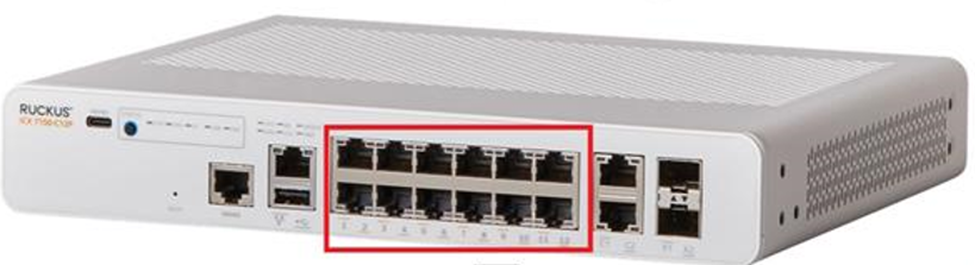
Since one of your Access Points is showing as disconnected on the Unleashed dashboard, please try unplugging the Ethernet cable of this Access Point from its current Switch port and reconnect it to any of the available ports from 1 to 12 on the Switch (refer to the screenshot below).
Kindly test this and let me know if it resolves the issue.
Thank you once again for your patience and cooperation.
Best regards,
Imran Sanadi
RUCKUS | Lennar Home Community Support
35 REPLIES 35
Options
- Mark as New
- Bookmark
- Subscribe
- Mute
- Subscribe to RSS Feed
- Permalink
- Report Inappropriate Content
09-17-2025 04:30 PM
Thank you for the reply.
The ssh doesn't work. The telnet doesn't work. I do not have a windows laptop, and I'm not going to buy one just for this fix.
Step1:
Error: Unable to negotiate with 192.168.1.64 port 22: no matching key exchange method found. Their offer: diffie-hellman-group14-sha1,diffie-hellman-group1-sha1
Step2:
nano ~/.ssh/config
Host 192.168.1.64
HostKeyAlgorithms +ssh-rsa
PubkeyAcceptedAlgorithms +ssh-rsa
ssh -oHostKeyAlgorithms=+ssh-rsa [email protected]
ssh -oHostKeyAlgorithms=+ssh-rsa [email protected]
Error: Unable to negotiate with 192.168.1.64 port 22: no matching key exchange method found. Their offer: diffie-hellman-group14-sha1,diffie-hellman-group1-sha1
Step3:
nc 192.168.1.64 23
no output, and no change in the command prompt.
Step4:
I plugged usbc-console cable in mac and switch (console port #15). The usb driver was already installed yesterday.
ls /dev/*usb* --> gives
/dev/cu.usbserial-A9L4QDQB /dev/tty.usbserial-A9L4QDQB
screen /dev/cu.usbserial-A9L4QDQB
or
screen /dev/tty.usbserial-A9L4QDQB
gives error that sorry could not find a PTY, and it gets terminated.
Somehow, I do not see the silicon lab driver in usb, however, the mac tray icon shows CP210xVCPDriver.
what to do next ?? How do I access the CLI ?
Options
- Mark as New
- Bookmark
- Subscribe
- Mute
- Subscribe to RSS Feed
- Permalink
- Report Inappropriate Content
09-17-2025 04:33 PM
I unplugged usbc from mac and re-plugged, and then tried below command from the terminal.
screen /dev/cu.usbserial-A9L4QDQB
This time a blank screen appears. When I press a key, it asked for login/password. I thought USBc-console cable is to bypass the login credentials, but it does ask. At this point, I'm totally lost.
Options
- Mark as New
- Bookmark
- Subscribe
- Mute
- Subscribe to RSS Feed
- Permalink
- Report Inappropriate Content
09-17-2025 06:01 PM - edited 09-17-2025 06:42 PM
Update: after taking help from ChatGpt, I was able to reset the login/password.
1. Connect Console
Plug the USB-C console cable into the switch’s USB-C console port and the other end into your MacBook.
On macOS, the device will appear as something like: ls /dev/tty.*
you should see entries like:
/dev/tty.usbserial-XXXXX /dev/tty.debug-consoleThe tty.usbserial… is usually the right one
2. Open Terminal Session
screen /dev/tty.usbserial-XXXXX 9600
Default baud rate for ICX switches is 9600.
3. Interrupt Boot
Power cycle the switch.
As soon as you see boot messages, press b (sometimes Ctrl+B depending on bootloader version).
You should enter the boot monitor (Boot>) prompt.4. Reset Password
From the Boot> prompt:
Boot into “fastiron” with password recovery disabled:
no passwordbootOnce it loads, you’ll be in privileged mode without a password.
5. Set New Credentials
Enter global config mode:
enableconfigure terminalusername admin password yournewpassword
Save config:
write memory
After this, I was able to login to switch IP.
I now need your help to upgrade the firmware/routing code for this switch. Thanks.
I have downloaded the firmware zip file from here:
Options
- Mark as New
- Bookmark
- Subscribe
- Mute
- Subscribe to RSS Feed
- Permalink
- Report Inappropriate Content
09-18-2025 05:31 AM
Hi @mshrivas
Greetings!
Thank you for your response and the update. I am glad to hear that you are now able to access the Console.
To assist you further with the Switch firmware upgrade, could you please confirm the current Switch version you are using?
For your reference, I have attached a screenshot highlighting where you can locate the Switch version details.
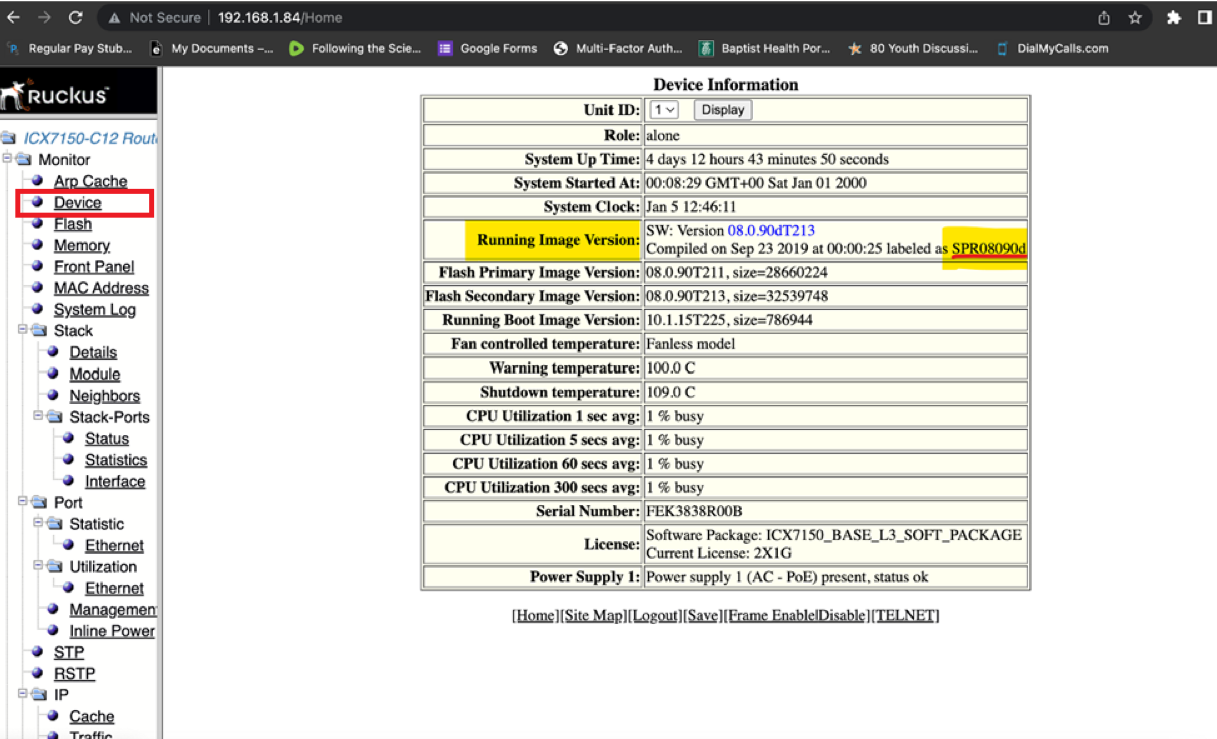
Kindly provide the requested information at your earliest convenience. Please feel free to reach out if you have any additional questions.
Thank you once again for your patience and cooperation.
Best regards,
Imran Sanadi
RUCKUS | Lennar Home Community Support
Options
- Mark as New
- Bookmark
- Subscribe
- Mute
- Subscribe to RSS Feed
- Permalink
- Report Inappropriate Content
09-18-2025 06:10 PM
Hi Imran,
Here is the switch device software version:
Running Image Version:
| SW: Version 08.0.90dT213 Compiled on Sep 23 2019 at 00:00:25 labeled as SPR08090d |

Labels
-
Access point
3 -
Access points
5 -
all lights blinking after reset icx 7150 switch
1 -
Amber
1 -
Amber System
2 -
AP
1 -
AP Management
1 -
Boot mode
1 -
bootloader
1 -
cli
1 -
Compatibility
1 -
Console
1 -
console access
1 -
dns
1 -
eero
2 -
eps
1 -
Frontier
1 -
Green Power
2 -
Hard reset
1 -
Heartbeat
1 -
Heartbeat loss recurring
2 -
Help
2 -
Help Needed
2 -
i Al
1 -
ICX
2 -
ICX 7150-C12p
7 -
ICX switch
4 -
ICX Switch Disconnected
1 -
ICX Switch Management
4 -
ICX-7150-C12
3 -
ICX-7150-C12P
1 -
Important Announcement
1 -
Installation
1 -
Internet Issue
2 -
Ive been
1 -
Lennar
3 -
Lennar Home
2 -
Lennar homes
25 -
Management Port
1 -
NAND flash memory
1 -
New
1 -
No POE
2 -
No power via Ethernet
1 -
password
1 -
Please
1 -
Poe
2 -
Poe not working
1 -
Power Outage
1 -
Power Outtage
1 -
Proposed Solution
1 -
R510
2 -
r510 no power
2 -
REBOOT
1 -
Recovery
1 -
Red LED
1 -
Remote access
1 -
Reset ICX username password
1 -
Return
1 -
RMA
3 -
Ruckus
2 -
Ruckus ICX 7150-C12P
4 -
RUCKUS Self-Help
1 -
RUKUS 7150 c12p
1 -
Setup
1 -
Software Recovery
1 -
Solution Proposed
1 -
Solution Proposed warranty
1 -
SPR
1 -
SSH
1 -
Switch
1 -
Telnet
1 -
Unleashed
3 -
Unresolved Issue
1 -
Upgrade
3 -
Upgrading R510
1 -
User Management
1 -
username
1 -
VPN streaming fail proxy not working Amazon prime video
1 -
Wifi
1 -
Wifi6
1 -
Wireless
3
- « Previous
- Next »
