This website uses cookies. By clicking Accept, you consent to the use of cookies. Click Here to learn more about how we use cookies.
RUCKUS Community Forums will be set to READ-ONLY mode starting Sunday, August 9 at 6 PM EDT / 3 PM PDT while we migrate to a new platform.
You will still be able to read posts and knowledge articles, but will be unable to post new content until Go Live on the new platform Monday August 17.
Lennar Smart Home customers: please contact [email protected] for assistance during the week of August 10-17.

- Community
- RUCKUS Technologies
- RUCKUS Lennar Support
- Community Services
- RTF
- RTF Community
- Australia and New Zealand – English
- Brazil – Português
- China – 简体中文
- France – Français
- Germany – Deutsch
- Hong Kong – 繁體中文
- India – English
- Indonesia – bahasa Indonesia
- Italy – Italiano
- Japan – 日本語
- Korea – 한국어
- Latin America – Español (Latinoamérica)
- Middle East & Africa – English
- Netherlands – Nederlands
- Nordics – English
- North America – English
- Poland – polski
- Russia – Русский
- Singapore, Malaysia, and Philippines – English
- Spain – Español
- Taiwan – 繁體中文
- Thailand – ไทย
- Turkey – Türkçe
- United Kingdom – English
- Vietnam – Tiếng Việt
- EOL Products
Turn on suggestions
Auto-suggest helps you quickly narrow down your search results by suggesting possible matches as you type.
Showing results for
- RUCKUS Forums
- RUCKUS Lennar Support
- RUCKUS Support for Lennar Homes
- Re: Power outage and currently not providing power...
Options
- Subscribe to RSS Feed
- Mark Topic as New
- Mark Topic as Read
- Float this Topic for Current User
- Bookmark
- Subscribe
- Mute
- Printer Friendly Page
Power outage and currently not providing power to Access Points

Options
- Mark as New
- Bookmark
- Subscribe
- Mute
- Subscribe to RSS Feed
- Permalink
- Report Inappropriate Content
11-01-2022 07:24 PM
Hello,
I am in the same boat as some other that had a power outage due to a storm. I have tried the troubleshooting and I am still not able to access my switch to troubleshoot or get power back to my AP's in my house.
I have tried to SSH into it and it is not seen. I have tried a factory restore and it looks to be stuck as all the lights are amber still after a few hours. Items I do have is a USB A to USB C cable and no luck trying to access it.
While I appreciate the help from the other posts, I do need assistance with doing the troubleshooting on a Mac. I do not have access to a windows computer to do most of the troubleshooting that I have seen on this forum.
Any assistance would be beneficial and if I could actually talk to someone, this would be a lot smoother than waiting for a response.
1 REPLY 1


Options
- Mark as New
- Bookmark
- Subscribe
- Mute
- Subscribe to RSS Feed
- Permalink
- Report Inappropriate Content
11-02-2022 12:39 PM - edited 11-02-2022 02:10 PM
Hi @normiihack
Hope you are doing well
I will add the console Access to the switch ICX-7150 ( white box in your closet ) using a Mac computer to the existing guide:
1-First at all you need to install the drivers to read the cable type C to console the switch in your Mac computer.
Software:
https://www.silabs.com/developers/usb-to-uart-bridge-vcp-drivers?tab=downloads
https://support.ruckuswireless.com/software/1413-brocade-ruckus-7150-usb-serial-driver-mac
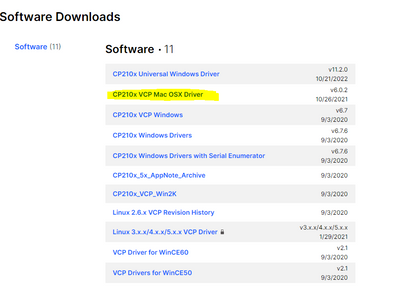
2-After successfully installing the Mac Drivers, open the Mac terminal, when you see the command prompt do the following:
Enter this command:
ls /dev/cu.*
This command will display something like this:
One of those logs will say something similar to /dev/cu.SiLabs_Serial (which is related to the drivers you installed)
3-Then enter the following command using the name of the installed driver that was displayed:
screen /dev/cu.SiLabs_Serial 9600
4-Hit Enter and you will have access to the ICX7150’s CLI. (Comand Line)
Video link as reference: https://www.youtube.com/watch?v=1AcJokMm78U
Here we have to scenarios if you get the following prompt
ICX7150-C12 Switch>
That means that we need to check the PoE ( Power over Ethernet ) Please run the following commands
ICX7150-C12 Switch>show inline power detail
ICX7150-C12 Switch>show inline power
ICX7150-C12 Switch>show version
Copy and paste here to analyze.
Or if you get the following prompt:
ICX7150-Boot>
You can try to boot up from primary image/secondary
boot_primary or boot_secondary
If that does not work we need to preform a software recovery :
This process can be done also in a Mac computer, link: https://www.youtube.com/watch?v=TZMxjHls8A8
Best Regards

Labels
-
Access point
3 -
Access points
5 -
all lights blinking after reset icx 7150 switch
1 -
Amber
1 -
Amber System
2 -
AP
1 -
AP Management
1 -
Boot mode
1 -
bootloader
1 -
cli
1 -
Compatibility
1 -
Console
1 -
console access
1 -
dns
1 -
eero
2 -
eps
1 -
Frontier
1 -
Green Power
2 -
Hard reset
1 -
Heartbeat
1 -
Heartbeat loss recurring
2 -
Help
2 -
Help Needed
2 -
i Al
1 -
ICX
2 -
ICX 7150-C12p
7 -
ICX switch
4 -
ICX Switch Disconnected
1 -
ICX Switch Management
4 -
ICX-7150-C12
3 -
ICX-7150-C12P
1 -
Important Announcement
1 -
Installation
1 -
Internet Issue
2 -
Ive been
1 -
Lennar
3 -
Lennar Home
2 -
Lennar homes
25 -
Management Port
1 -
NAND flash memory
1 -
New
1 -
No POE
2 -
No power via Ethernet
1 -
password
1 -
Please
1 -
Poe
2 -
Poe not working
1 -
Power Outage
1 -
Power Outtage
1 -
Proposed Solution
1 -
R510
2 -
r510 no power
2 -
REBOOT
1 -
Recovery
1 -
Red LED
1 -
Remote access
1 -
Reset ICX username password
1 -
Return
1 -
RMA
3 -
Ruckus
2 -
Ruckus ICX 7150-C12P
4 -
RUCKUS Self-Help
1 -
RUKUS 7150 c12p
1 -
Setup
1 -
Software Recovery
1 -
Solution Proposed
1 -
Solution Proposed warranty
1 -
SPR
1 -
SSH
1 -
Switch
1 -
Telnet
1 -
Unleashed
3 -
Unresolved Issue
1 -
Upgrade
3 -
Upgrading R510
1 -
User Management
1 -
username
1 -
VPN streaming fail proxy not working Amazon prime video
1 -
Wifi
1 -
Wifi6
1 -
Wireless
3
- « Previous
- Next »
