Steps to perform a Software recovery on an ICX7150 switch:
Issue Description:
Due to a power outage or power spike, the RUCKUS ICX-7150-C12P Switch has entered a state known as boot mode, where it is unable to start normally. This typically indicates a corrupted image flash. To resolve this, a software recovery is required to reinstall the firmware and restore normal operation.
Software recovery is like giving a fresh start when the system doesn’t work. The recovery involves starting the switch in a recovery mode and reinstalling a valid software image to resolve the issue and returning the switch to boot up properly.
Environment:
- Product(s) : RUCKUS ICX-7150-C12P Switch
- Hardware requirement : A Windows computer or MAC, USB to Type- C cable and an ethernet cable.
Root cause:
- Corrupted image flash due to a power outage/power spike.
Symptoms:
- The Switch will not supply power to any PoE devices, including the doorbell, cameras, and Access Points.
- Devices connected to the Switch will not have network connectivity.
- Console access will be the only available method to access the Switch.
- The SYST light will display a yellow/orange (amber) light.
Steps to perform Software recovery:
A) Gain console access to the Switch:
The Switch can be accessed via the console following the mentioned article:
Establishing Console CLI Access on the RUCKUS ICX-7150-C12P Switch
The software recovery process typically requires two cables.
USB to Type- C cable where one end of the cable has a USB Type-C connector, while the other end has a standard USB (Type-A) connector and an ethernet cable with both ends of RJ-45 plugs.
Use a console cable to connect your computer to the USB Type-C console port on the ICX 7150 Switch. The cable should be a USB-to-Type-C cable, with the USB end connected to your computer and the Type-C end plugged into the Switch’s Type-C console port (Port 1 in the figure 3) as shown in the figure 1:
 Figure 1: Type C to USB connector
Next, connect an Ethernet cable from the out-of-band management port on the Switch to the Ethernet port on your computer as shown in the figure 2. (Out of band management port is the port number 13 in figure 3).
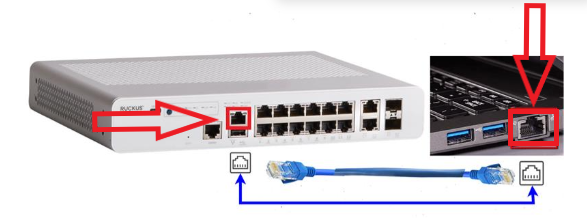
Figure 2: RJ-45 connector
 Figure 3: Port side view of the Switch
Now, we have access to the Switch through the console cable.
 Download applications: PuTTy and TFTP Server
Two applications are required to access the switch: PuTTY for terminal access and a TFTP server for file transfer.
1) Download the PuTTy application, which is used for establishing terminal sessions with the switch. . 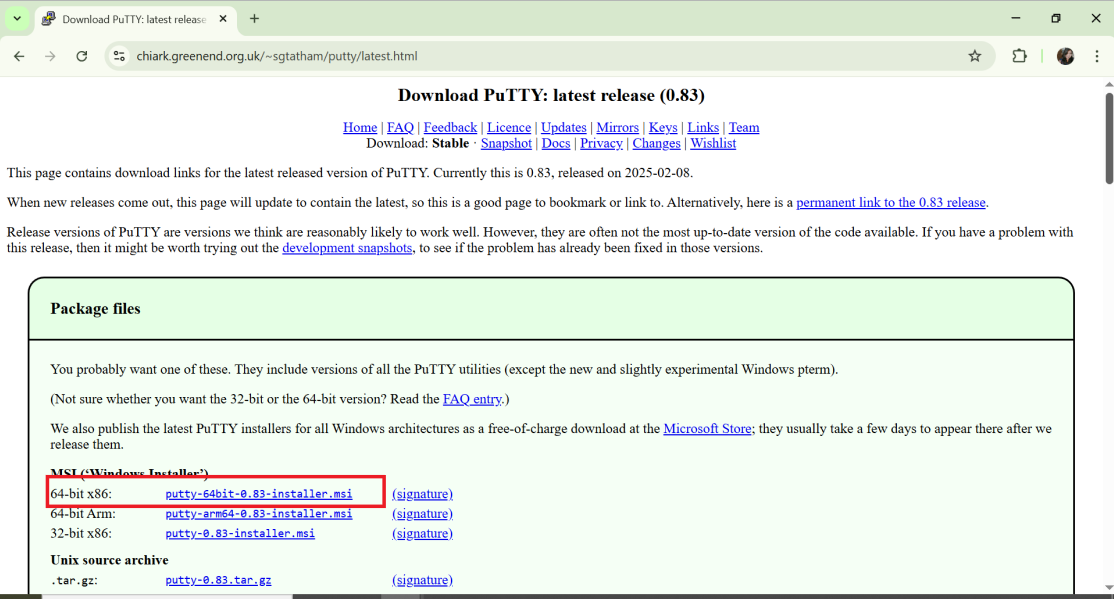
Figure 4: Downloading PuTTY Version
2) Download a TFTP server application, which will be used to transfer firmware files to the switch during the upgrade process.
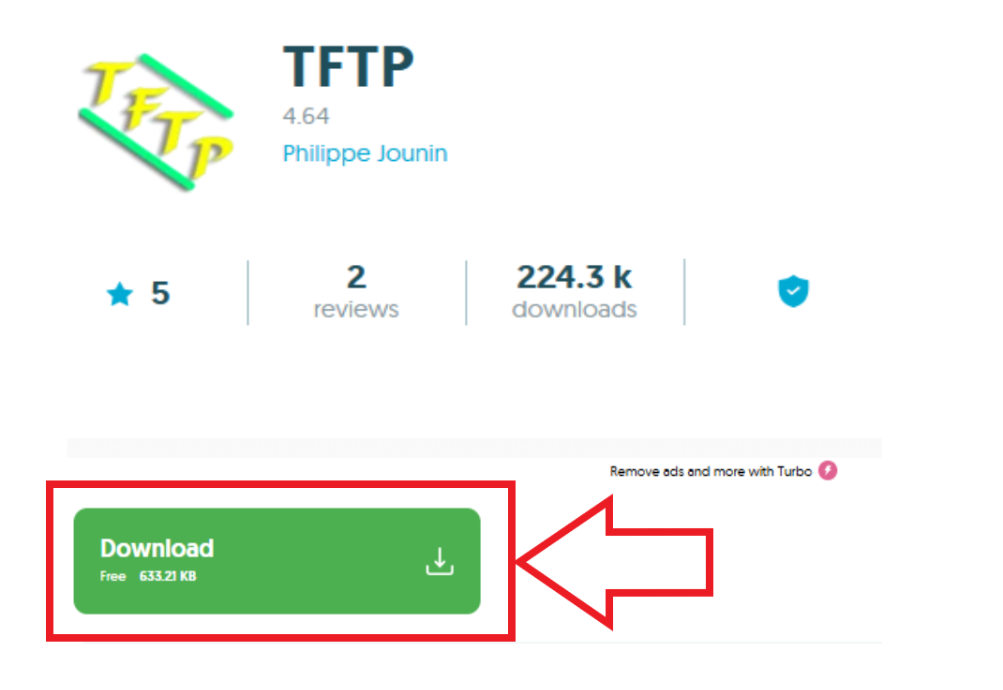
Figure 5: Downloading Tftp application
C) Downloading the firmware for Software Recovery
1. Log in to the RUCKUS Support Downloads page
2. Select RUCKUS ICX7150 Campus Switches from the Choose Product menu.
3. Select 08.0 from the Version menu.
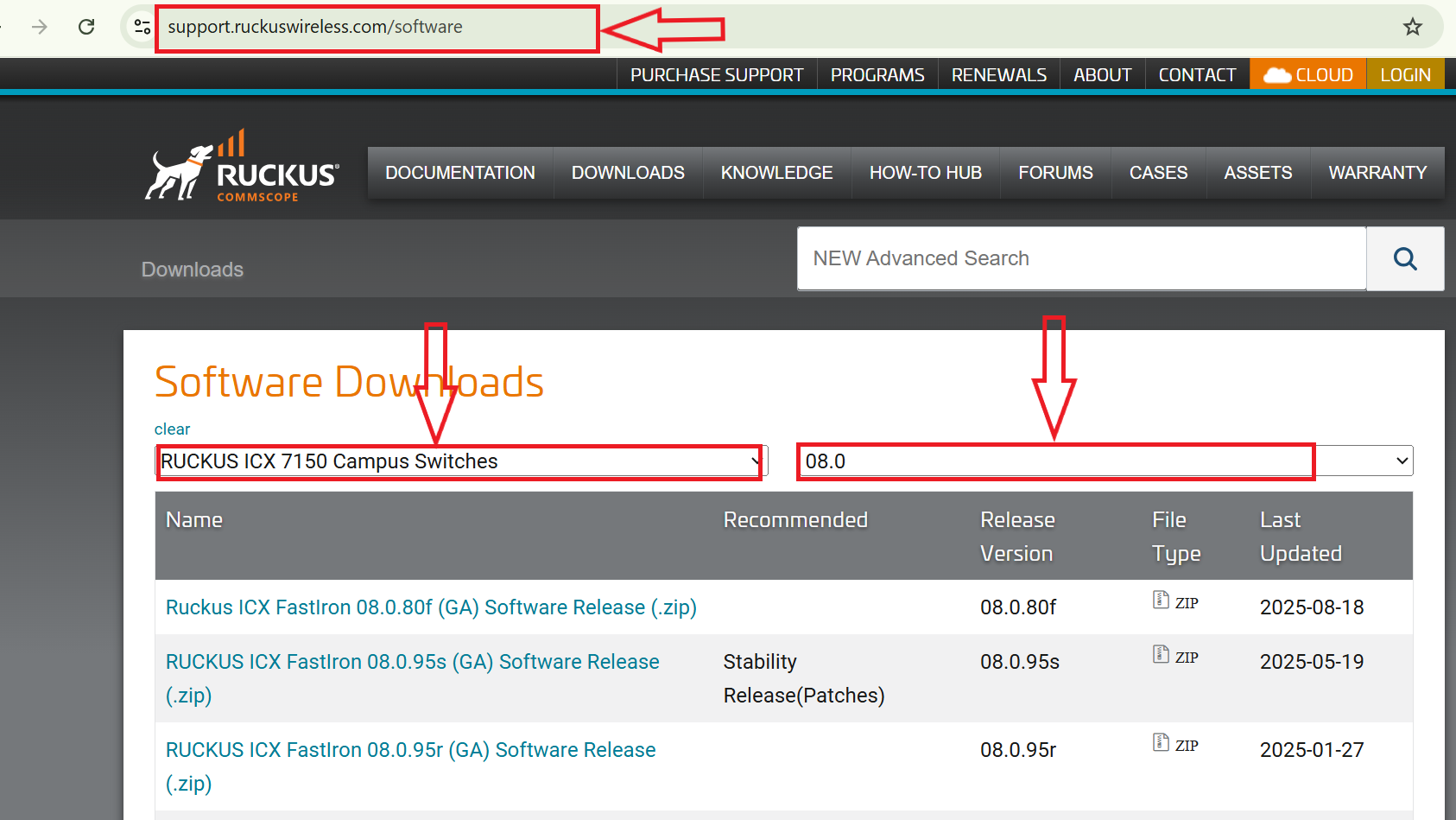
Figure 6: Downloading firmware version for Software Recovery
4. Select RUCKUS ICX FastIron 08.0.90k (GA) Software Release (.zip).
5. Click Download software.
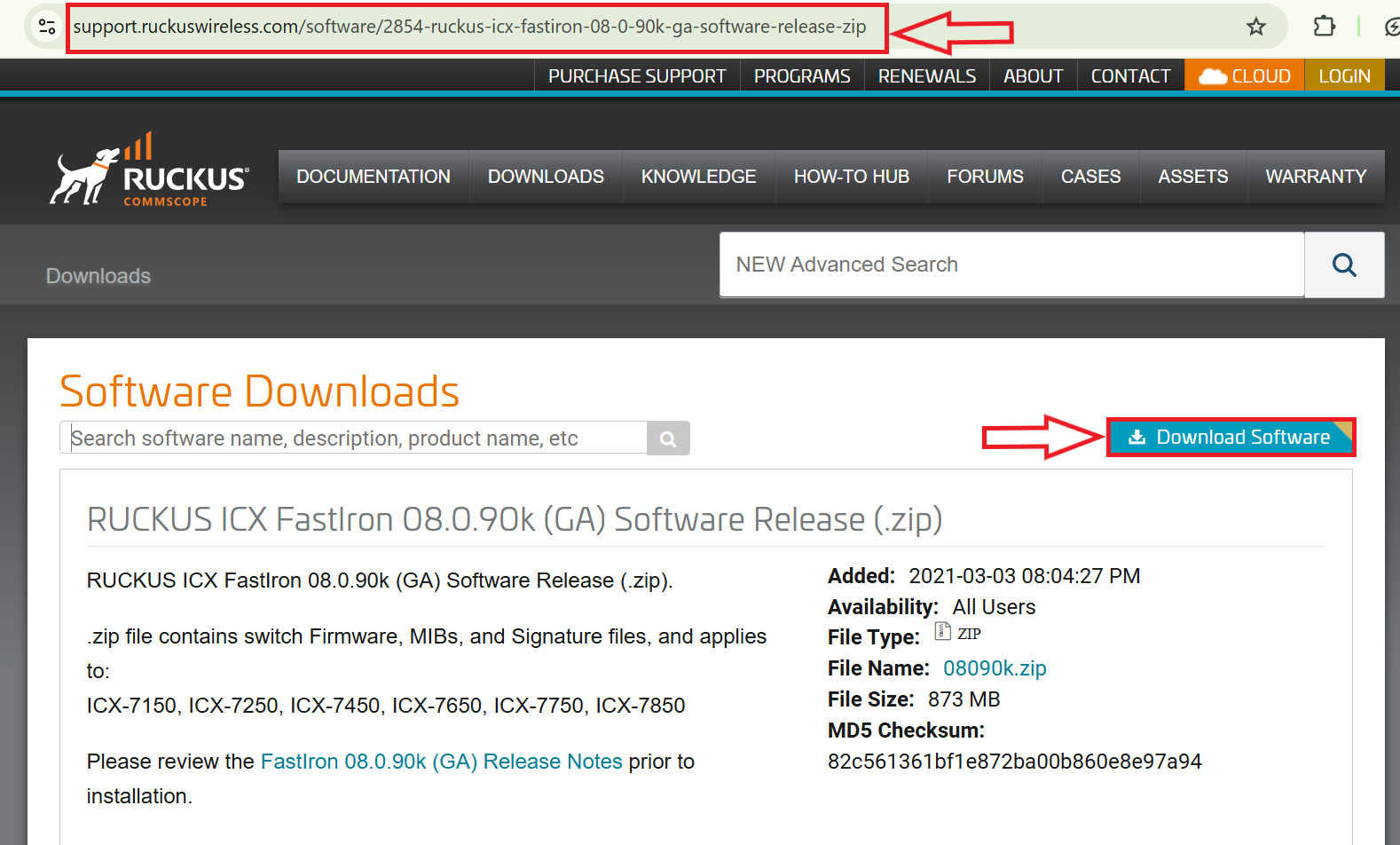
Figure 7 : Downloading the 8090k software
6. Unzip the downloaded file and extract all contents.
7. Navigate to the ICX 7150 > Boot folder and copy mnz10115.bin.
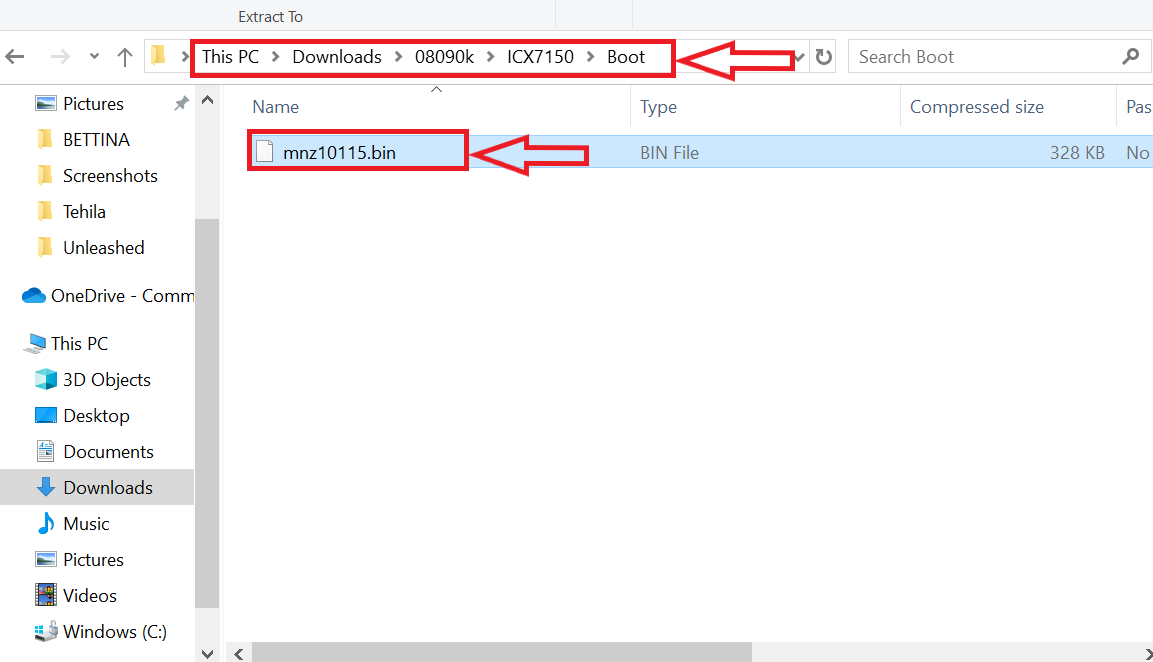
Figure 8: Copying the Boot image
8. Navigate to the Images folder and then copy SPS08090k.bin
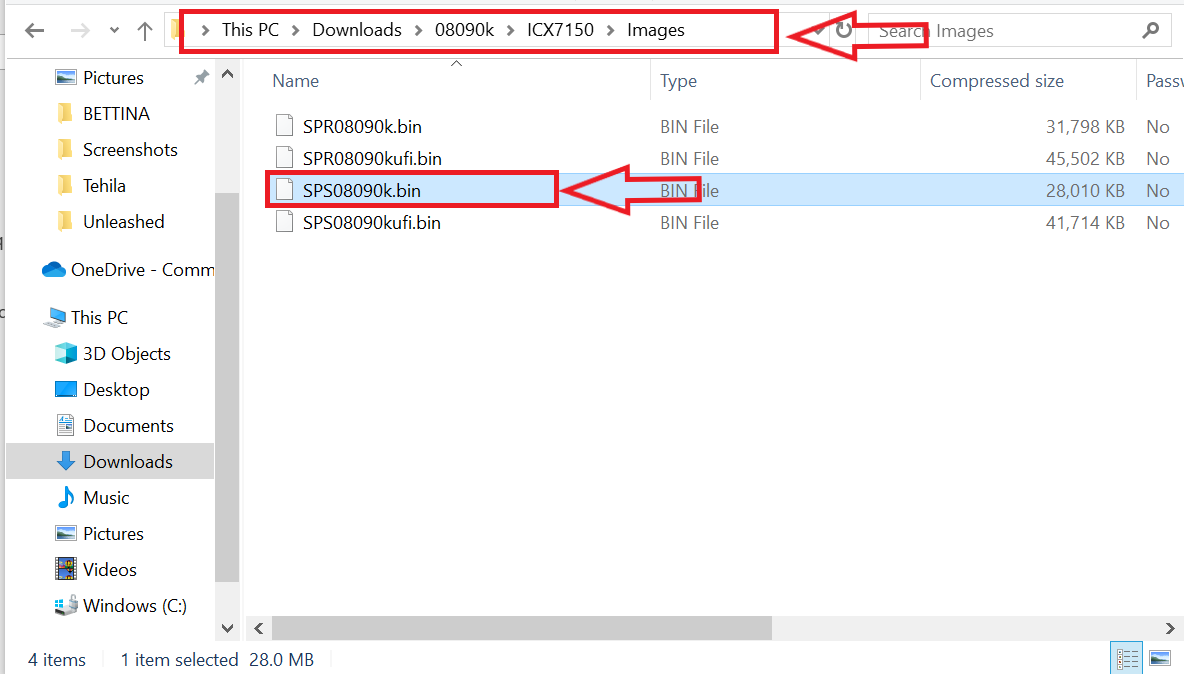
Figure 9: Copying the Image file
9. Create a folder Upgrade and paste the files on it.
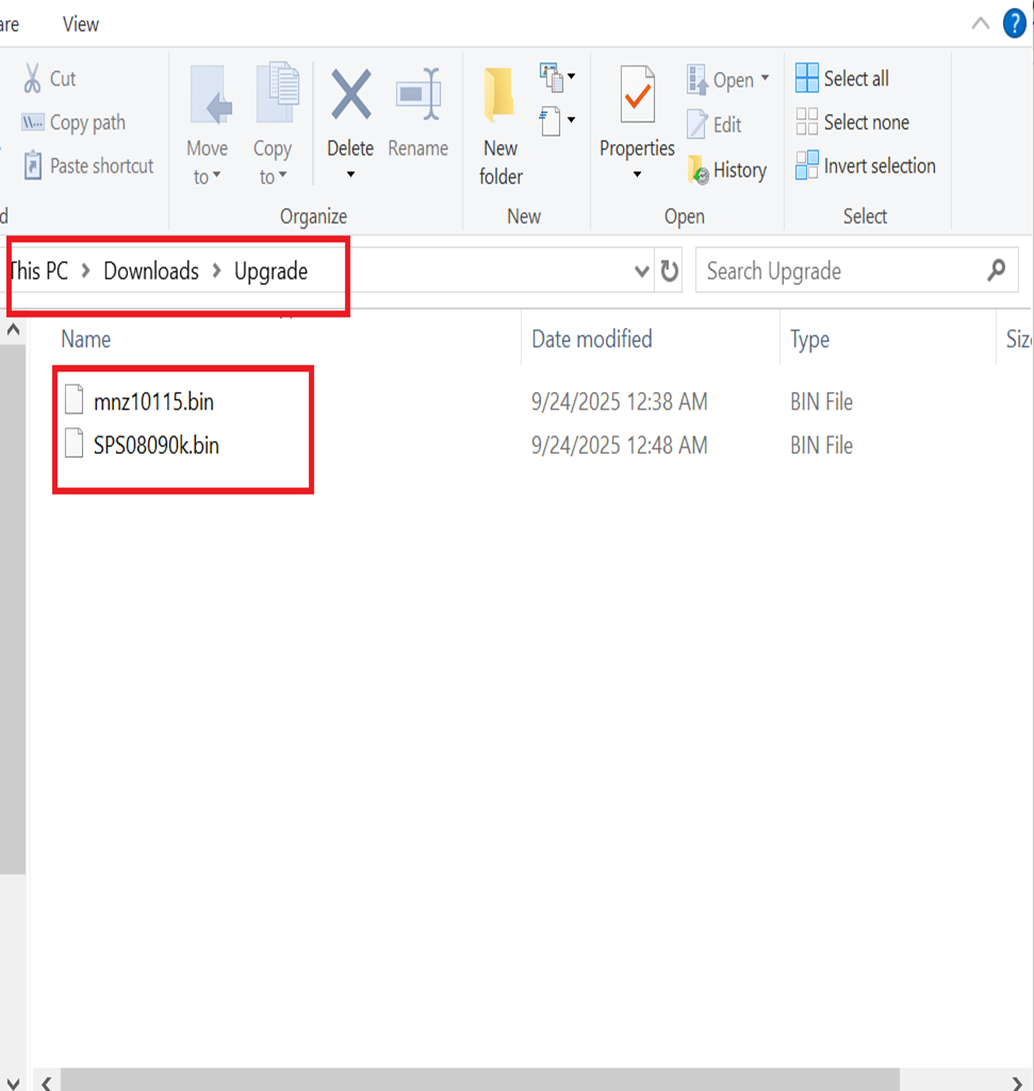
Figure 10: Pasting the files in the Upgrade folder
D) Configuring the Switch with the Console:
Configure PuTTY settings:
To identify the correct COM port:
1. Open Device Manager on your computer.
2. Expand the “Ports (COM & LPT)” section.
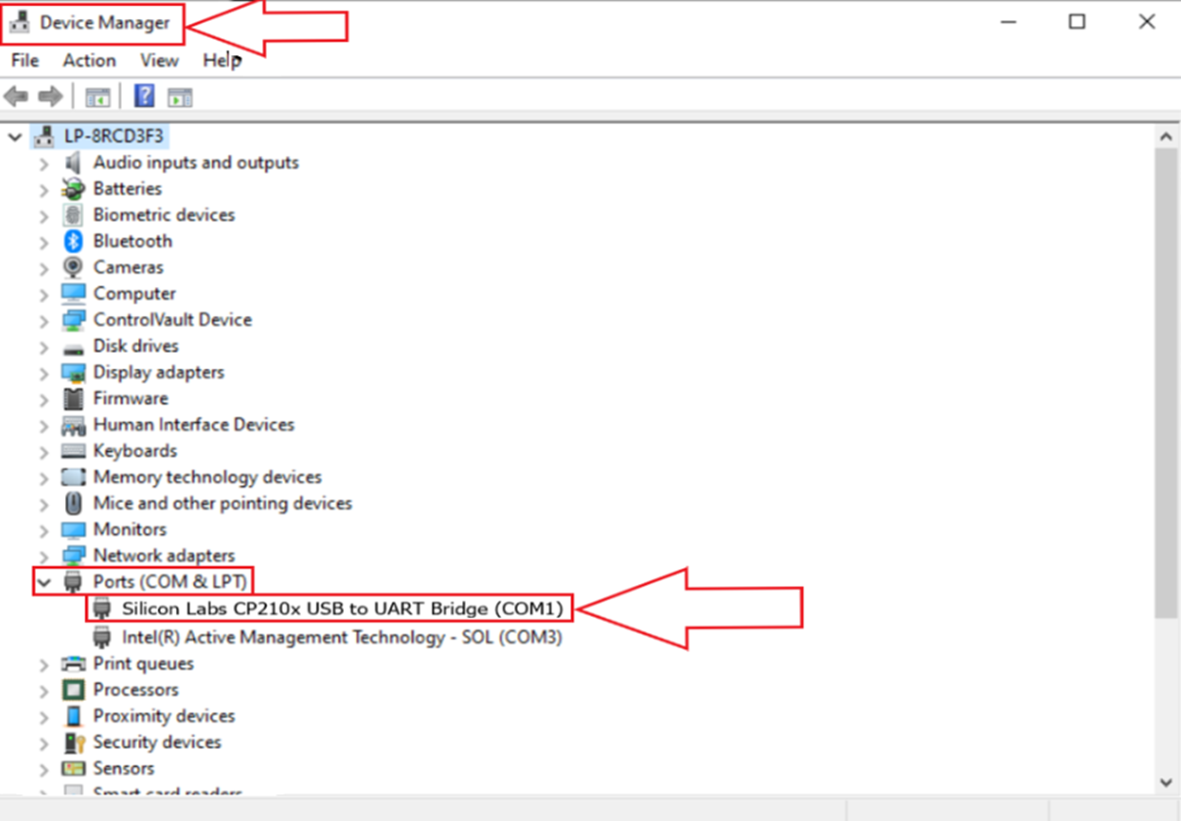
Figure 11: Identifying the COM port for PuTTY access.
3. Look for a device listed as “Silicon Labs CP210x USB to UART Bridge (COMx)” the COMx value (e.g., COM3, COM5) indicates the correct port to use.
4. For example, in PuTTY:
- Choose "Serial" as the connection type.
- Enter the correct COM port number (e.g., COM3, COM5).
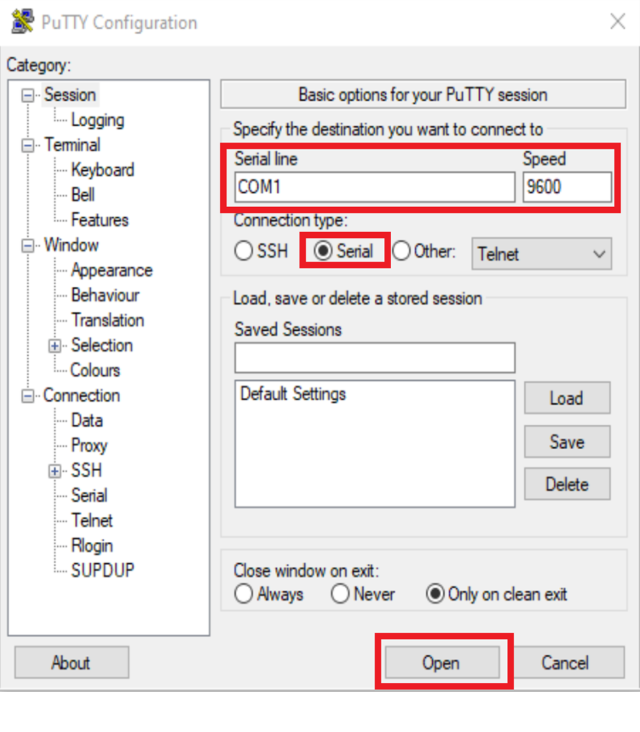
Figure 12: Accessing PuTTY for the Console
5. Click "Open" or “Start” to initiate the connection.
As we get access to the Switch command line interface (CLI) using the console cable, the next step is to configure the Switch with the Command Line Interface (CLI).
This lets you access the Switch even if it’s not turning on properly or if you don’t know its IP address.
Once you have access to console CLI; while opening PuTTY, you will see a prompt that says ‘boot>’, indicating the device is in boot mode.

Figure 13: Putty in boot mode
Configuring the Computer’s IP address: Let's proceed with configuring a static IP address on your computer to establish connectivity with the switch. Since the computer is connected to the switch's management port via an Ethernet cable, the IP address must be set within the same subnet as the switch to enable proper communication.
- Click on Start, then type and open Control Panel.
- Go to Network and Sharing Center > Change adapter settings.
- Right-click on your Ethernet connection and select Properties.
- Select Internet Protocol Version 4 (TCP/IPv4) and click Properties.
- Choose Use the following IP address, then enter the IP information provided.
- Click OK to apply the settings.
 Figure 14: Configuring the IP address
E) Setting up TFTP server for upgrade:
1. Open the TFTP64 application by typing tftp in the Start button.
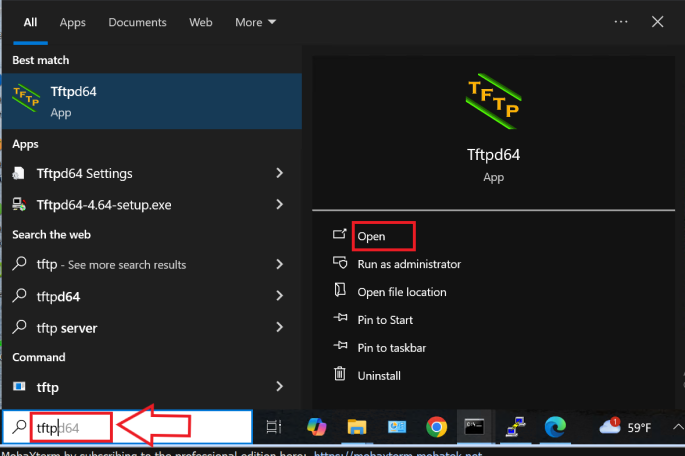
Figure 15: Opening Tftp application for download
2. Select the Upgrade Folder
a. Navigate to the path where you created the folder named "Upgrade".
b. Click Browse.
c. Go to Downloads > Upgrade.
d. Click OK to confirm your selection.
3. Configure the Server Interface
a. Identify the IP address you previously configured for your computer. In this case, it is 192.168.0.2.
b. Scroll through the list of available Server Interfaces.
c. Select the interface that matches the statically assigned IP address 192.168.0.2 on your computer.
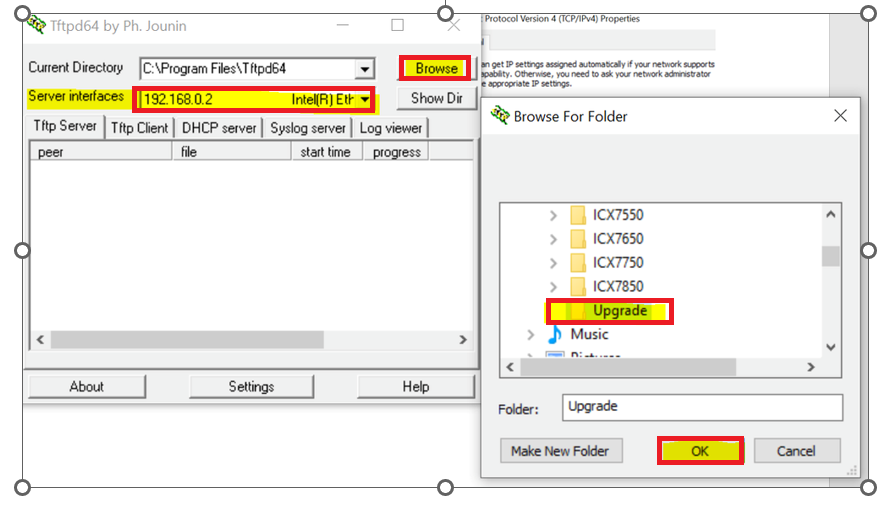
Figure 16: Setting up Tftp for Upgrade
Note: The TFTP server application must remain open throughout the entire process after configuration.
Now, as a part of configuring the Switch with the console, we need to assign an IP address to the Switch, default gateway server for your network, subnet mask of the network along with the IP address of the TFTP server using the PuTTY application.
- setenv ipaddr 192.168.0.3 to assign an IP address to the Switch.
- setenv gatewayip 192.168.0.2 to configure the default gateway IP address for your network. This should match the IP address assigned to your computer when accessing the Switch via console.
- setenv netmask 255.255.255.0; the subnet mask should correspond to the one associated with your network, matching the value found using the CMD command on your computer.
- setenv serverip 192.168.0.2 to enter the IP address of the TFTP server, which refers to the computer connected to the Switch via the management port.
- Printenv to double-check the values just changed for accuracy.
- Once the values are verified, we can save the changes using the command saveenv.
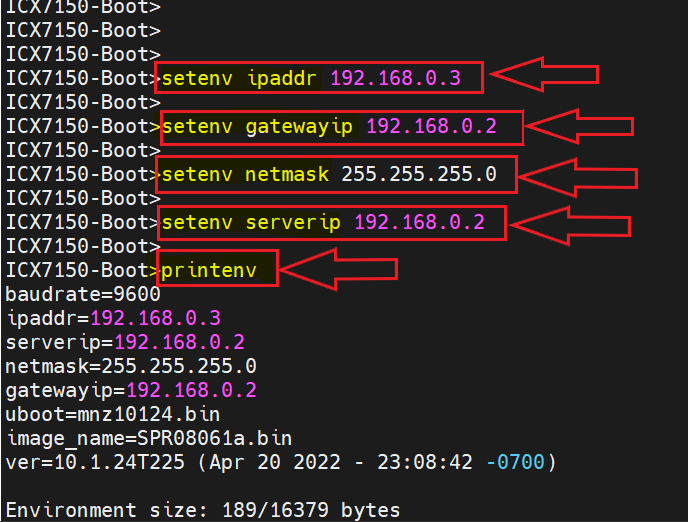
Figure 17: Configuring Switch with the console
F) Testing connectivity to network IP
We have configured the Switch to work on your network with the computer.
Next, we need to check if the Switch and the computer can connect to each other.
This will help us make sure they can communicate each other.
Making sure they are connected is important for the Switch to work as expected using the command ‘ping 192.168.0.2’
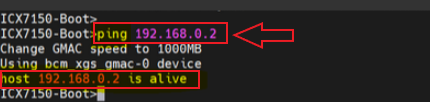
Figure 18: Testing connectivity to network IP
The ping response should indicate "alive" to confirm successful connectivity. If it returns "is not alive", it means there is no communication between your computer and the Switch.
Ensure the Windows firewall is turned off, ethernet cable is properly connected from the Out-of-Band (OOB) management port on the Switch to your computer’s Ethernet port.
The Ping not alive error can be fixed by following the mentioned article: Fixing “host 192.168.0.x is not alive” (not alive) error during the Switch Software Recovery Process
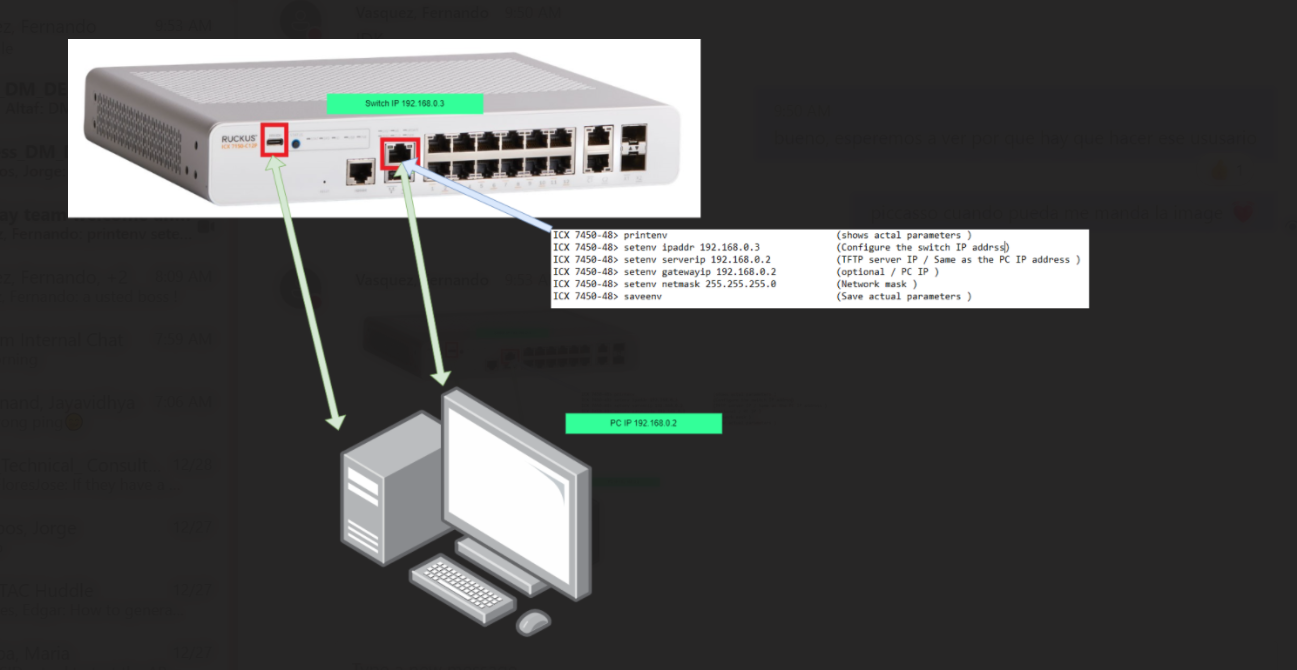
Figure 19: Computer’s IP address and configuration of the Switch
G) Performing Software Recovery:
Now that the Switch has been configured and there is connectivity to the computer/server, we can proceed with the software recovery. This process essentially involves performing a software upgrade while the Switch is in boot mode. This process is typically used to restore the device when it fails to boot normally.
1) Use the command setenv image_name SPS08090k.bin to enter the correct firmware image file name.
2) The entered image file name should be uploaded to the primary partition using the command update_primary.
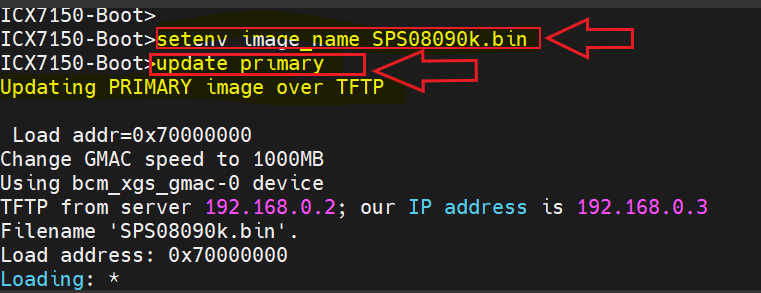
Figure 20: Entering image filename to Primary partition
3) The saved firmware image file name should be entered and uploaded to the secondary partition as well using the commands:
- setenv image_name SPS08090k.bin
- update_secondary
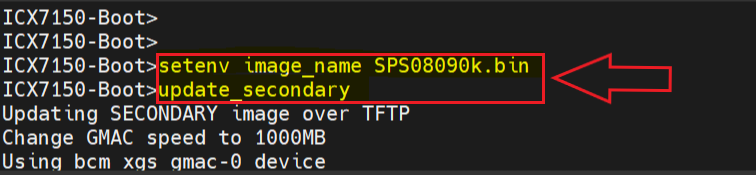
Figure 21: Entering image filename to Secondary partition
4) Once the images are loaded to both partitions; the boot file name also should be entered and the boot code needs to be entered using the following commands:
- setenv uboot mnz10115.bin
- update_uboot
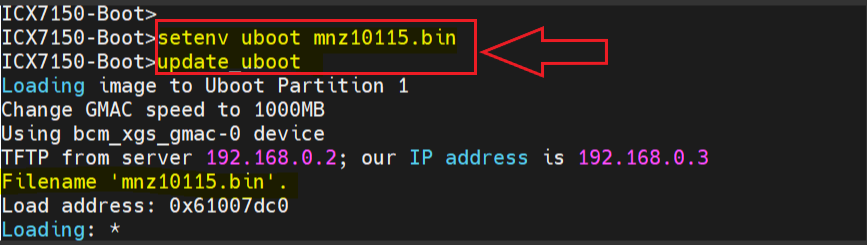
Figure 22: Boot code is loaded
5) Once the boot code is loaded, the unit should be reloaded using the command: reset 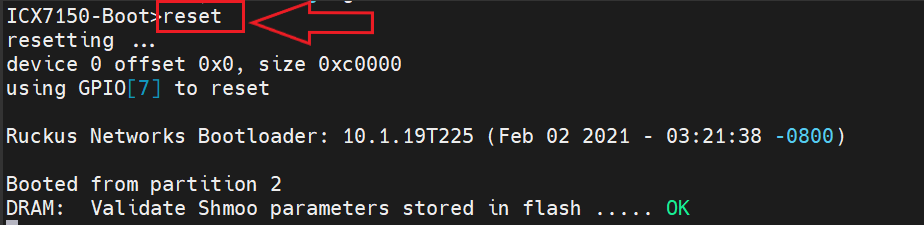
Figure 23: Rebooting the Switch
After the unit reloads, the SYS light should turn green, indicating that the system has booted up successfully.