This website uses cookies. By clicking Accept, you consent to the use of cookies. Click Here to learn more about how we use cookies.
RUCKUS Community Forums are now in READ-ONLY mode while we migrate to a new platform.
You will still be able to read posts and knowledge articles, but will be unable to post new content until Go Live on the new platform Monday August 17.
Lennar Smart Home customers: please contact [email protected] for assistance during the week of August 9-17.

- Community
- RUCKUS Technologies
- RUCKUS Lennar Support
- Community Services
- RTF
- RTF Community
- Australia and New Zealand – English
- Brazil – Português
- China – 简体中文
- France – Français
- Germany – Deutsch
- Hong Kong – 繁體中文
- India – English
- Indonesia – bahasa Indonesia
- Italy – Italiano
- Japan – 日本語
- Korea – 한국어
- Latin America – Español (Latinoamérica)
- Middle East & Africa – English
- Netherlands – Nederlands
- Nordics – English
- North America – English
- Poland – polski
- Russia – Русский
- Singapore, Malaysia, and Philippines – English
- Spain – Español
- Taiwan – 繁體中文
- Thailand – ไทย
- Turkey – Türkçe
- United Kingdom – English
- Vietnam – Tiếng Việt
- EOL Products
Turn on suggestions
Auto-suggest helps you quickly narrow down your search results by suggesting possible matches as you type.
Showing results for
- RUCKUS Forums
- RUCKUS Lennar Support
- RUCKUS Support for Lennar Homes
- How to find my Ruckus “Devices IP address” using f...
Options
- Subscribe to RSS Feed
- Mark Topic as New
- Mark Topic as Read
- Float this Topic for Current User
- Bookmark
- Subscribe
- Mute
- Printer Friendly Page
How to find my Ruckus “Devices IP address” using free applications


Options
- Mark as New
- Bookmark
- Subscribe
- Mute
- Subscribe to RSS Feed
- Permalink
- Report Inappropriate Content
10-20-2022 09:41 AM - edited 01-13-2023 08:26 AM
Using the following applications is possible to scan your network to check the IP address for Telnet/SSH or web access to the Ruckus devices.
Windows:
https://www.advanced-ip-scanner.com/
NOTE: IMPORTANT VIDEO TO WATCH : https://youtu.be/O1lerd0IFg0
Apple:
1-https://apps.apple.com/us/app/lanscan/id472226235?mt=12
2-https://apps.apple.com/us/app/ip-scanner/id404167149?mt=12
Video as reference : https://www.youtube.com/watch?v=vD7KLR8u1EM
iOs or Android option
https://apps.apple.com/au/app/fing-network-scanner/id430921107
Video Reference : https://www.youtube.com/watch?v=gWdarROXBmI
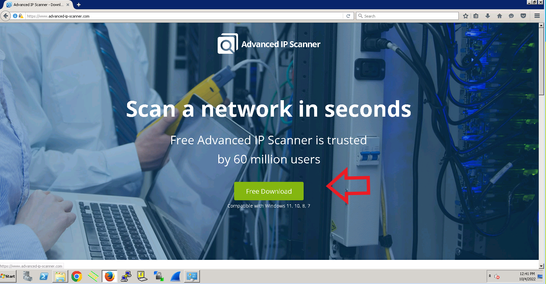
1 ) Downloads the application
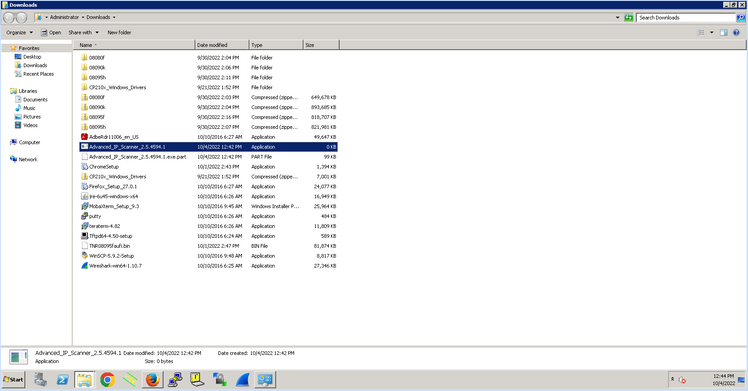
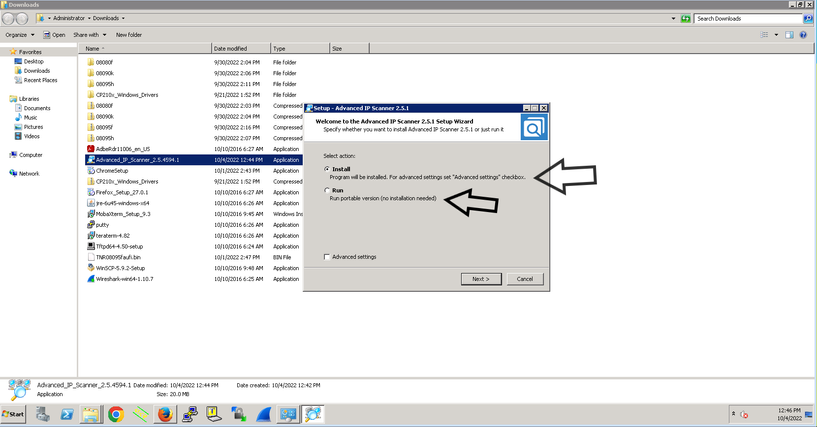
2 ) Proceed to install (it can be portable ‘does not need to be install’ or install.exe that install the app in your computer)
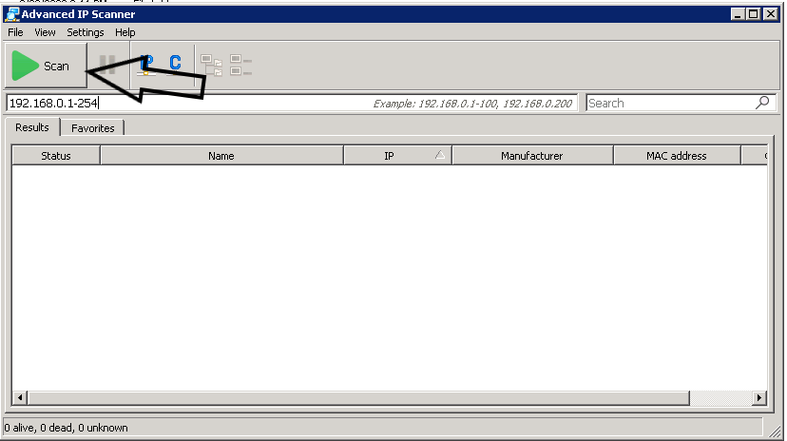
3 ) Once is installed (open the app) and then click the Start bottom to star running the scanner
4 ) Ruckus devices are going to be detected as Ruckus Wireless / Ruckus Switch / Ruckus Router / unleashed as the shown example:
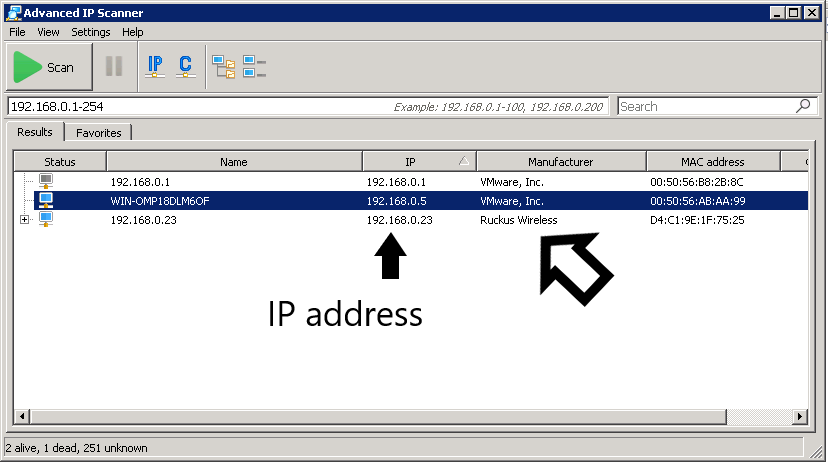
Video link as reference: https://www.youtube.com/watch?v=0zxgUn_Tm08
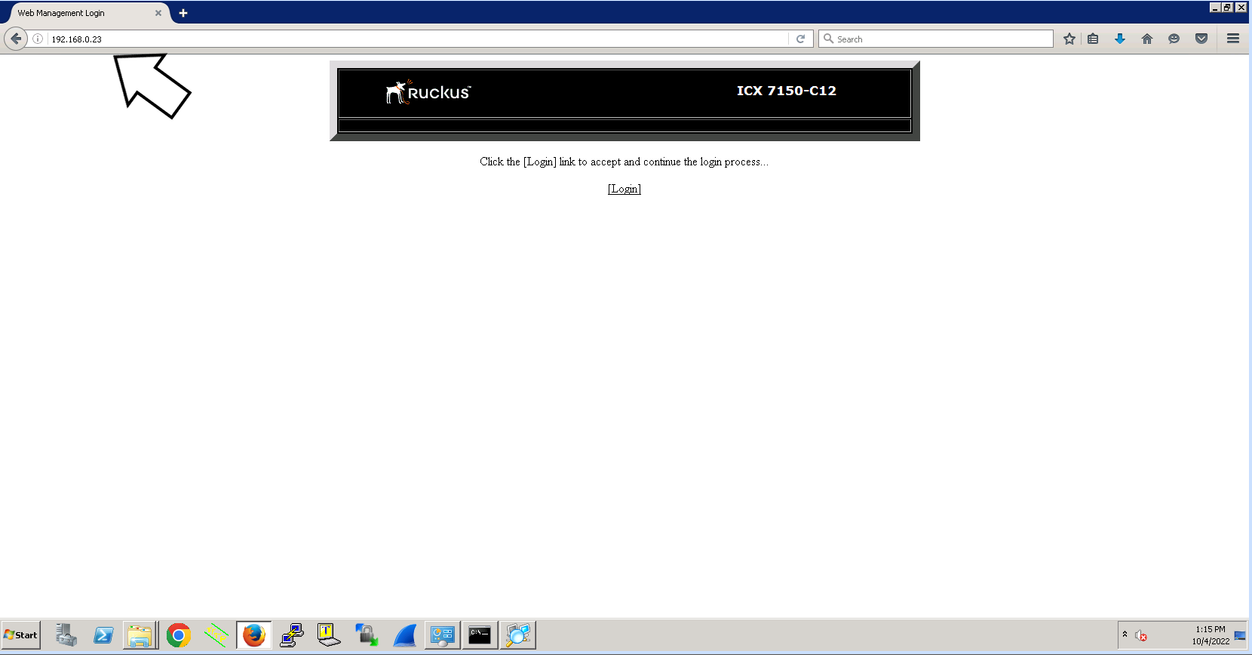
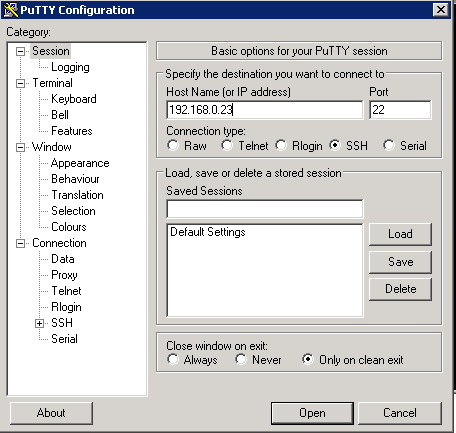
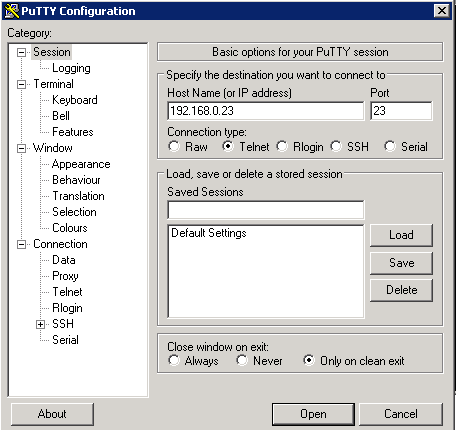
5 ) Since we already know the IP for the Ruckus switch (192.168.0.23) , I can access to the switch via Web/ssh/telnet
Webb access example :
SSH example:
Telnet example :
Note: If the IP address of switch does not appear on the IP Scanner please reboot the local Router ( ISP device )
Another solution is to log in in your local Router and check the 'device list'
https://www.wikihow.com/See-Who-Is-Connected-to-Your-Wireless-Network
https://www.howtogeek.com/204057/how-to-see-who%E2%80%99s-connected-to-your-wi-fi-network/
Labels:
- Labels:
-
ICX-7150-C12
-
Lennar homes
-
Unleashed
Reply
0 REPLIES 0

Labels
-
Access point
3 -
Access points
5 -
all lights blinking after reset icx 7150 switch
1 -
Amber
1 -
Amber System
2 -
AP
1 -
AP Management
1 -
Boot mode
1 -
bootloader
1 -
cli
1 -
Compatibility
1 -
Console
1 -
console access
1 -
dns
1 -
eero
2 -
eps
1 -
Frontier
1 -
Green Power
2 -
Hard reset
1 -
Heartbeat
1 -
Heartbeat loss recurring
2 -
Help
2 -
Help Needed
2 -
i Al
1 -
ICX
2 -
ICX 7150-C12p
7 -
ICX switch
4 -
ICX Switch Disconnected
1 -
ICX Switch Management
4 -
ICX-7150-C12
3 -
ICX-7150-C12P
1 -
Important Announcement
1 -
Installation
1 -
Internet Issue
2 -
Ive been
1 -
Lennar
3 -
Lennar Home
2 -
Lennar homes
25 -
Management Port
1 -
NAND flash memory
1 -
New
1 -
No POE
2 -
No power via Ethernet
1 -
password
1 -
Please
1 -
Poe
2 -
Poe not working
1 -
Power Outage
1 -
Power Outtage
1 -
Proposed Solution
1 -
R510
2 -
r510 no power
2 -
REBOOT
1 -
Recovery
1 -
Red LED
1 -
Remote access
1 -
Reset ICX username password
1 -
Return
1 -
RMA
3 -
Ruckus
2 -
Ruckus ICX 7150-C12P
4 -
RUCKUS Self-Help
1 -
RUKUS 7150 c12p
1 -
Setup
1 -
Software Recovery
1 -
Solution Proposed
1 -
Solution Proposed warranty
1 -
SPR
1 -
SSH
1 -
Switch
1 -
Telnet
1 -
Unleashed
3 -
Unresolved Issue
1 -
Upgrade
3 -
Upgrading R510
1 -
User Management
1 -
username
1 -
VPN streaming fail proxy not working Amazon prime video
1 -
Wifi
1 -
Wifi6
1 -
Wireless
3
- « Previous
- Next »
