This website uses cookies. By clicking Accept, you consent to the use of cookies. Click Here to learn more about how we use cookies.
RUCKUS Community Forums are now in READ-ONLY mode while we migrate to a new platform.
You will still be able to read posts and knowledge articles, but will be unable to post new content until Go Live on the new platform Monday August 17.
Lennar Smart Home customers: please contact [email protected] for assistance during the week of August 9-17.

- Community
- RUCKUS Technologies
- RUCKUS Lennar Support
- Community Services
- RTF
- RTF Community
- Australia and New Zealand – English
- Brazil – Português
- China – 简体中文
- France – Français
- Germany – Deutsch
- Hong Kong – 繁體中文
- India – English
- Indonesia – bahasa Indonesia
- Italy – Italiano
- Japan – 日本語
- Korea – 한국어
- Latin America – Español (Latinoamérica)
- Middle East & Africa – English
- Netherlands – Nederlands
- Nordics – English
- North America – English
- Poland – polski
- Russia – Русский
- Singapore, Malaysia, and Philippines – English
- Spain – Español
- Taiwan – 繁體中文
- Thailand – ไทย
- Turkey – Türkçe
- United Kingdom – English
- Vietnam – Tiếng Việt
- EOL Products
Turn on suggestions
Auto-suggest helps you quickly narrow down your search results by suggesting possible matches as you type.
Showing results for
- RUCKUS Forums
- RUCKUS Technologies
- Unleashed
- Re: jbl 500 authentics connection problems
Options
- Subscribe to RSS Feed
- Mark Topic as New
- Mark Topic as Read
- Float this Topic for Current User
- Bookmark
- Subscribe
- Mute
- Printer Friendly Page

Options
- Mark as New
- Bookmark
- Subscribe
- Mute
- Subscribe to RSS Feed
- Permalink
- Report Inappropriate Content
02-11-2026 10:54 AM
Hi pack ;-),
I ran into a problem with connecting a jbl 500 authentics speaker to Ruckus Unleashed (latest available version) on an R320: I can connect it to a WLAN set up without a password, but as soon as I set up WPA2, WPA3 or WPA2/3 combined it won't connect any more (the setup app simply stays with the message "connecting...". All attempts to reset the speaker, delete the WLAN, etc. failed.
Any ideas on this? My falback now is to have an open WLAN which just allows one client, but obviously this is far from an ideal solution. I also failed with setting up MAC access control, it won't connect either.
Cheers, Joachim.
Solved! Go to Solution.
2 ACCEPTED SOLUTIONS


Options
- Mark as New
- Bookmark
- Subscribe
- Mute
- Subscribe to RSS Feed
- Permalink
- Report Inappropriate Content
02-18-2026 08:20 PM
Hi,
Could you try the below steps which was having similar issue with Sonos speaker>
We have the fix applied in later version, 200.15 is the last version supported for R320.
But try this workaround from CLI and check.
https://community.ruckuswireless.com/t5/RUCKUS-Support-for-Lennar-Homes/Cannot-connect-Sonos-wireles...


Options
- Mark as New
- Bookmark
- Subscribe
- Mute
- Subscribe to RSS Feed
- Permalink
- Report Inappropriate Content
02-19-2026 03:51 AM - edited 02-19-2026 10:55 AM
Hi @jp
Greetings!
Thank you for your response and the update.
Execute Configuration Commands
Once the upgrade is complete, please proceed with the following steps:
Run the following commands:
(Please replace “your Wi-Fi name” with your actual Wi-Fi/SSID name, enclosed in double quotes if it contains spaces)
ruckus> en
ruckus# config
ruckus(config)# wlan "your Wi-Fi name"
ruckus(config-wlan)# no qos directed-multicast
ruckus(config-wlan)# qos directed-threshold 0
ruckus(config-wlan)# end
ruckus(config)# end
This configuration may help resolve the issue.
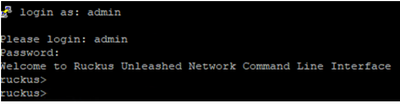
Here’s an example of PuTTY command line output from my lab for reference: (Bold fonts are commands to execute)
login as: admin
Please login: admin
Password:
Welcome to Ruckus Unleashed Network Command Line Interface
ruckus> en
ruckus# config
You have all rights in this mode.
ruckus(config)# wlan "Your Wi-Fi Name"
The WLAN service 'Your Wi-Fi Name' has been created. To save the WLAN service, type 'end' or 'exit'.
ruckus(config-wlan)# no qos directed-multicast
The command was executed successfully. To save the changes, type 'end' or 'exit'.
ruckus(config-wlan)# qos directed-threshold 0
The command was executed successfully. To save the changes, type 'end' or 'exit'.
ruckus(config-wlan)# end
The WLAN service 'Your Wi-Fi Name' has been updated and saved.
Your changes have been saved.
ruckus(config)# end
Your changes have been saved.
ruckus# ap-mode
You have all rights in this mode.
Once done with the commands, please reconnect and check.
Please let me know how it goes.
Thank you once again for your patience and cooperation.
Best regards,
Imran Sanadi
RUCKUS | Community Support Forums
17 REPLIES 17
Options
- Mark as New
- Bookmark
- Subscribe
- Mute
- Subscribe to RSS Feed
- Permalink
- Report Inappropriate Content
02-19-2026 03:43 AM
tnx, I will try it! It might take a few days: The AP is remote and I don't have easy get access to a local shell.
Options
- Mark as New
- Bookmark
- Subscribe
- Mute
- Subscribe to RSS Feed
- Permalink
- Report Inappropriate Content
02-19-2026 03:51 AM - edited 02-19-2026 10:55 AM
Hi @jp
Greetings!
Thank you for your response and the update.
Execute Configuration Commands
Once the upgrade is complete, please proceed with the following steps:
Run the following commands:
(Please replace “your Wi-Fi name” with your actual Wi-Fi/SSID name, enclosed in double quotes if it contains spaces)
ruckus> en
ruckus# config
ruckus(config)# wlan "your Wi-Fi name"
ruckus(config-wlan)# no qos directed-multicast
ruckus(config-wlan)# qos directed-threshold 0
ruckus(config-wlan)# end
ruckus(config)# end
This configuration may help resolve the issue.
Here’s an example of PuTTY command line output from my lab for reference: (Bold fonts are commands to execute)
login as: admin
Please login: admin
Password:
Welcome to Ruckus Unleashed Network Command Line Interface
ruckus> en
ruckus# config
You have all rights in this mode.
ruckus(config)# wlan "Your Wi-Fi Name"
The WLAN service 'Your Wi-Fi Name' has been created. To save the WLAN service, type 'end' or 'exit'.
ruckus(config-wlan)# no qos directed-multicast
The command was executed successfully. To save the changes, type 'end' or 'exit'.
ruckus(config-wlan)# qos directed-threshold 0
The command was executed successfully. To save the changes, type 'end' or 'exit'.
ruckus(config-wlan)# end
The WLAN service 'Your Wi-Fi Name' has been updated and saved.
Your changes have been saved.
ruckus(config)# end
Your changes have been saved.
ruckus# ap-mode
You have all rights in this mode.
Once done with the commands, please reconnect and check.
Please let me know how it goes.
Thank you once again for your patience and cooperation.
Best regards,
Imran Sanadi
RUCKUS | Community Support Forums
Options
- Mark as New
- Bookmark
- Subscribe
- Mute
- Subscribe to RSS Feed
- Permalink
- Report Inappropriate Content
02-19-2026 07:20 AM
Btw, my AP is running in gateway mode, I guess directedDHCP is not relevant. But we'll see.
Options
- Mark as New
- Bookmark
- Subscribe
- Mute
- Subscribe to RSS Feed
- Permalink
- Report Inappropriate Content
02-19-2026 10:36 AM
Hi @jp
Greetings!
Thank you for your response and the update.
You can check with disabling direct multicast.
Please let me know how it goes.
Thank you once again for your patience and cooperation.
Best regards,
Imran Sanadi
RUCKUS | Community Support Forums
Options
- Mark as New
- Bookmark
- Subscribe
- Mute
- Subscribe to RSS Feed
- Permalink
- Report Inappropriate Content
02-22-2026 03:16 PM
I tried it - no luck. Then I tried to connect the speaker to another 802.11bgn network: No luck either, it just refuses to join encrypted WLANs - it's definitely not a Ruckus problem. I will return this thing and buy something else... thanks a bunch to all of you, best support I ever experienced!!!
For the records, here's the (encrypted) WLAN it refused to connect:
The WLAN service 'Bruellwuerfel' has been loaded. 80211w-pmfservice, type 'end' or 'exit'. BSS Minrateshow
WLAN Service:
ID:
3:
NAME = Bruellwuerfel
Tx. Rate of Management Frame(2.4GHz) = 2.0Mbps
Tx. Rate of Management Frame(5GHz) = 6.0Mbps
Beacon Interval = 100ms
SSID = Bruellwuerfel
Description = Bruellwuerfel
Type = Standard Usage
Authentication = open
Encryption = wpa2
Algorithm = aes
Passphrase = ****************
FT Roaming = Disabled
802.11k Neighbor report = Disabled
Web Authentication = Disabled
Authentication Server = Disabled
Called-Station-Id type = wlan-bssid
Tunnel Mode = Disabled
Background Scanning = Enabled
Max. Clients = 100
Isolation per AP = Disabled
Isolation across AP = Disabled
Zero-IT Activation = Disabled
Priority = High
Load Balancing = Disabled
Band Balancing = Disabled
Wifi6 = Disabled
Service = Enabled
Dynamic PSK = Disabled
Rate Limiting Uplink = Disabled
PerSSID Rate Limiting Uplink = 0
Rate Limiting Downlink = Disabled
PerSSID Rate Limiting Downlink = 0
Auto-Proxy configuration:
Status = Disabled
Inactivity Timeout:
Status = Enabled
Timeout = 5 Minutes
VLAN-ID = 1
Dynamic VLAN = Disabled
Closed System = Disabled
Https Redirection = Disabled
OFDM-Only State = Disabled
Multicast Filter State = Disabled
Directed Multicast= Disabled
802.11d State = Disabled
Force DHCP State = Disabled
Force DHCP Timeout = 10
DHCP Option82:
Status = Disabled
Option82 sub-Option1 = Disabled
Option82 sub-Option2 = Disabled
Option82 sub-Option150 = Disabled
Option82 sub-Option151 = Disabled
Ignore unauthorized client statistic = Disabled
STA Info Extraction State = Enabled
BSS Minrate = Disabled
DTIM period = 1
Directed MC/BC Threshold = 0
Call Admission Control State = Disabled
PMK Cache Timeout= 720 minutes
PMK Cache for Reconnect= Enabled
NAS-ID Type= wlan-bssid
Roaming Acct-Interim-Update= Disabled
PAP Message Authenticator = Enabled
Send EAP-Failure = Disabled
L2/MAC = No ACLS
L3/L4/IP Address = No ACLS
L3/L4/IPv6 Address = No ACLS
Precedence = Default
Proxy ARP = Disabled
Device Policy = No ACLS
Vlan Pool = No Pools
Role based Access Control Policy = Disabled
SmartRoam = Disabled Roam-factor = 1
Allow List = No ACLS
URL Filtering = Disabled
Application Recognition & Control = Disabled
Apply ARC Policy = NO POLICY
WIFICalling Enabled= Disabled
WIFICalling Profile= 0
Client Flow Data Logging = Disabled
Wlan Bind = 2g
Client Connection Data = Disabled
Transient Client Management = Disabled
80211w-pmf = Disabled

Labels
-
AP Certificate error
1 -
AP Management
5 -
AP reporting
1 -
authentication fails
1 -
captive portal
1 -
Certificate
1 -
Client Management
1 -
DPSK
1 -
Guest Access
1 -
Guest Pass
1 -
Installation
1 -
IP Multicast
1 -
l2acl
1 -
LACP
1 -
laptop hp probook 430 g8
1 -
Mesh
1 -
Monitoring
1 -
Op
1 -
pfSense
1 -
R310
2 -
R550
1 -
Security
1 -
Solution Proposed
3 -
SSID
1 -
temporarily blocked
1 -
Unleashed
5 -
User Management
1 -
Web UI
1 -
Wired Throughput
1 -
Wireless Throughput
2 -
WLAN
1 -
WLAN Management
2 -
WPA3
1 -
WPA3-Enterprise
1
- « Previous
- Next »
