This website uses cookies. By clicking Accept, you consent to the use of cookies. Click Here to learn more about how we use cookies.
RUCKUS Community Forums are now in READ-ONLY mode while we migrate to a new platform.
You will still be able to read posts and knowledge articles, but will be unable to post new content until Go Live on the new platform Monday August 17.
Lennar Smart Home customers: please contact [email protected] for assistance during the week of August 9-17.

- Community
- RUCKUS Technologies
- RUCKUS Lennar Support
- Community Services
- RTF
- RTF Community
- Australia and New Zealand – English
- Brazil – Português
- China – 简体中文
- France – Français
- Germany – Deutsch
- Hong Kong – 繁體中文
- India – English
- Indonesia – bahasa Indonesia
- Italy – Italiano
- Japan – 日本語
- Korea – 한국어
- Latin America – Español (Latinoamérica)
- Middle East & Africa – English
- Netherlands – Nederlands
- Nordics – English
- North America – English
- Poland – polski
- Russia – Русский
- Singapore, Malaysia, and Philippines – English
- Spain – Español
- Taiwan – 繁體中文
- Thailand – ไทย
- Turkey – Türkçe
- United Kingdom – English
- Vietnam – Tiếng Việt
- EOL Products
Turn on suggestions
Auto-suggest helps you quickly narrow down your search results by suggesting possible matches as you type.
Showing results for
- RUCKUS Forums
- RUCKUS Technologies
- SZ / vSZ
- Guest Portal using Social Media Sign in - Facebook...
Options
- Subscribe to RSS Feed
- Mark Topic as New
- Mark Topic as Read
- Float this Topic for Current User
- Bookmark
- Subscribe
- Mute
- Printer Friendly Page
Guest Portal using Social Media Sign in - Facebook.

Options
- Mark as New
- Bookmark
- Subscribe
- Mute
- Subscribe to RSS Feed
- Permalink
- Report Inappropriate Content
09-10-2022 04:34 PM - edited 02-05-2024 09:50 AM
Summary:
In this community article, we will look at the steps involved in setting up Guest Portal authentication via Social Media Login, in this case via Facebook.
Test Environment:
- SmartZone/Virtual SmartZone [Essentials/High-Scale] (Controller), version 6.1.1.x.
- R350 (Access Point)
Setup Procedure:
- In the vSZ/SZ GUI, navigate to ‘Network -> Wireless LANs’ and select ‘Create'.
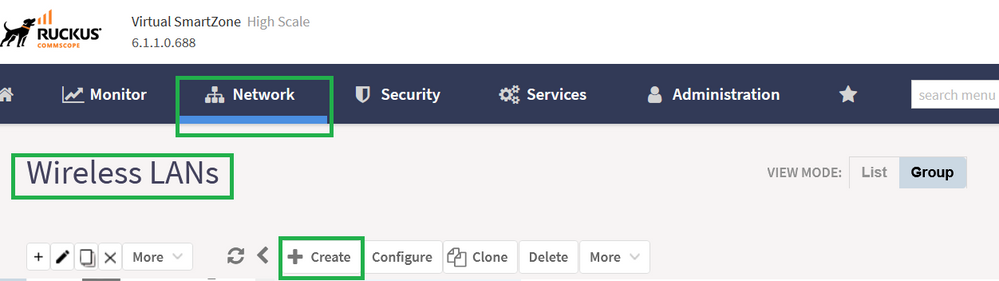
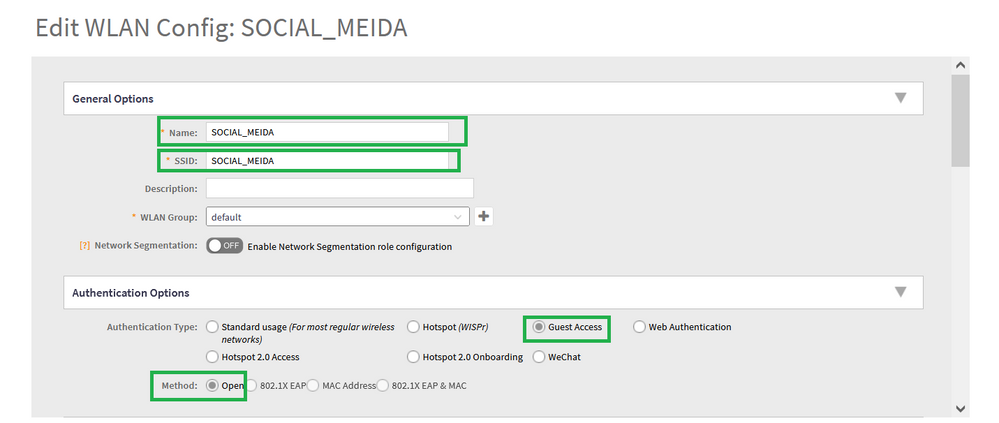
Create the Guest WLAN.
Below example using WLAN name as "SOCIAL_MEIDA" and Authentication Type as "Guest Access" and Method as "Open"
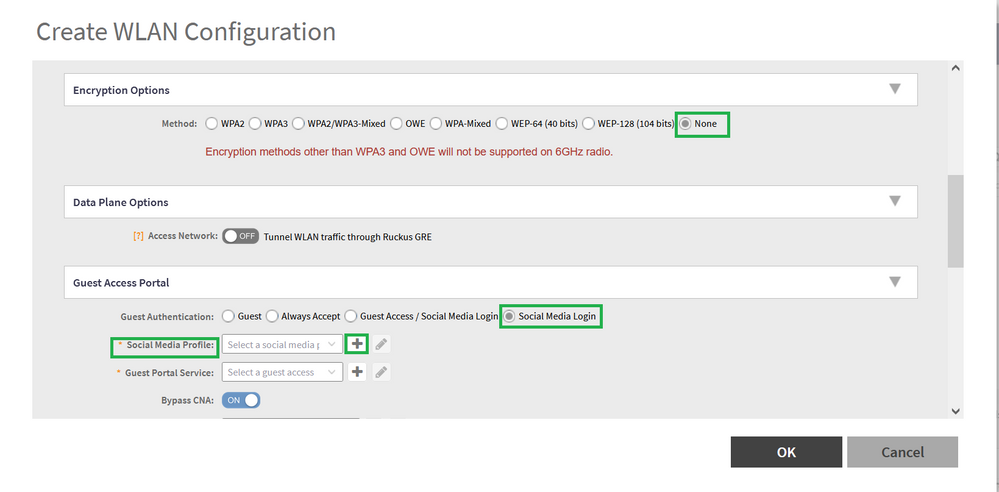
Encryption Options is selected as 'Open' (but it can change based on requirement).
Under Guest Access Portal, select 'Social Media Login'
In 'Social Media Profile' click '+'icon to create the profile
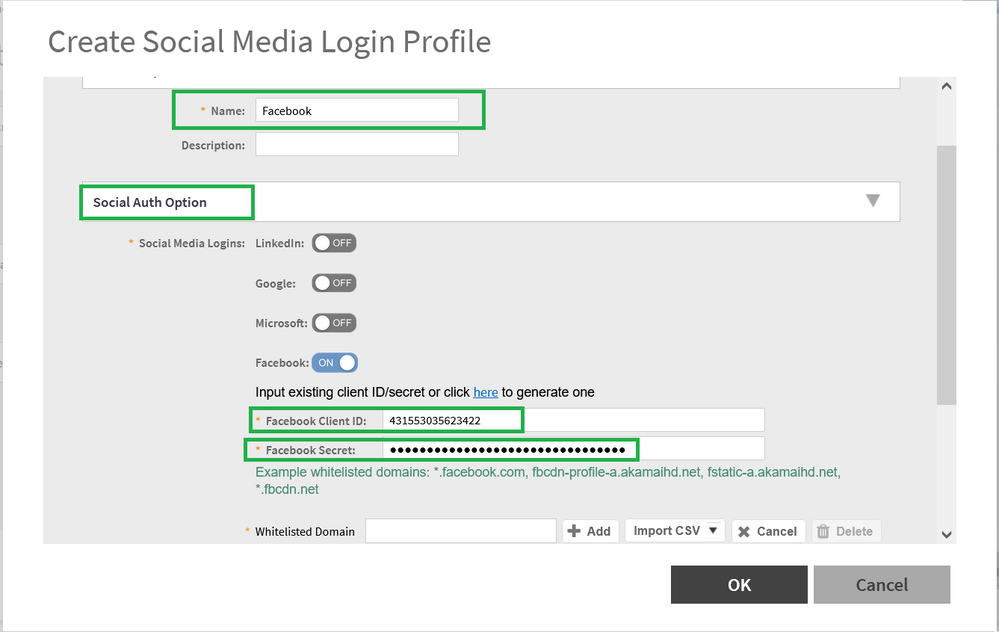
'Name' the social media profile and in Social Auth Option turn 'ON' Facebook and click the 'here' button
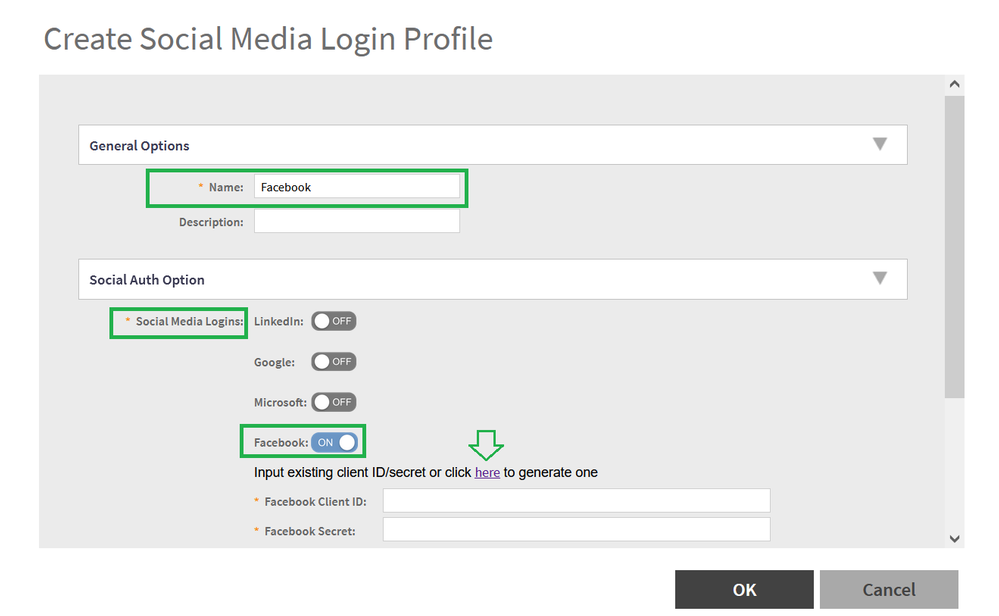
It will redirect to the Facebook Developer account.
Alternatively, we can use the https://developers.facebook.com --> My Apps
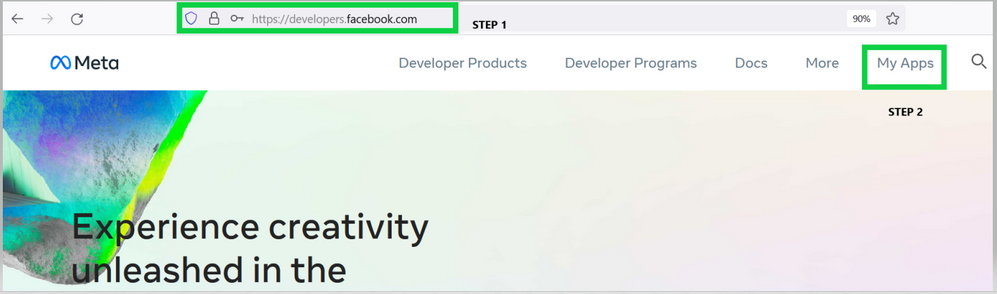
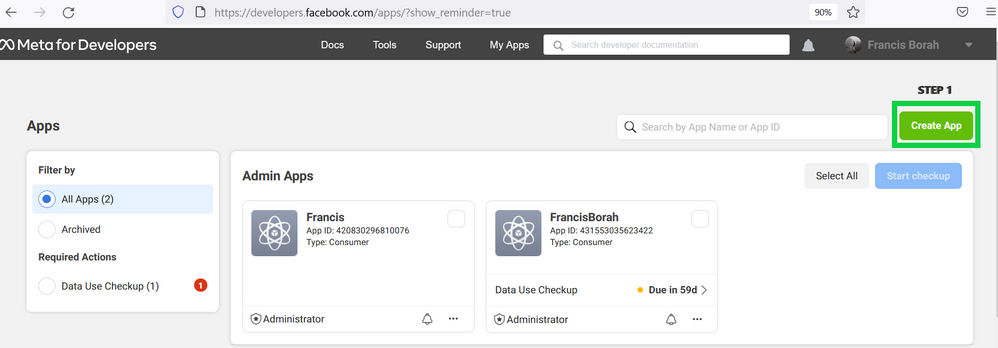
Next, log in with your Facebook credentials and select 'Create App'
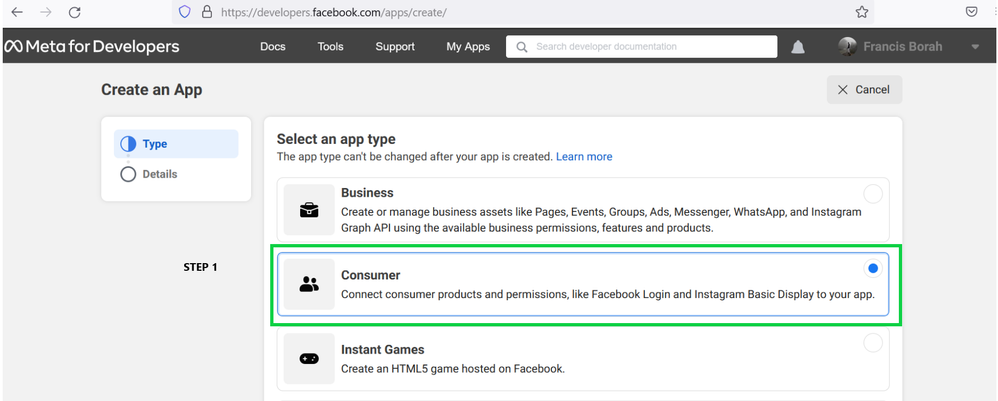
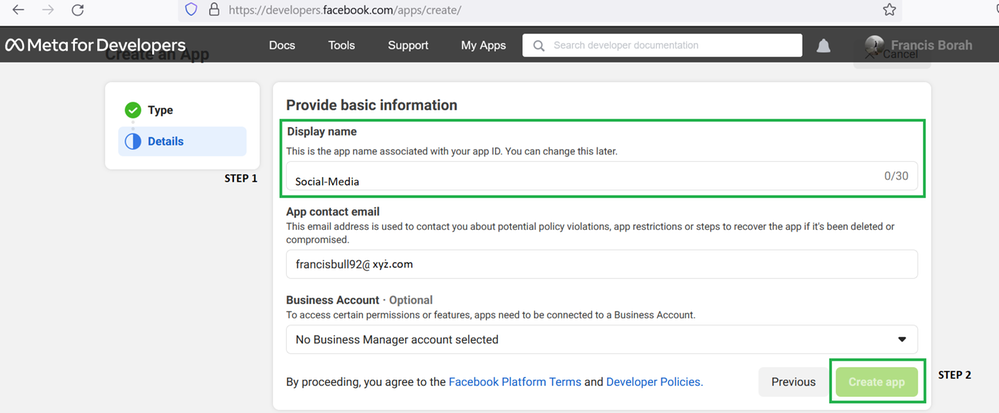
Select App Type as 'Consumer' and provide a name on Display name (Here example is 'Social-Media').
Then click 'Create App'
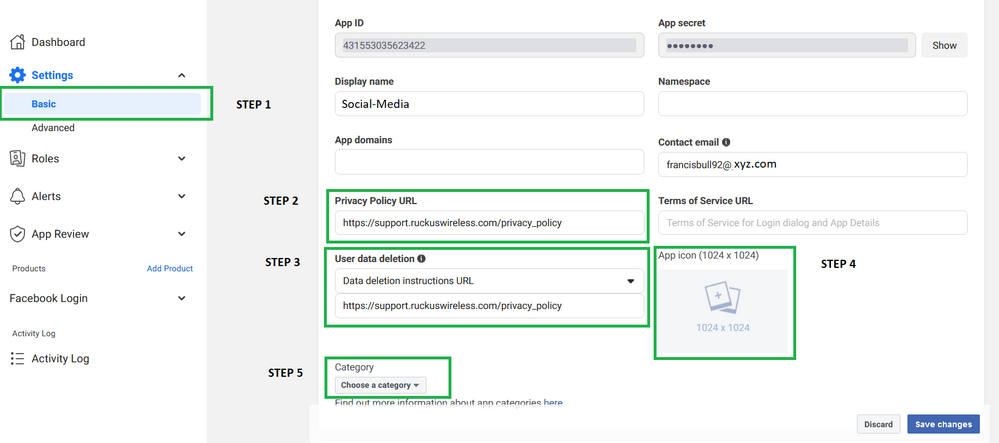
Next in 'Settings' --> 'Basic' update the below information:
1. Privacy Policy URL: https://support.ruckuswireless.com/privacy_policy
2. User data deletion: https://support.ruckuswireless.com/privacy_policy
3. If needed update 'App Icon' and 'Category'
4. Website: https://support.ruckuswireless.com/
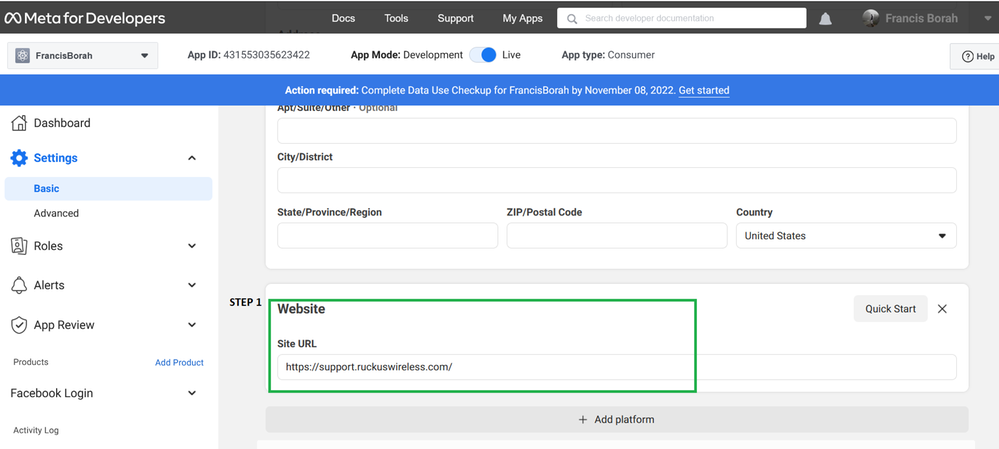
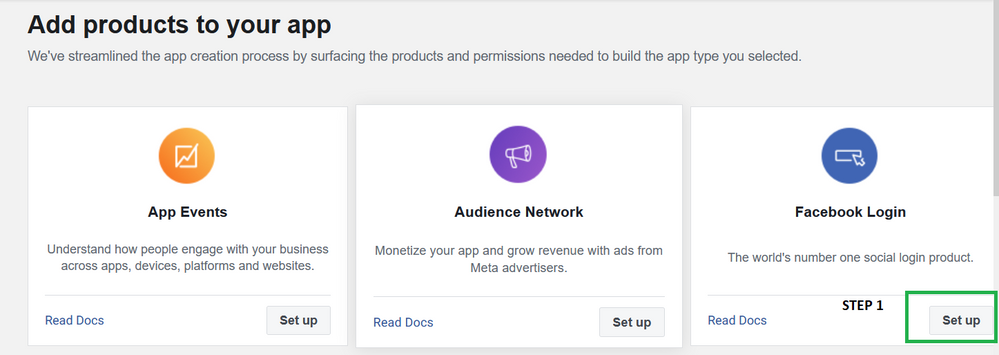
Then Add Product --> 'Facebook Login'
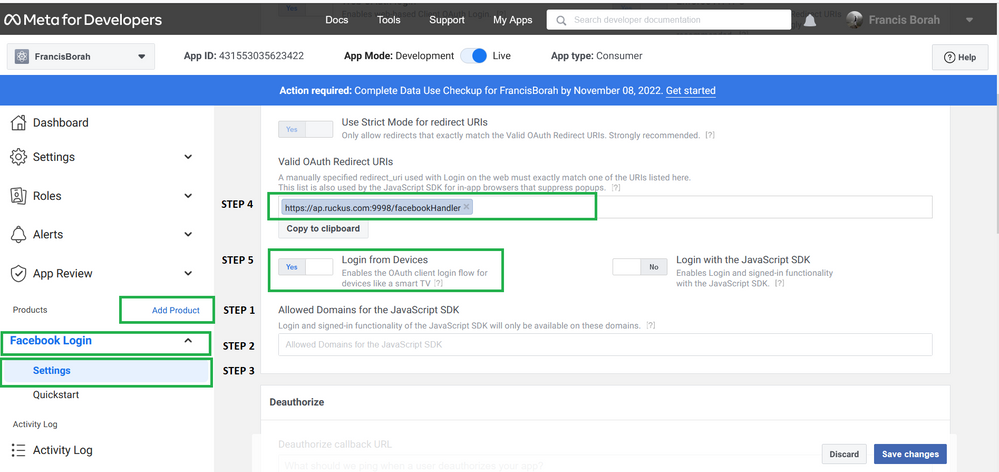
In Facebook Login, navigate to Settings and update the below:
1. Valid OAuth Redirect URIs: https://ap.ruckus.com:9998/facebookHandler
2. Login from Devices -> Yes
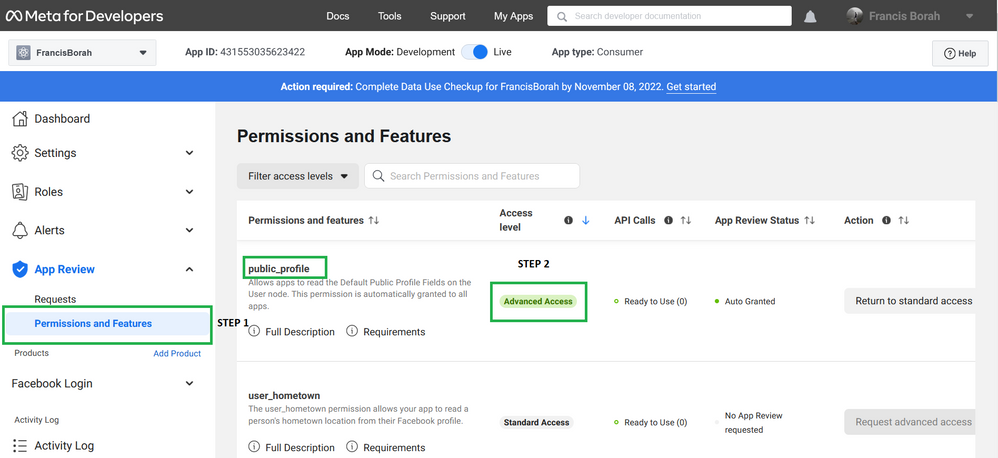
Next in App Review --> 'Permissions and Features' --> 'public_profile' --> select 'Get advanced access'

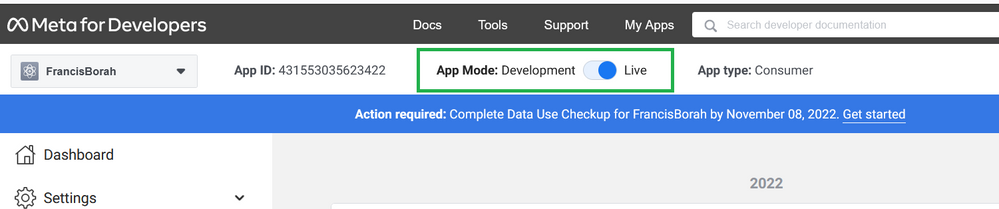
Finally, make the App Mode --> 'Live'
Now on SmartZone 'Social Media Profile' the Update the 'Facebook Client ID' and 'Facebook Secret' in Social Auth Option.

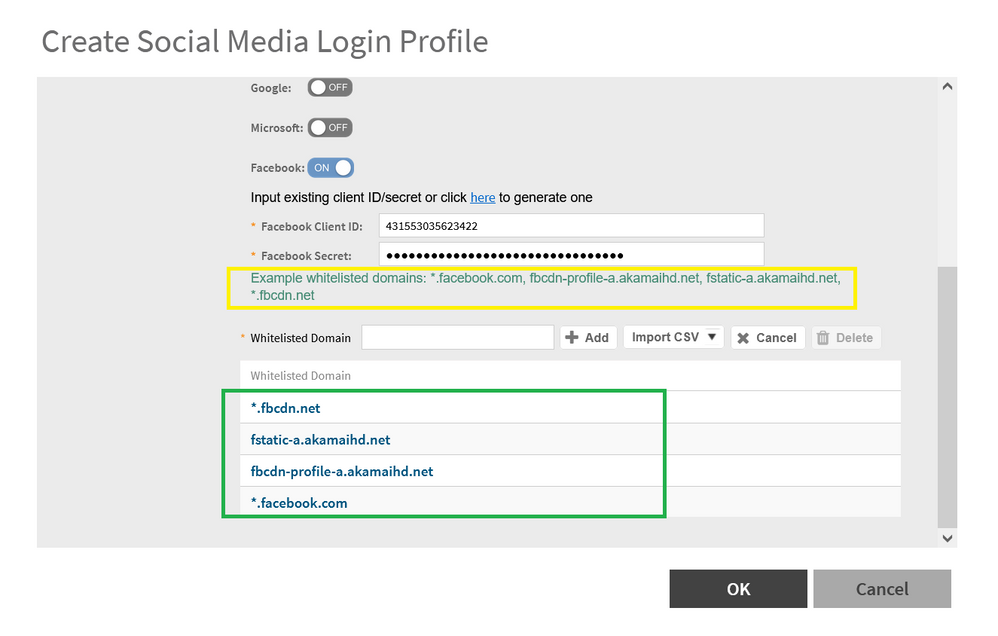
Then add the below Whitelisted Domains:
1. *.facebook.com
2. fbcdn-profile-a.akamaihd.net
3. fstatic-a.akamaihd.net
4. *.fbcdn.net
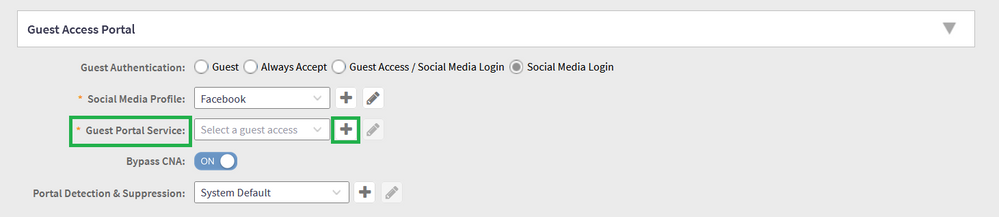
The next step is to create a 'Guest Portal Service' by clicking the '+' icon
Type the 'Portal name' and 'Save' (It can be modified based on requirement).
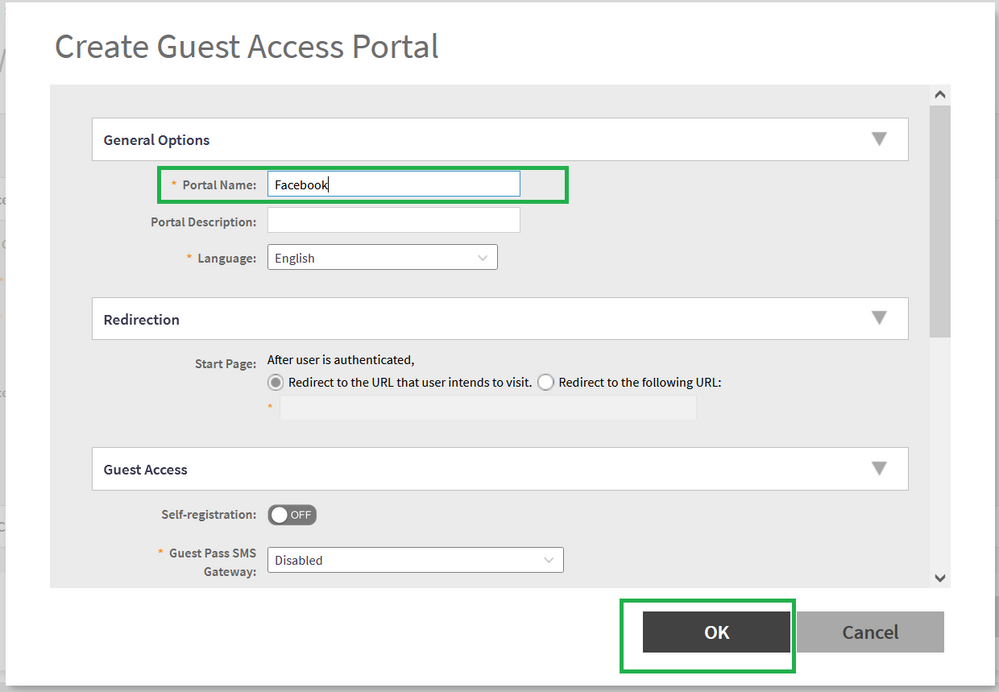
For this example, all other settings including VLAN assignment for end-user devices are set to the default values.
Next click 'OK'.
This configuration will be good to go ahead with Social media login using Facebook.
Regards,
Francis Borah
Labels:
- Labels:
-
Guest Access
-
RUCKUS Self-Help
Reply
1 REPLY 1

Options
- Mark as New
- Bookmark
- Subscribe
- Mute
- Subscribe to RSS Feed
- Permalink
- Report Inappropriate Content
04-15-2026 06:13 AM - edited 04-22-2026 03:42 AM
If Facebook login keeps looping, I’ve fixed that before by double‑checking the redirect URI and making sure the controller’s external URL matches what’s in the Facebook app settings. I also keep an image lookup tool like face2social in my pocket to confirm if guest profile photos are legit during tests, since it helps spot reused or fake accounts.

Labels
-
9210
1 -
AD
1 -
AP Controller Connectivity
2 -
AP Management
5 -
AP reporting
1 -
API Help
1 -
Client Management
4 -
er
1 -
Google
1 -
Guest Access
3 -
ICX Switch Management
1 -
IP Multicast
1 -
Proposed Solution
3 -
RADIUS
2 -
RUCKUS Self-Help
8 -
SmartZone
4 -
SmartZone or vSZ
6 -
Social Media
1 -
Solution Proposed
3 -
string
1 -
SZ ICX Connectivity
1 -
Traffic Management-
1 -
User Management
2 -
vSZ
2 -
Wifi
1 -
WLAN Management
2
- « Previous
- Next »
