This website uses cookies. By clicking Accept, you consent to the use of cookies. Click Here to learn more about how we use cookies.
RUCKUS Community Forums are now in READ-ONLY mode while we migrate to a new platform.
You will still be able to read posts and knowledge articles, but will be unable to post new content until Go Live on the new platform Monday August 17.
Lennar Smart Home customers: please contact [email protected] for assistance during the week of August 9-17.

- Community
- RUCKUS Technologies
- RUCKUS Lennar Support
- Community Services
- RTF
- RTF Community
- Australia and New Zealand – English
- Brazil – Português
- China – 简体中文
- France – Français
- Germany – Deutsch
- Hong Kong – 繁體中文
- India – English
- Indonesia – bahasa Indonesia
- Italy – Italiano
- Japan – 日本語
- Korea – 한국어
- Latin America – Español (Latinoamérica)
- Middle East & Africa – English
- Netherlands – Nederlands
- Nordics – English
- North America – English
- Poland – polski
- Russia – Русский
- Singapore, Malaysia, and Philippines – English
- Spain – Español
- Taiwan – 繁體中文
- Thailand – ไทย
- Turkey – Türkçe
- United Kingdom – English
- Vietnam – Tiếng Việt
- EOL Products
Turn on suggestions
Auto-suggest helps you quickly narrow down your search results by suggesting possible matches as you type.
Showing results for
- RUCKUS Forums
- RUCKUS Lennar Support
- RUCKUS Support for Lennar Homes
- Re: Unable to connect the Ruckus Unleashed App to ...
Options
- Subscribe to RSS Feed
- Mark Topic as New
- Mark Topic as Read
- Float this Topic for Current User
- Bookmark
- Subscribe
- Mute
- Printer Friendly Page

Options
- Mark as New
- Bookmark
- Subscribe
- Mute
- Subscribe to RSS Feed
- Permalink
- Report Inappropriate Content
11-03-2025 09:04 AM
Recently I had a power cut, since then I am unable to connect and manage my Ruckus unleashed WAP network using my IOS mobile phone. I am 100% entering the correct password and IP address, but when I attempt to login it says ‘login failed destination IP is not an unleashed IP’.
Could you please help me resolve as I am unable to contact the dealer who installed the system.
Thank you
Could you please help me resolve as I am unable to contact the dealer who installed the system.
Thank you
Solved! Go to Solution.
1 ACCEPTED SOLUTION


Options
- Mark as New
- Bookmark
- Subscribe
- Mute
- Subscribe to RSS Feed
- Permalink
- Report Inappropriate Content
11-03-2025 01:06 PM
Hi @nsmith2
Thank you for your response.
That’s great to hear! I was able to help you.
We truly appreciate your time and patience throughout this case.
Thank you once again for reaching out to the RUCKUS Lennar Home Community. Should you have any further questions or need assistance in the future, please don’t hesitate to contact us.
Wishing you a wonderful day ahead!
If your issue has been fully addressed, please click the Kudos button and mark the responses as an Accepted Solutions.
Best regards,
Imran Sanadi
RUCKUS | Lennar Home Community Support
44 REPLIES 44
Options
- Mark as New
- Bookmark
- Subscribe
- Mute
- Subscribe to RSS Feed
- Permalink
- Report Inappropriate Content
11-03-2025 11:37 AM
Hi Imran, I have logged into my Ruckus network via my laptop top and can confirm the SW version is the latest 200.15.6.212.27, hence up to date.
I am unable to send you a screenshot as I can’t reply directly to your email. Plus your system has just rejected my last reply stating it is SPAM.
I am unable to send you a screenshot as I can’t reply directly to your email. Plus your system has just rejected my last reply stating it is SPAM.
Options
- Mark as New
- Bookmark
- Subscribe
- Mute
- Subscribe to RSS Feed
- Permalink
- Report Inappropriate Content
11-03-2025 11:47 AM
Hi @nsmith2
Greetings!
Thank you for your response and the update.
Apologies for the inconvenience. Your posts have now been removed from the spam queue and approved.
When you open the Unleashed application on your mobile device, tap “Manage Network”, then log in using the same admin username and password that you use on your laptop. After that, check if you’re able to access the application successfully. (Please refer to the screenshot below.)
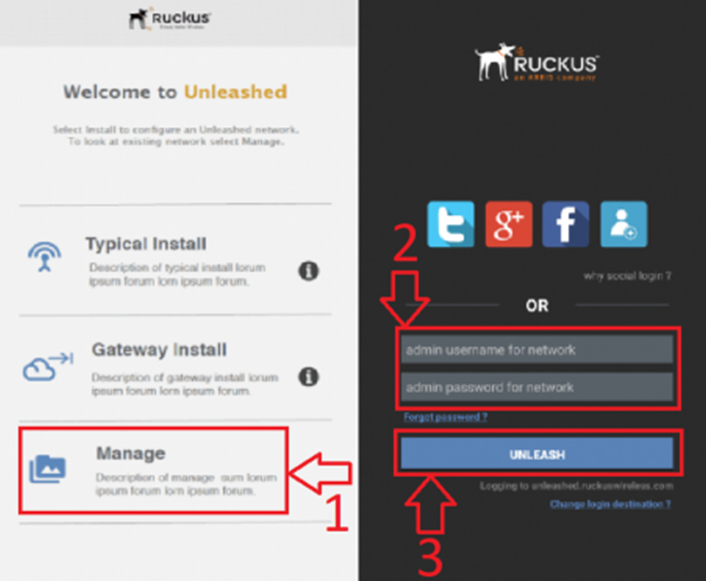
Please let me know how it goes.
Thank you once again for your patience and understanding.
Best regards,
Imran Sanadi
RUCKUS | Lennar Home Community Support
Options
- Mark as New
- Bookmark
- Subscribe
- Mute
- Subscribe to RSS Feed
- Permalink
- Report Inappropriate Content
11-03-2025 11:51 AM
Hi Imran, yes I am able to login now via the app 😊. But this makes no sense, as nothing has changed other than logging in via my laptop ? Can you help explain ?
Thanks
Thanks
Options
- Mark as New
- Bookmark
- Subscribe
- Mute
- Subscribe to RSS Feed
- Permalink
- Report Inappropriate Content
11-03-2025 12:05 PM
Hi @nsmith2
Thank you for the response and the update.
Please find answers to your queries.
On Web browser you can manager and configure in detail.
1. Logging in using the RUCKUS Unleashed Web Browser
Access Method:
Open a browser (Chrome, Edge, Safari, etc.) on a PC/laptop or mobile.
Type the Unleashed Master IP address (e.g., 192.168.0.1 or the local IP) in the address bar.
Login using the Admin credentials created during setup.
Purpose / Use Case:
Best for full configuration, management, and monitoring.
You can view all APs, clients, WLANs, system logs, and network settings.
Suitable for network administrators or advanced troubleshooting.
Key Points:
Provides complete functionality (similar to controller access).
Accessible only when connected to the same network (unless remote access is configured).
Interface is detailed and browser-based.
2. Logging in via “Manage Networks” in the Unleashed Mobile App
Access Method:
Open the Unleashed App (Android/iOS).
Tap “Manage Network”.
Login using the same admin username and password used in the web browser.
Purpose / Use Case:
For day-to-day management (viewing clients, WLANs, AP status, etc.).
Quick access to multiple Unleashed networks — ideal for installers or admins managing multiple sites.
Key Points:
Simplified mobile-friendly interface.
Works when your phone is connected to the same local Wi-Fi.
You can switch between multiple networks saved in the app.
Some advanced features are limited compared to the web interface.
3. Logging in using Destination IP Address in the Unleashed App
Access Method:
Open the Unleashed App.
Instead of using “Manage Networks”, select “Connect to IP” (or enter IP manually).
Enter the Unleashed Master AP’s IP address and admin credentials.
Purpose / Use Case:
Used when the app does not automatically detect the network or you’re accessing a specific IP directly.
Helpful for remote access (e.g., via VPN) or when auto-discovery fails.
Key Points:
Similar access level to “Manage Network” mode, but manual entry is needed.
Ideal for direct connection if the Master AP IP is known.
Requires network connectivity to that IP (locally or via VPN).
Please let me know if you have any queries in this regard.
Thank you again for your patience.
Best regards,
Imran Sanadi
RUCKUS | Lennar Home Community Support
Options
- Mark as New
- Bookmark
- Subscribe
- Mute
- Subscribe to RSS Feed
- Permalink
- Report Inappropriate Content
11-03-2025 12:33 PM
Hi Imran, I don’t understand why access on the laptop has enabled the mobile app to access the network ?

Labels
-
Access point
3 -
Access points
5 -
all lights blinking after reset icx 7150 switch
1 -
Amber
1 -
Amber System
2 -
AP
1 -
AP Management
1 -
Boot mode
1 -
bootloader
1 -
cli
1 -
Compatibility
1 -
Console
1 -
console access
1 -
dns
1 -
eero
2 -
eps
1 -
Frontier
1 -
Green Power
2 -
Hard reset
1 -
Heartbeat
1 -
Heartbeat loss recurring
2 -
Help
2 -
Help Needed
2 -
i Al
1 -
ICX
2 -
ICX 7150-C12p
7 -
ICX switch
4 -
ICX Switch Disconnected
1 -
ICX Switch Management
4 -
ICX-7150-C12
3 -
ICX-7150-C12P
1 -
Important Announcement
1 -
Installation
1 -
Internet Issue
2 -
Ive been
1 -
Lennar
3 -
Lennar Home
2 -
Lennar homes
25 -
Management Port
1 -
NAND flash memory
1 -
New
1 -
No POE
2 -
No power via Ethernet
1 -
password
1 -
Please
1 -
Poe
2 -
Poe not working
1 -
Power Outage
1 -
Power Outtage
1 -
Proposed Solution
1 -
R510
2 -
r510 no power
2 -
REBOOT
1 -
Recovery
1 -
Red LED
1 -
Remote access
1 -
Reset ICX username password
1 -
Return
1 -
RMA
3 -
Ruckus
2 -
Ruckus ICX 7150-C12P
4 -
RUCKUS Self-Help
1 -
RUKUS 7150 c12p
1 -
Setup
1 -
Software Recovery
1 -
Solution Proposed
1 -
Solution Proposed warranty
1 -
SPR
1 -
SSH
1 -
Switch
1 -
Telnet
1 -
Unleashed
3 -
Unresolved Issue
1 -
Upgrade
3 -
Upgrading R510
1 -
User Management
1 -
username
1 -
VPN streaming fail proxy not working Amazon prime video
1 -
Wifi
1 -
Wifi6
1 -
Wireless
3
- « Previous
- Next »
