This website uses cookies. By clicking Accept, you consent to the use of cookies. Click Here to learn more about how we use cookies.
RUCKUS Community Forums are now in READ-ONLY mode while we migrate to a new platform.
You will still be able to read posts and knowledge articles, but will be unable to post new content until Go Live on the new platform Monday August 17.
Lennar Smart Home customers: please contact [email protected] for assistance during the week of August 9-17.

- Community
- RUCKUS Technologies
- RUCKUS Lennar Support
- Community Services
- RTF
- RTF Community
- Australia and New Zealand – English
- Brazil – Português
- China – 简体中文
- France – Français
- Germany – Deutsch
- Hong Kong – 繁體中文
- India – English
- Indonesia – bahasa Indonesia
- Italy – Italiano
- Japan – 日本語
- Korea – 한국어
- Latin America – Español (Latinoamérica)
- Middle East & Africa – English
- Netherlands – Nederlands
- Nordics – English
- North America – English
- Poland – polski
- Russia – Русский
- Singapore, Malaysia, and Philippines – English
- Spain – Español
- Taiwan – 繁體中文
- Thailand – ไทย
- Turkey – Türkçe
- United Kingdom – English
- Vietnam – Tiếng Việt
- EOL Products
Turn on suggestions
Auto-suggest helps you quickly narrow down your search results by suggesting possible matches as you type.
Showing results for
- RUCKUS Forums
- RUCKUS Technologies
- Unleashed
- jbl 500 authentics connection problems
Options
- Subscribe to RSS Feed
- Mark Topic as New
- Mark Topic as Read
- Float this Topic for Current User
- Bookmark
- Subscribe
- Mute
- Printer Friendly Page

Options
- Mark as New
- Bookmark
- Subscribe
- Mute
- Subscribe to RSS Feed
- Permalink
- Report Inappropriate Content
02-11-2026 10:54 AM
Hi pack ;-),
I ran into a problem with connecting a jbl 500 authentics speaker to Ruckus Unleashed (latest available version) on an R320: I can connect it to a WLAN set up without a password, but as soon as I set up WPA2, WPA3 or WPA2/3 combined it won't connect any more (the setup app simply stays with the message "connecting...". All attempts to reset the speaker, delete the WLAN, etc. failed.
Any ideas on this? My falback now is to have an open WLAN which just allows one client, but obviously this is far from an ideal solution. I also failed with setting up MAC access control, it won't connect either.
Cheers, Joachim.
Solved! Go to Solution.
2 ACCEPTED SOLUTIONS


Options
- Mark as New
- Bookmark
- Subscribe
- Mute
- Subscribe to RSS Feed
- Permalink
- Report Inappropriate Content
02-18-2026 08:20 PM
Hi,
Could you try the below steps which was having similar issue with Sonos speaker>
We have the fix applied in later version, 200.15 is the last version supported for R320.
But try this workaround from CLI and check.
https://community.ruckuswireless.com/t5/RUCKUS-Support-for-Lennar-Homes/Cannot-connect-Sonos-wireles...


Options
- Mark as New
- Bookmark
- Subscribe
- Mute
- Subscribe to RSS Feed
- Permalink
- Report Inappropriate Content
02-19-2026 03:51 AM - edited 02-19-2026 10:55 AM
Hi @jp
Greetings!
Thank you for your response and the update.
Execute Configuration Commands
Once the upgrade is complete, please proceed with the following steps:
Run the following commands:
(Please replace “your Wi-Fi name” with your actual Wi-Fi/SSID name, enclosed in double quotes if it contains spaces)
ruckus> en
ruckus# config
ruckus(config)# wlan "your Wi-Fi name"
ruckus(config-wlan)# no qos directed-multicast
ruckus(config-wlan)# qos directed-threshold 0
ruckus(config-wlan)# end
ruckus(config)# end
This configuration may help resolve the issue.
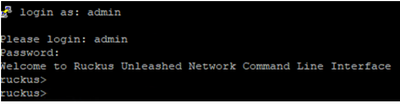
Here’s an example of PuTTY command line output from my lab for reference: (Bold fonts are commands to execute)
login as: admin
Please login: admin
Password:
Welcome to Ruckus Unleashed Network Command Line Interface
ruckus> en
ruckus# config
You have all rights in this mode.
ruckus(config)# wlan "Your Wi-Fi Name"
The WLAN service 'Your Wi-Fi Name' has been created. To save the WLAN service, type 'end' or 'exit'.
ruckus(config-wlan)# no qos directed-multicast
The command was executed successfully. To save the changes, type 'end' or 'exit'.
ruckus(config-wlan)# qos directed-threshold 0
The command was executed successfully. To save the changes, type 'end' or 'exit'.
ruckus(config-wlan)# end
The WLAN service 'Your Wi-Fi Name' has been updated and saved.
Your changes have been saved.
ruckus(config)# end
Your changes have been saved.
ruckus# ap-mode
You have all rights in this mode.
Once done with the commands, please reconnect and check.
Please let me know how it goes.
Thank you once again for your patience and cooperation.
Best regards,
Imran Sanadi
RUCKUS | Community Support Forums
17 REPLIES 17
Options
- Mark as New
- Bookmark
- Subscribe
- Mute
- Subscribe to RSS Feed
- Permalink
- Report Inappropriate Content
02-11-2026 12:22 PM - edited 02-11-2026 12:29 PM
Hi @jp
Greetings!!!
Thank you for reaching out to the RUCKUS Community Forums.
R320 may be on a older hardware, make sure:
- Running latest Web Unleashed system supported firmware
- Not using new security defaults introduced in newer builds
That may help, let us know.
Thank you again.
Best regards,
Imran Sanadi
RUCKUS | Community Support
Options
- Mark as New
- Bookmark
- Subscribe
- Mute
- Subscribe to RSS Feed
- Permalink
- Report Inappropriate Content
02-12-2026 06:53 AM
Well, I run the latest version available via the update check.
> Not using new security defaults introduced in newer builds
What exactly do you mean here? I did not change anything outside the GUI.
Options
- Mark as New
- Bookmark
- Subscribe
- Mute
- Subscribe to RSS Feed
- Permalink
- Report Inappropriate Content
02-12-2026 07:59 AM
Hi @jp
Greetings!!!
Thank you for the response.
Recent Unleashed firmware versions introduce stricter WLAN security defaults such as PMF, WPA3 transition mode, and advanced roaming features. Some IoT devices do not fully support these enhancements and may fail to complete authentication. Creating a WPA2-only WLAN with PMF disabled is recommended for testing.
However, please consider mentioned steps:
1. First Suspect - WPA3 / Mixed Mode
Many IoT devices say WPA3 supported but don’t actually handle transition mode well.
Try creating a test WLAN with:
WPA2-PSK only
Encryption = AES only
Disable WPA3
No mixed WPA2/WPA3
If it connects - you found the issue.
2. Disable Advanced Security Features (Very Common Cause)
On the WLAN config:
Go to:
WLAN >> Edit >> Advanced Options
Temporarily disable:
PMF / Management Frame Protection (set to Optional or Disabled)
Fast BSS Transition (802.11r)
OKC / Opportunistic Key Caching
802.11k
802.11v
3. Check Band Steering / 5GHz Issues
Some JBL speakers struggle with 5GHz during onboarding.
Try:
Create 2.4GHz only WLAN
Disable band steering
Channel width = 20MHz
Lastly, recommended "IoT Friendly" Test WLAN Profile
Just for testing:
WPA2-PSK (AES)
2.4GHz only
PMF Disabled
No 11r/k/v
No Band Steering
No Client Isolation
No MAC filtering
Simple PSK
If this works >> re-enable features one by one to find the breaking point.
Hope that helps.
Thank you again.
Best regards,
Imran Sanadi
RUCKUS | Community Support Forums
Options
- Mark as New
- Bookmark
- Subscribe
- Mute
- Subscribe to RSS Feed
- Permalink
- Report Inappropriate Content
02-16-2026 04:18 AM
Hi @jp
Greetings!!!
I trust this message finds you well.
I kindly request an update on the status of the issue.
Thank you.
Best regards,
Imran Sanadi
RUCKUS |Community Support Forums

Labels
-
AP Certificate error
1 -
AP Management
5 -
AP reporting
1 -
authentication fails
1 -
captive portal
1 -
Certificate
1 -
Client Management
1 -
DPSK
1 -
Guest Access
1 -
Guest Pass
1 -
Installation
1 -
IP Multicast
1 -
l2acl
1 -
LACP
1 -
laptop hp probook 430 g8
1 -
Mesh
1 -
Monitoring
1 -
Op
1 -
pfSense
1 -
R310
2 -
R550
1 -
Security
1 -
Solution Proposed
3 -
SSID
1 -
temporarily blocked
1 -
Unleashed
5 -
User Management
1 -
Web UI
1 -
Wired Throughput
1 -
Wireless Throughput
2 -
WLAN
1 -
WLAN Management
2 -
WPA3
1 -
WPA3-Enterprise
1
- « Previous
- Next »
