Steps to setup Ruckus Unleashed using your Mobile:
A) Connecting to the Access Point
1. On your device, open the list of available Wi-Fi networks.
2. Look for a network named “Configure.Me-1807D0”, where 1807D0 represents the last six digits of your Access Point’s MAC address.
Note: This part of the name is unique to each device.
3. Select and connect to this network.
4. After connecting, please wait a moment while your device establishes communication with the Access Point. This may take a short time.
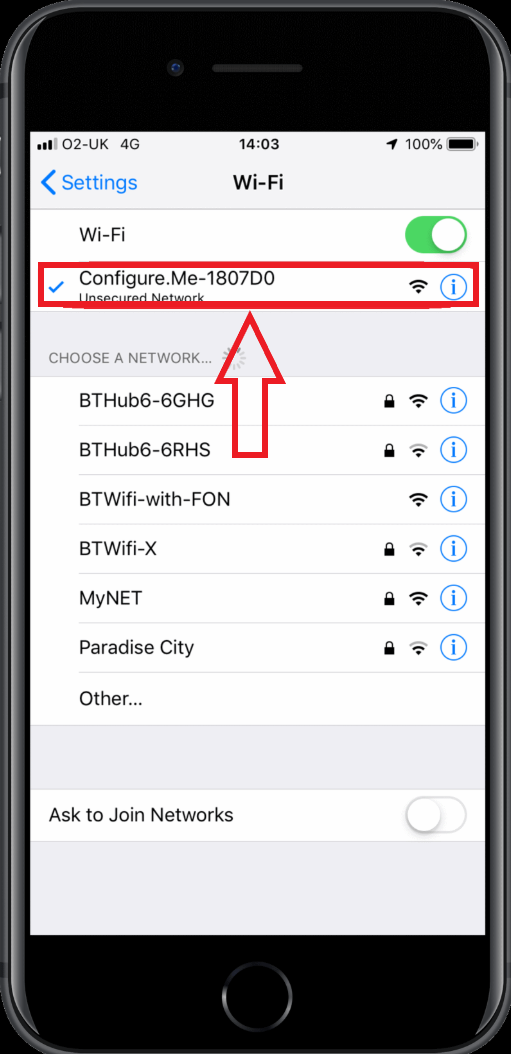
Figure 1: Connect to the network
 Starting the Setup
1. After connecting to the Configure.Me network, wait until the Wi-Fi symbol appears in the status bar at the top of your screen.
This indicates that the connection has been established.
C) Launch the Unleashed app
1. Open the Ruckus Unleashed app on your mobile device and Select the Typical Install to start the setup procedure.
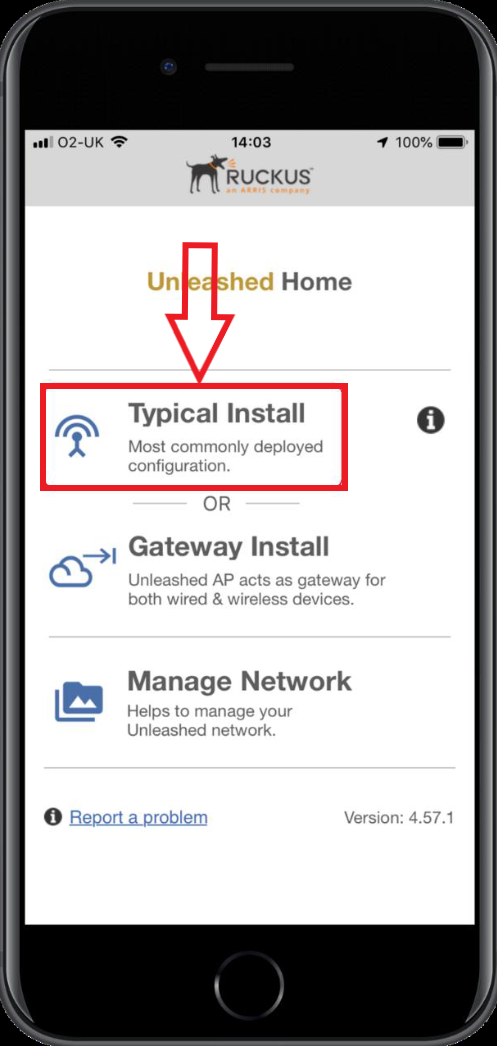
Figure 2: Opening the Unleashed app
2. Press the Blue Start button to begin the setup process.
(The Access Point will be set to Automatic (DHCP) by default. This means it will automatically receive an IP address from your ISP’s modem/router).
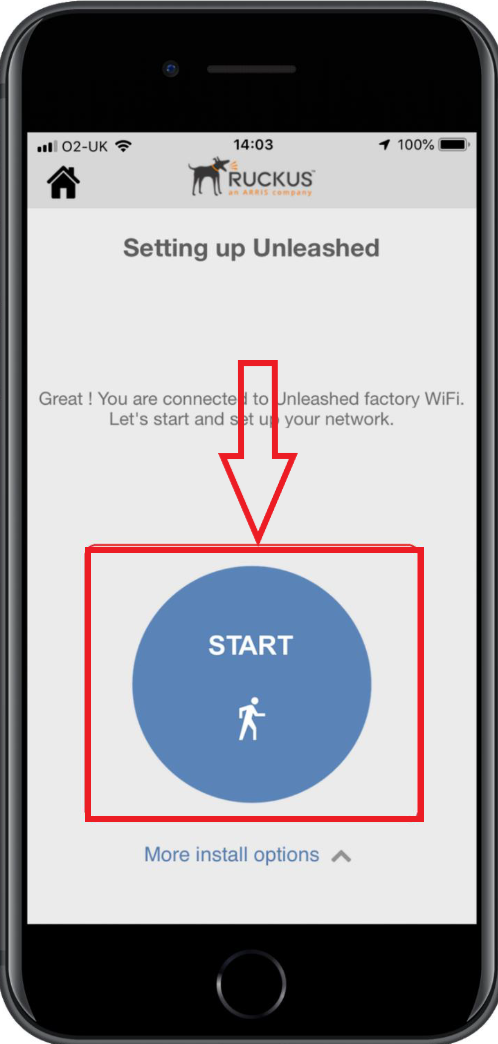
Figure 3: Setting the Unleashed app
3. By default, the Access Point is configured to Automatic (DHCP) mode, which allows it to obtain an IP address automatically from your DHCP server, typically from your Internet Service Provider’s (ISP) router or modem.
D) Create Your Wi-Fi Network
1. Set your Wi-Fi network name (SSID). Choose a name different from your existing ISP-provided Wi-Fi to avoid confusion.
2. Set a strong Wi-Fi password.
3. Select the country where the Access Point is located.
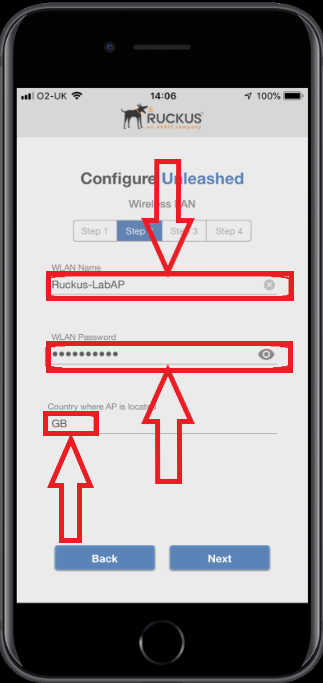
Figure 4: Setting up Wireless Network
E) Create Admin credentials
1. Set up a secure admin username and password for managing your network.
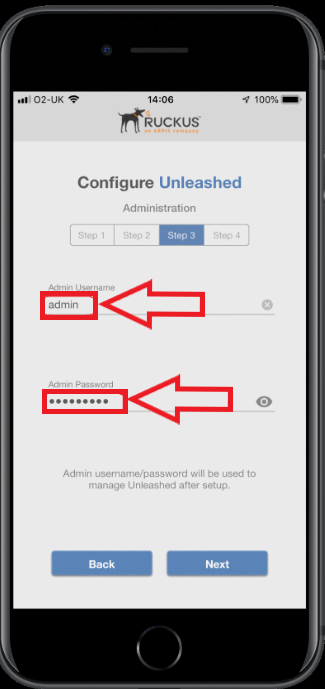
Figure 5: Creating Admin credentials
2. Add a password recovery email address and a security question for account recovery.
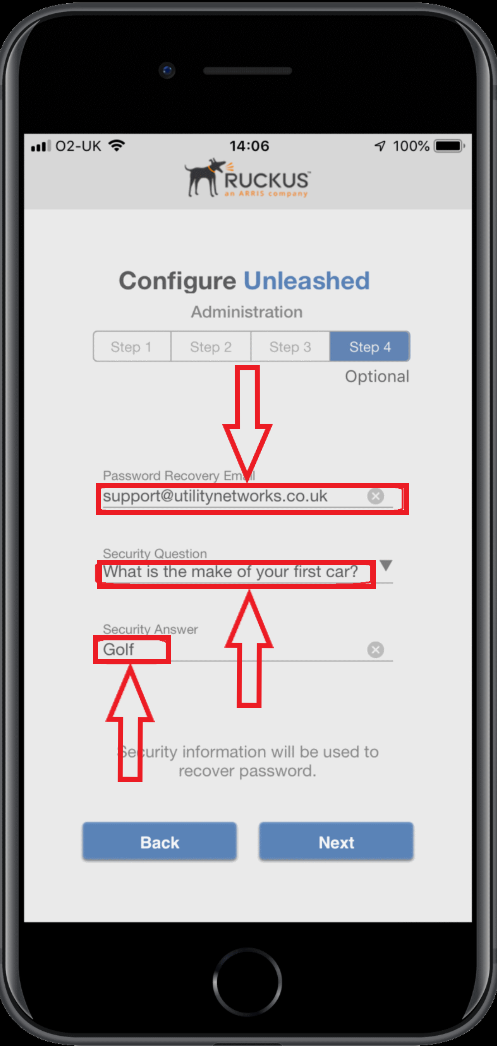
Figure 6: Creating Admin credentials
F) Review and Finish
1. Review all your settings and make sure your username and password are correct.
2. It is recommended to note down your configuration details for future reference.
Once everything looks good, tap Finish.
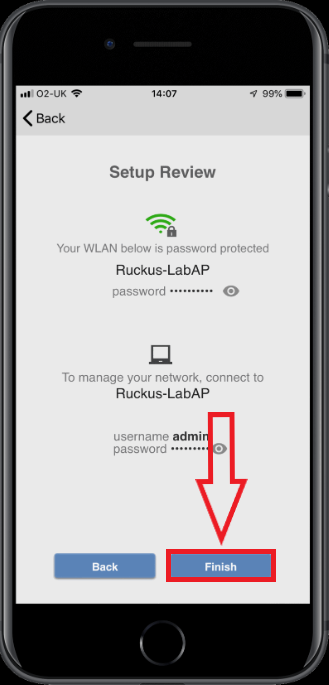
Figure 7: Reviewing the setup
G) Finalize Setup
1. The Access point will now reboot.
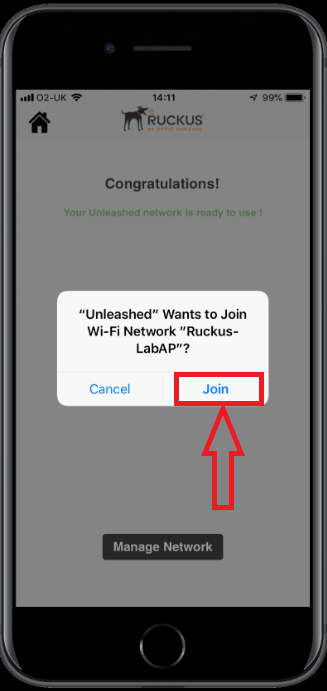
Figure 8: Joining the new network
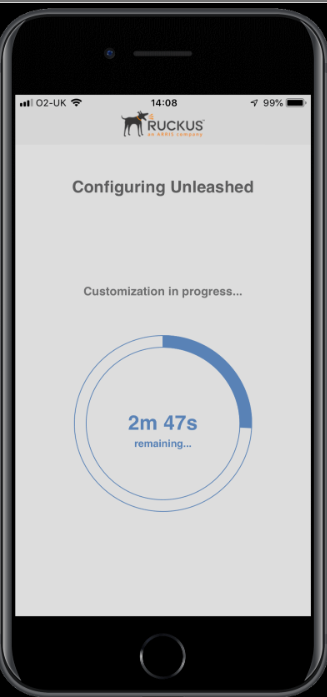
Figure 9: Connecting to new SSID
2. After the reboot is complete, reconnect your device to the new Wi-Fi network (SSID) you just created.
