Switch Product Series supported on RUCKUS One
- ICX 7150
- ICX 7550
- ICX 7650
- ICX 7850
Link reference:
Devices used in Lab:
- Ruckus Cloud R1
- Switch model ICX7150-24P-4X10GR version 8095g
Step 1:
Add the switch details in the cloud as shown below
Go to Wired -> Switch list
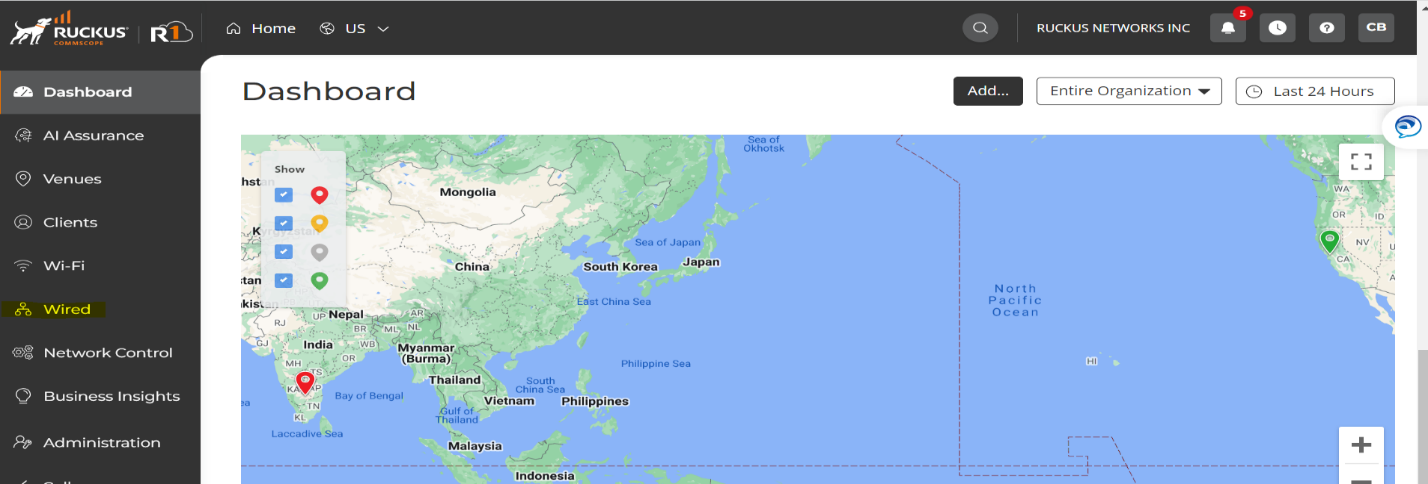
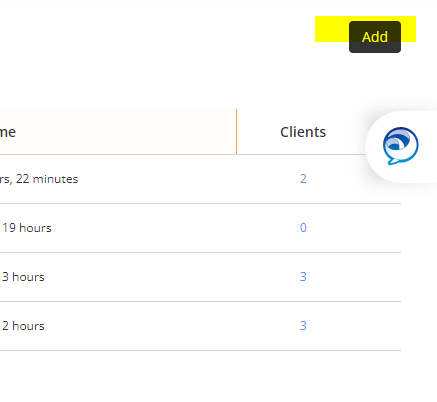
Click on “Add” option in the top right corner
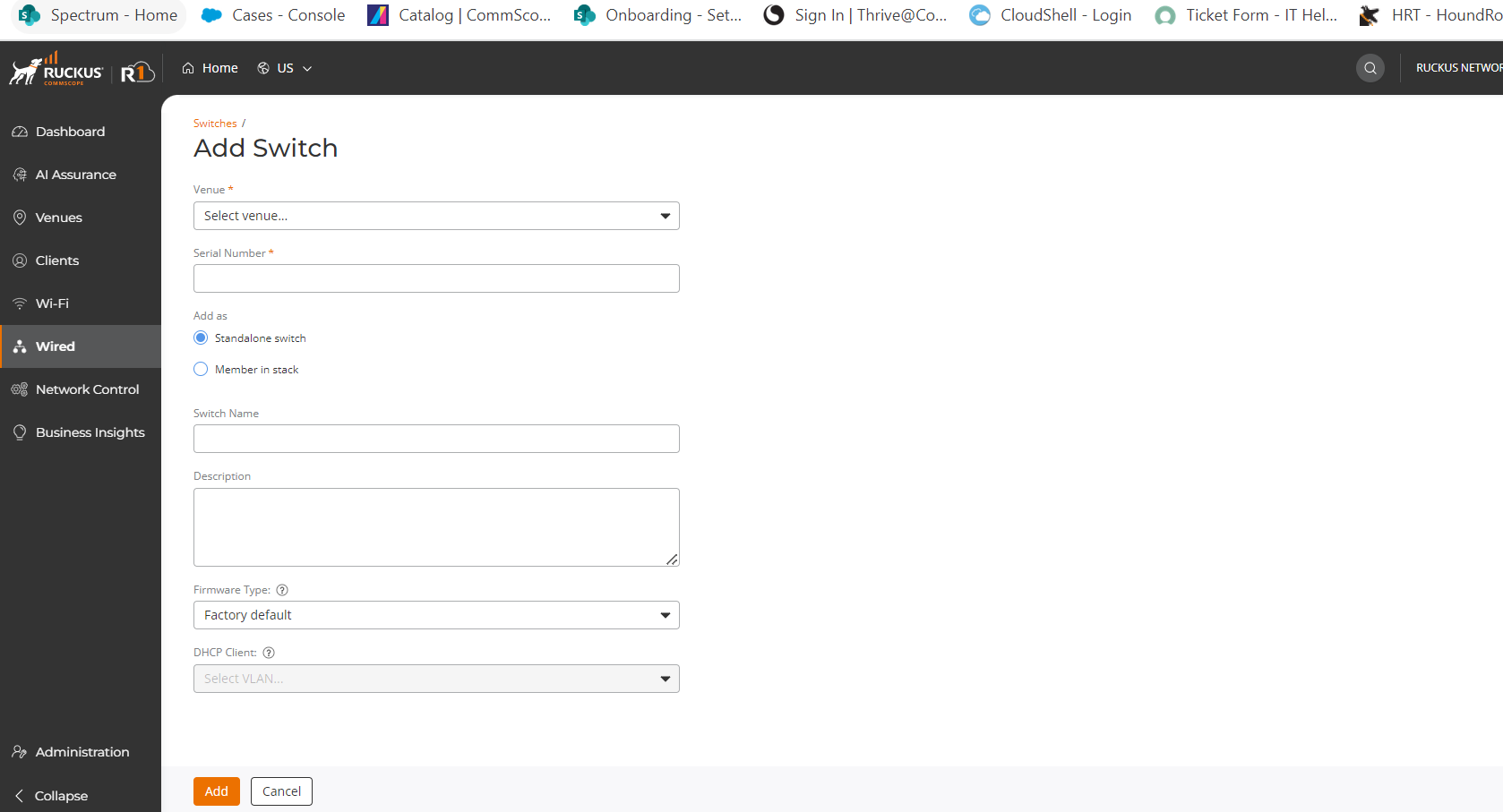
You will see the below options to add the switch
Step 2:
Add other details like. Serial number, Venue , Switch is standalone / Stack and switch name
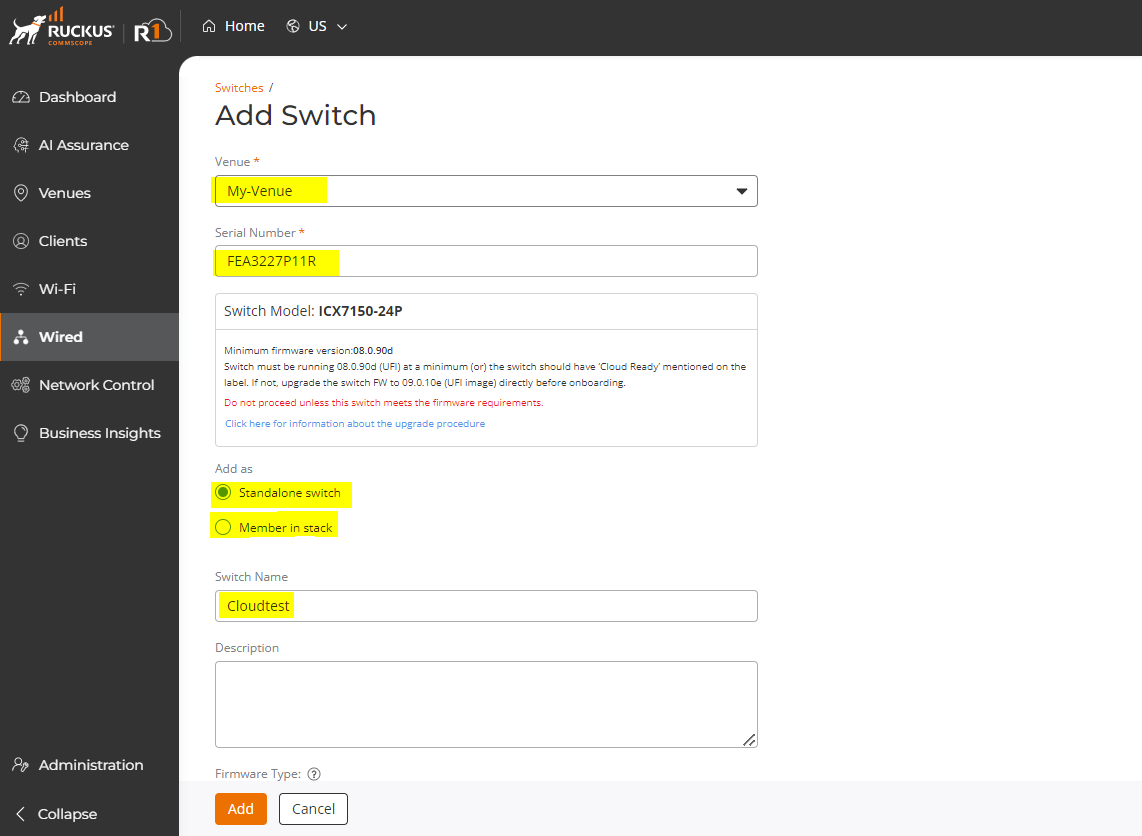
Switch serial number can be identified from “Show version” output
show version
Copyright (c) Ruckus Networks, Inc. All rights reserved.
UNIT 1: compiled on Jan 31 2023 at 21:50:36 labeled as SPS09010e
(29360128 bytes) from Primary SPS09010e.bin (UFI)
SW: Version 09.0.10eT211
Compressed Primary Boot Code size = 786944, Version:10.1.25T225 (mnz10125)
Compiled on Mon Aug 8 11:58:28 2022
HW: Stackable ICX7150-24-POE
==========================================================================
UNIT 1: SL 1: ICX7150-24P-4X10GR POE 24-port Management Module
Serial #:FEA3227P11R
Software Package: BASE_SOFT_PACKAGE
Current License: 4X10GR
P-ASIC 0: type B160, rev 11 Chip BCM56160_B0
==========================================================================
UNIT 1: SL 2: ICX7150-2X1GC 2-port 2G Module
==========================================================================
UNIT 1: SL 3: ICX7150-4X10GF 4-port 40G Module
==========================================================================
1000 MHz ARM processor ARMv7 88 MHz bus
8 MB boot flash memory
2 GB code flash memory
1 GB DRAM
STACKID 1 system uptime is 11 hour(s) 55 minute(s) 18 second(s)
The system started at 19:13:23 GMT+00 Wed Apr 26 2023
The system : started=warm start reloaded=by "reload"
Step 3:
Make sure the below commands are present in the switch which is in factory default from CLI
- manager registrar
- manager port-list 987
Step 4:
- Run “Cloudtest(config)# no manager disable”
- Run “Cloudtest# manager connect”
Step 5:
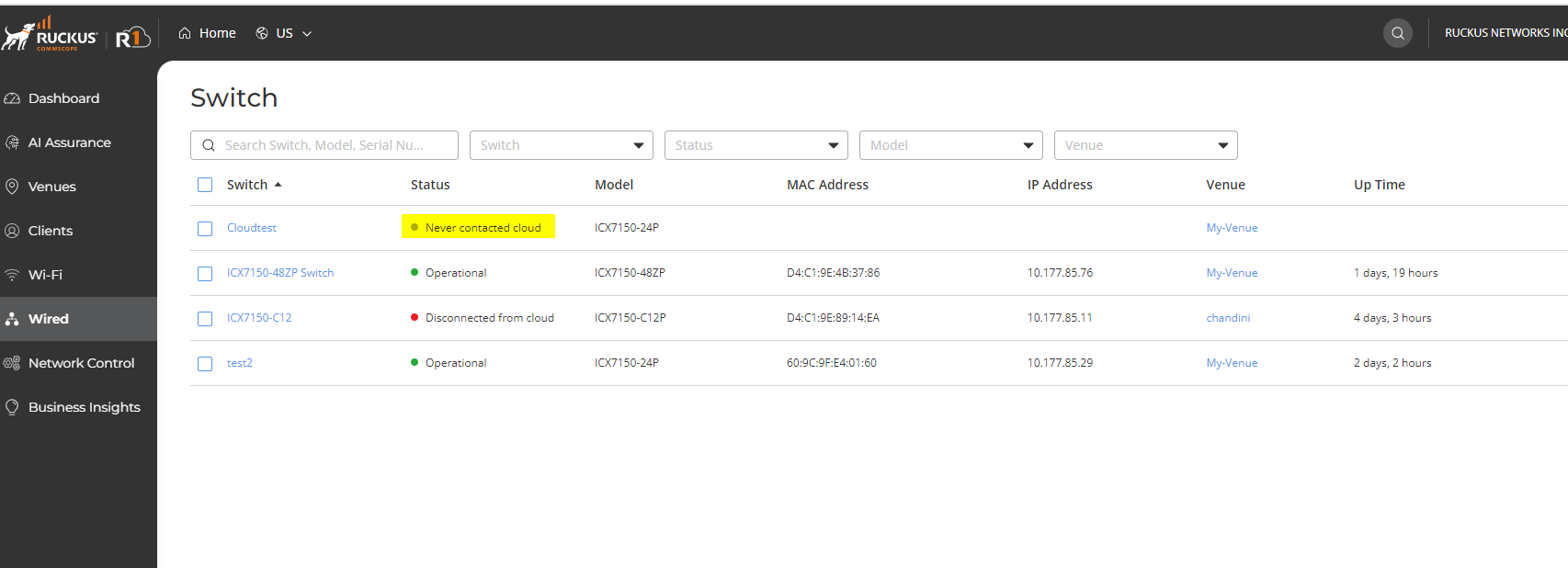
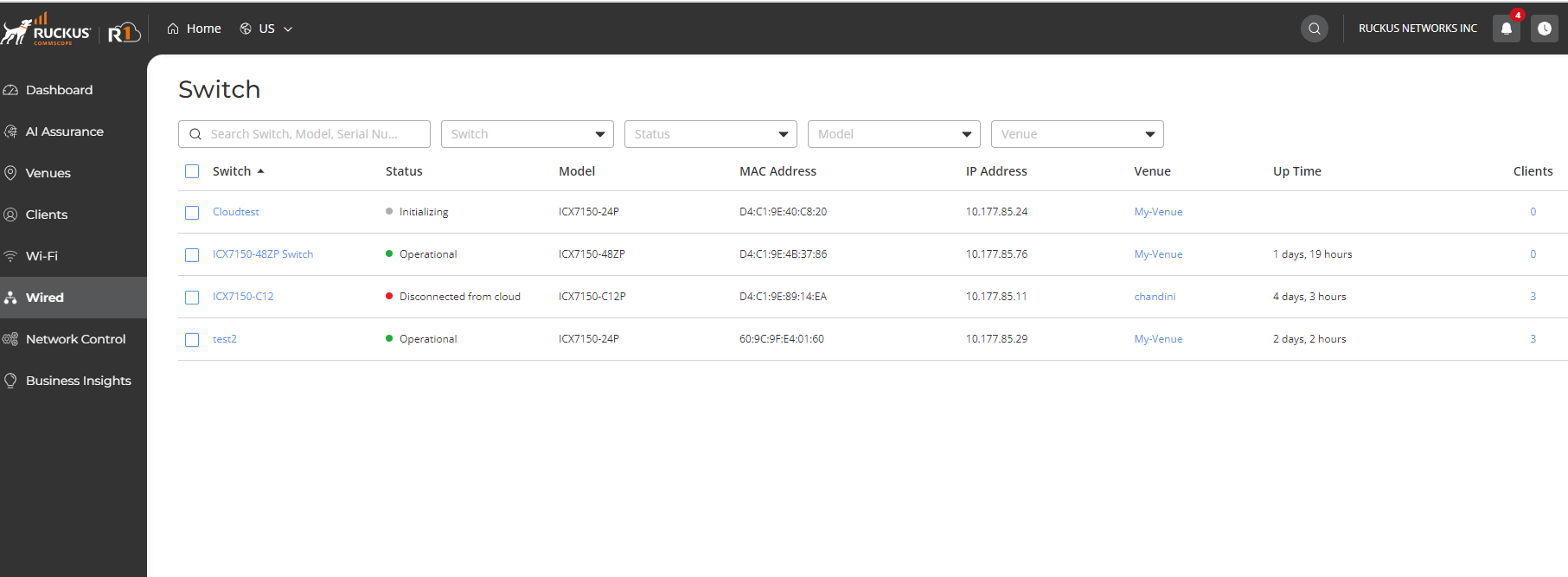
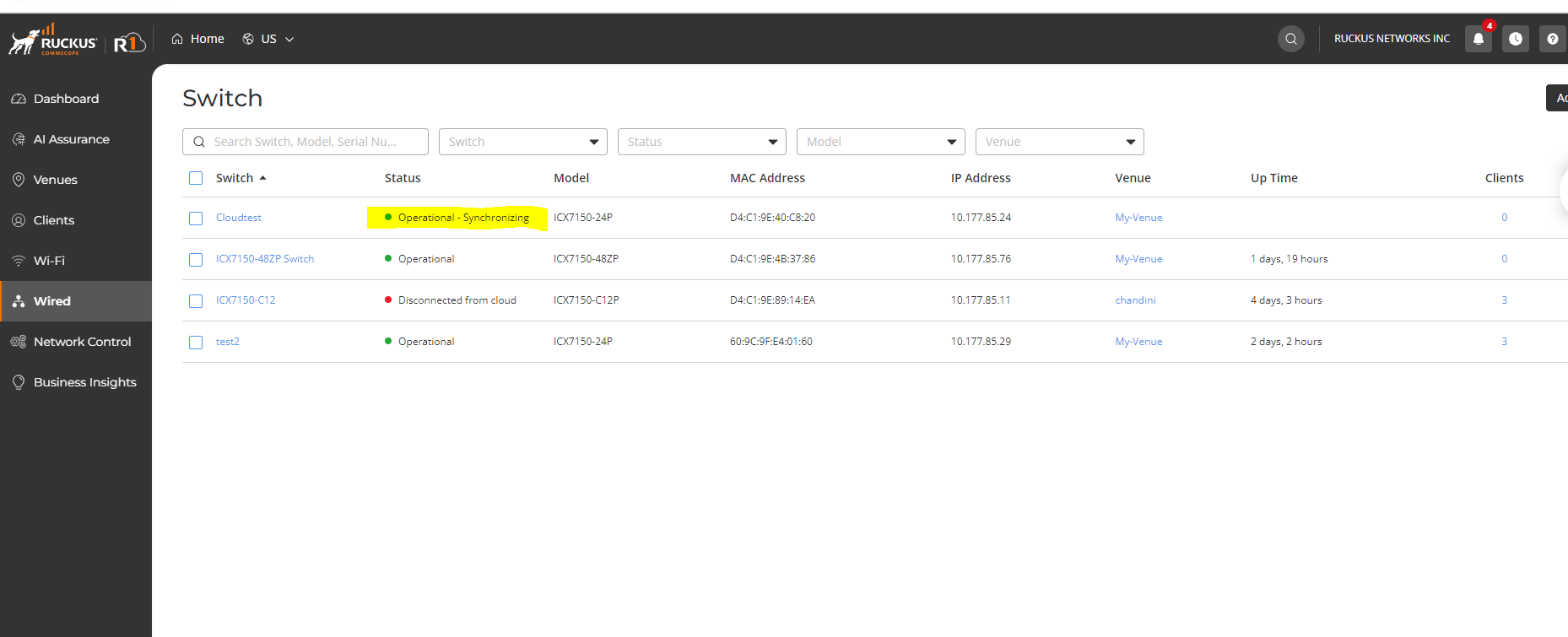
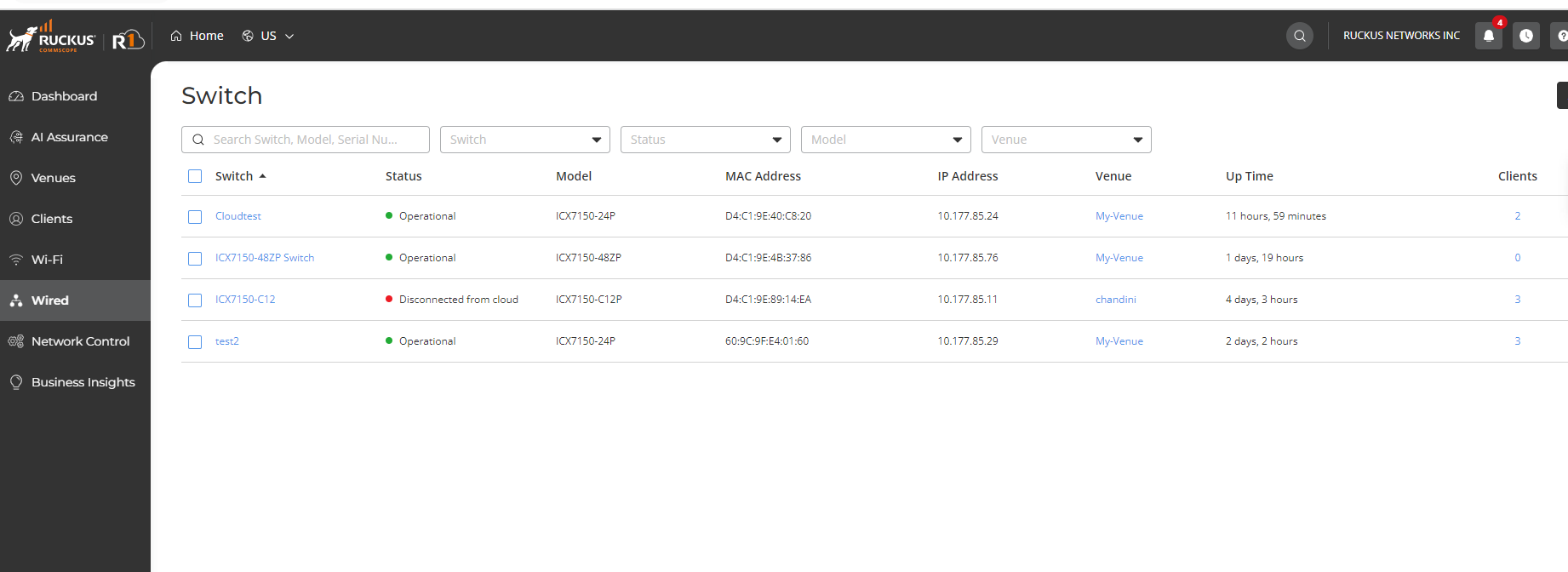
Once after the above steps below are the states you will notice for the switch in cloud
If Switch is in 8095g
Never contacted cloud -> initializing -> Firmware upgrading -> Operational Synchronizing -> Operational
If Switch is in 9010e
Never contacted cloud -> initializing -> Operational Synchronizing -> Operational
Note : The cloud will auto push 9010e to the switch but the process may take time if auto pushed by cloud
From switch CLI :
telnet@Cloudtest#
telnet@Cloudtest#show manager status
============ MGMT Agent State Info ===================
Manager mode: ACX
Config Status:Enabled Operation Status:Enabled
State:NATS CONNECTED Prev State:NATS CONNECTING Event:ACX_HEARTBEAT_EVENT
SWR List : device.ruckus.cloud 34.66.194.67
SWR fqdn : device.ruckus.cloud
DNS List :
Active FQDN List : None
Backup FQDN List : None
Active List : None
Active List IPV6 : None
DHCP Option 43 : No
DHCP Opt 43 List : None
Backup List : None
Backup List IPV6 : None
Merged List : device.ruckus.cloud 34.66.194.67
ACX Server Used : device.ruckus.cloud
Port List : 987
Server Port Used : 443
SWR host : sw-registrar.ruckuswireless.com
SWR discovery retry cnt : 0
SWR host retry time : 0
Query Status : Initiated
NATS Tunnel Status -:
Tunnel Status : NATS CONNECTED
Websocket Port : 4222
NATS Port : 7681
RPCLI Status : None
ACX Hbt Count : 1228
ACX JWT Renew Count : 2
Timer Status :-
Manager Query Timer Status : None
Manager heartbeat Timer Status : Running
Manager JWT Renewel Timer Status : Running
ACX JWT Renewel Time : 2023-05-04 06:41:36
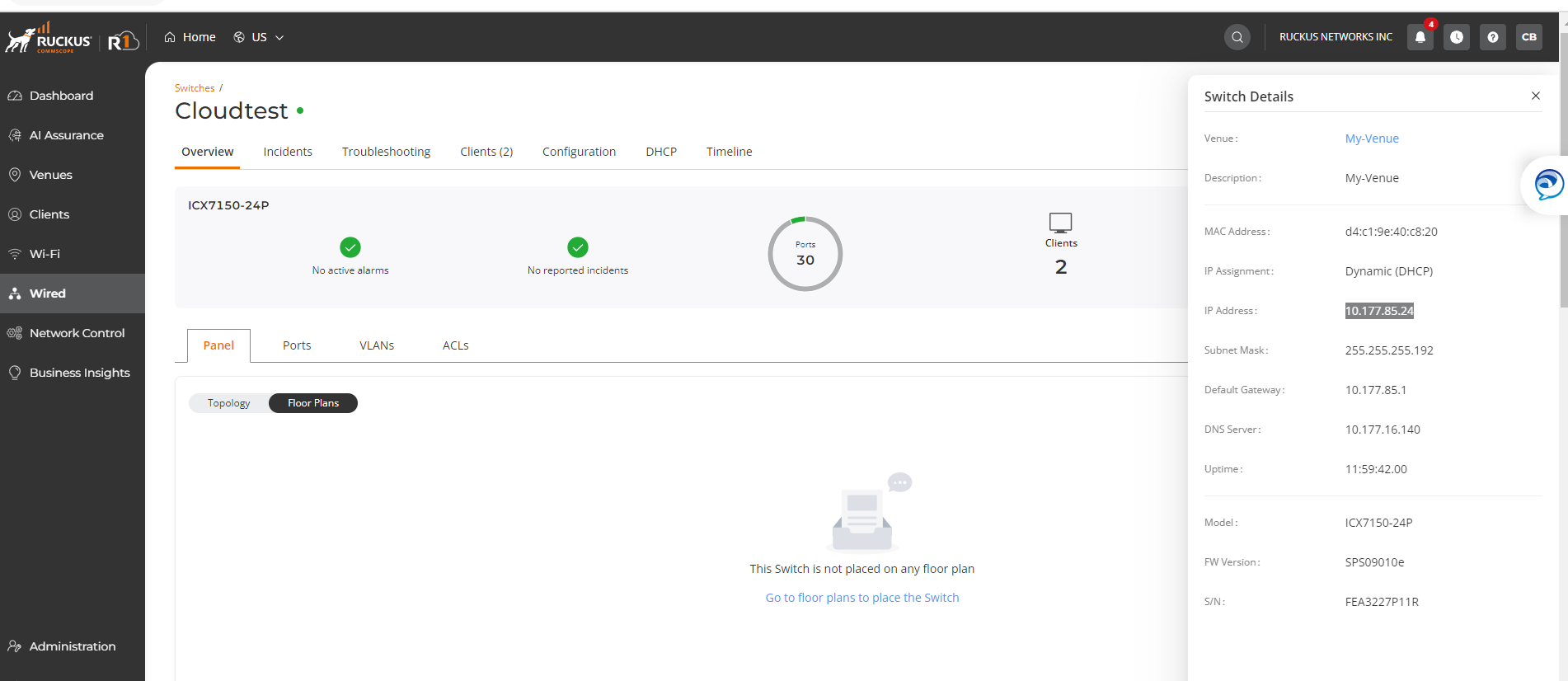
Click on switch to view switch information
From Running config:
Cloudtest#show run | inc manager
manager registrar
manager registrar-list device.ruckus.cloud 34.66.194.67
manager port-list 987
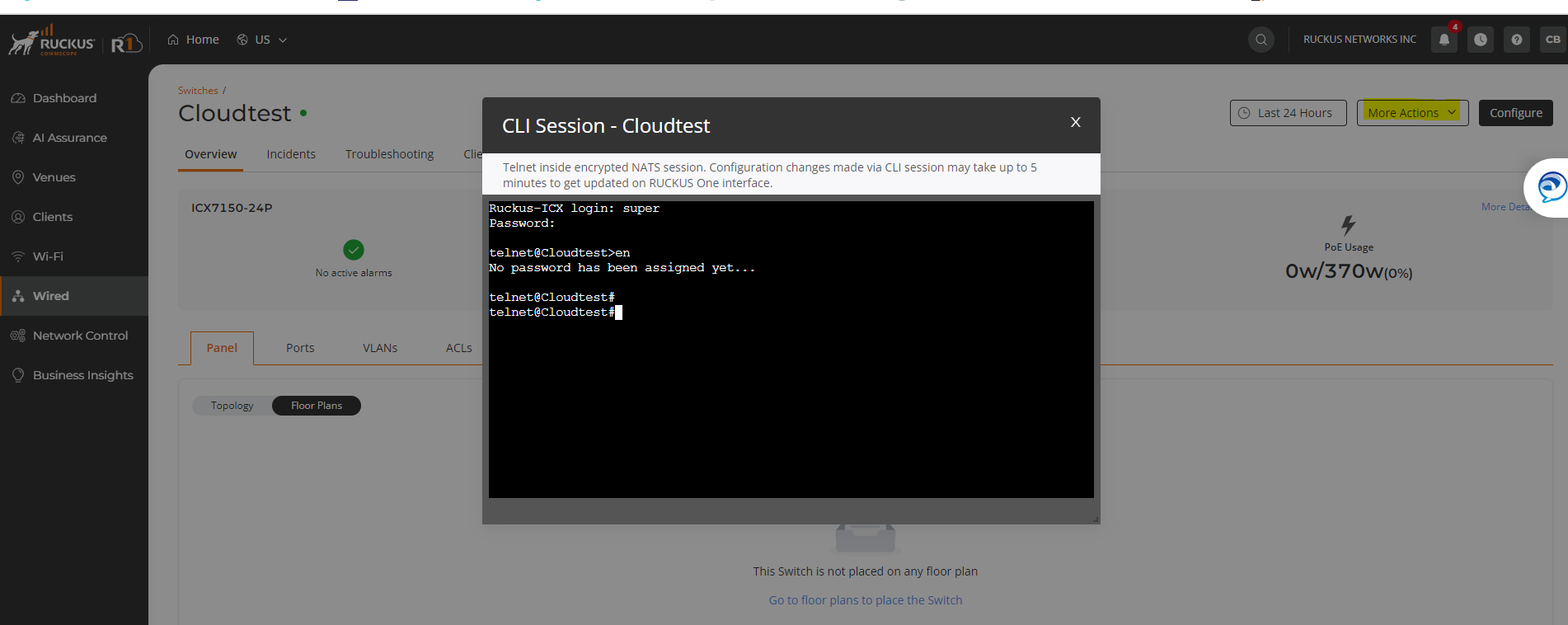
To connect to console go to More Actions -> CLI session
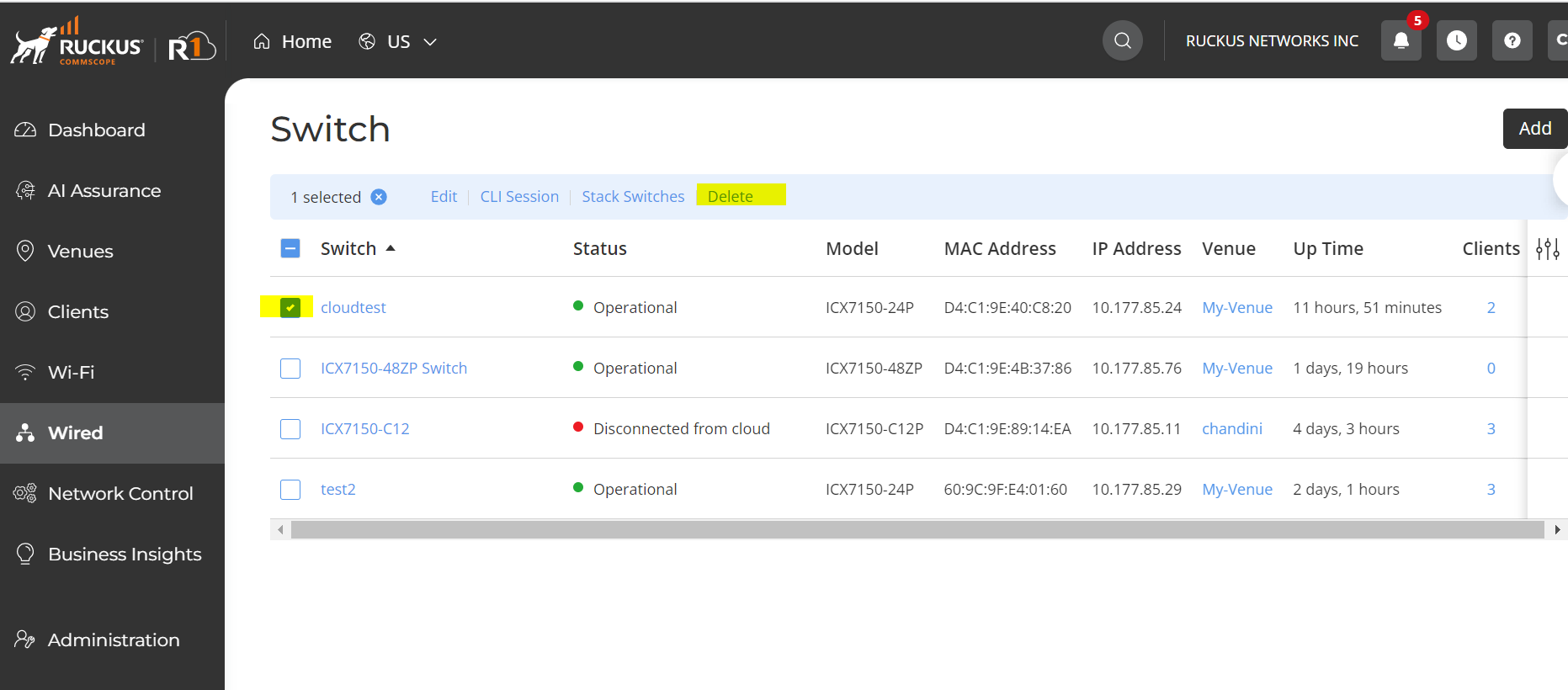
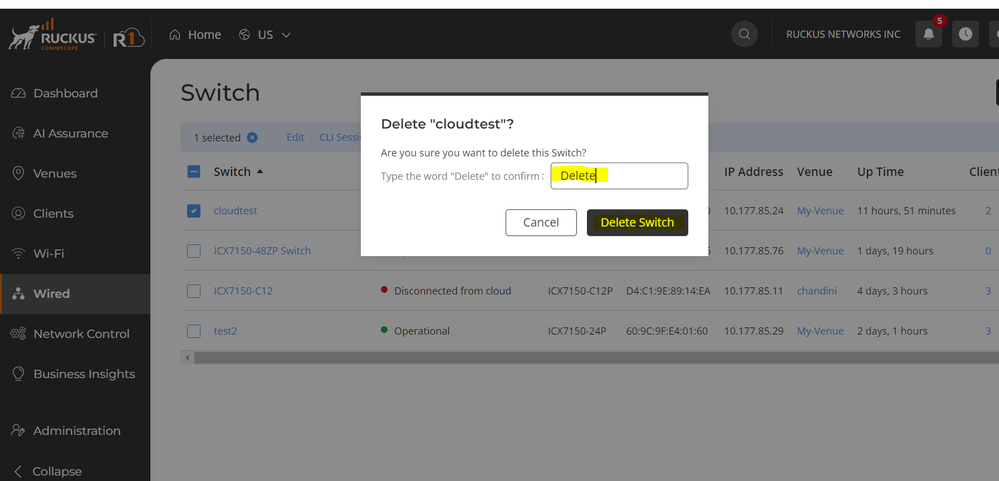
How to delete a switch from cloud:
Check the switch to delete and click on delete, then type “Delete” in space provided and delete the switch from cloud
Note:
- Ruckus Cloud assigns a username and password to the switch once it is managed by the Ruckus Cloud. Even if the switch is disconnected from the cloud, the switch username and password remain the same. The password can be obtained from the Ruckus Cloud GUI under the Venue’s ‘Switch Settings’.
- Also once the switch is up in cloud Web Access to the switch will be disabled as access to cloud using Web UI is available from Ruckus Cloud