How to perform Physical Factory Reset on a Ruckus Access Point
Steps to perform Reset:
A) Assigning and connecting Master AP
1. If you have multiple Access Points (APs) in your home, please locate the RUCKUS ICX-12P SWITCH in the network panel and temporarily disconnect the Ethernet cables for all APs except the one you're working on. This will ensure a smooth and uninterrupted configuration process.
2. It is recommended to keep the Access Point acting as the Master AP connected to the RUCKUS ICX-12P SWITCH. You can identify the Master AP by its CTL (Control) light, which will be the only one showing a solid green status.
Refer the for link for more information about the light status of the RUCKUS R510 Access Point:: Light status for R510
 Initiating the Reset process
1. Once the preferred Access Point is connected to the RUCKUS ICX-12P SWITCH and powered on, locate the RESET button on the rear side of the device to proceed with the reset process.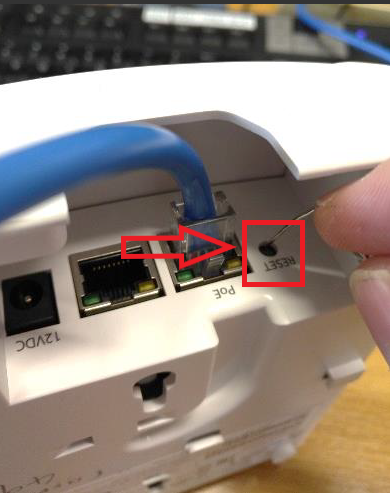
Figure 1: Rear side of the Access point
2. Using a pointed object, such as a paperclip or the tip of a pen, press and hold the RESET button. Continue holding the button for approximately 15 to 20 seconds until the device begins the reset process. In a few cases, the factory reset process may need to be repeated to ensure it is successfully completed.
3. After the reset is complete, the PWR LED will initially display a solid red light, indicating that the device is in the boot-up process. It will then begin blinking green, confirming that the Access Point has successfully returned to its factory default state.
C) Configuring New Wireless Network
1. Once the reset is completed, a new wireless network should now be visible.
The network name will appear as "CONFIGURE.ME-XXXXXX", where "XXXXXX" represents the last six digits of the Access Point’s MAC address. You can easily customize and set up this network using the Ruckus Unleashed app, which can be downloaded to your mobile device. Refer the picture for the pictorial representation of the Access point’s MAC address. 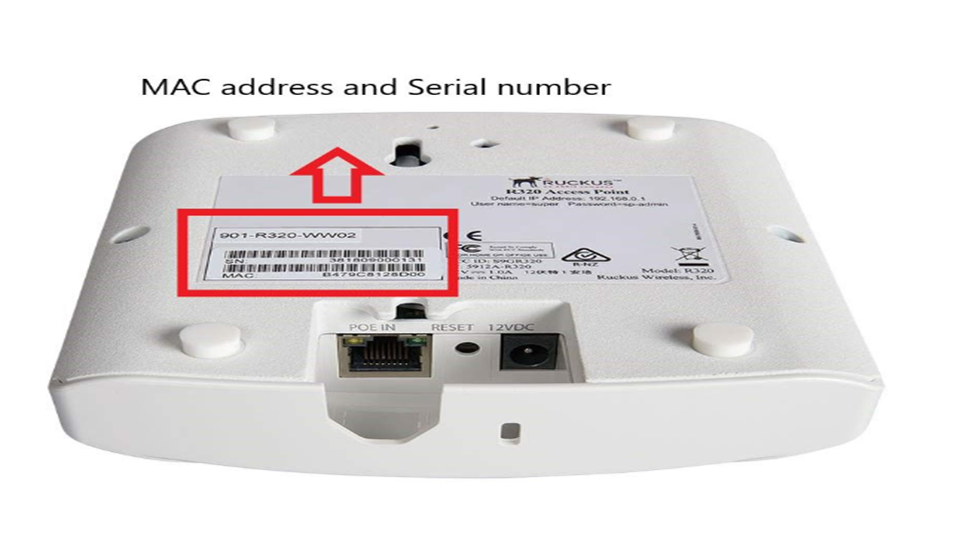
Figure 2: MAC address identification
2. We recommend watching the following video to guide you through creating your Wi-Fi network using the RUCKUS Unleashed mobile app. Start watching from minute 1:12 to see the step-by-step instructions for setting up your network. Follow the instructions in the video to complete the setup, including network name, password, and admin credentials.
3. Once the setup of the primary Access Point is complete, ensure that the new wireless network is working properly. Go to the RUCKUS ICX-12P SWITCH where the other Access Points were previously disconnected.
4. Reconnect the Ethernet cables of the remaining RUCKUS Access Points to their respective ports on the RUCKUS ICX-12P SWITCH.
5. Wait for a few minutes while the Access Points power up and automatically join the newly configured network. Verify the connection by checking that the CTL (Control) LEDs on the Access Points turn solid green, indicating successful adoption into the network.
