I am unable to connect to any device using Ruckus access points. Is there anything that needs to be corrected or is it Device issue?
Hi @MohitJain
Greetings of the day!!!
Thank you for the response and update.
Great!!! Good to know that the issue is now resolved.
We appreciate your time and patience on this case.
NOTE: Please feel free to mark the troubleshooting posts as ACCEPTED SOLUTIONS.
Thank you again for contacting RUCKUS Lennar Home Community and feel free to contact us for future queries.
Have a great day ahead!!!
Best regards,
Imran Sanadi
Lennar Home Community.
Thank you for contacting Lennar Home Community.
Hope you are doing well!!!
Thank you for the detailed information you shared,
From the case description, I could understand that you are unable to connect devices using RUCKUS Access Points.
Could you please let us know?
1. Was there any Power outage just before you started facing this issue?
2. On your switch while it's plugged into the outlet, do you see any lights on? (Amber or green) Please let us know which lights are on. (Please refer to the below picture and share a picture of the same)
3. Is your Internet Connection from the Internet Service Provider (ISP) stable and working? (You could check this by connecting to your local router Wi-Fi or from an ethernet cable from Router to a laptop/PC)
4. May I know how many Access Points are connected to the Switch and how many are affected? Could you please let me know the light status on the Access Points? Any of these lights are on (Please refer to the below screenshot)
Please help us with pictures of your ICX-7150-C12P Switch showing the status of the lights. Also, light the status of Access Points.
Please let us know the answers to the above queries or if you have any queries in this regard.
Thank you again.
Hi, please find below required information.
1. Was there any Power outage just before you started facing this issue? - No, I am seeing this issue since long time.
2. On your switch while it's plugged into the outlet, do you see any lights on? (Amber or green) Please let us know which lights are on. (Please refer to the below picture and share a picture of the same) - Getting You do not have permission to upload images. while trying to upload images
3. Is your Internet Connection from the Internet Service Provider (ISP) stable and working? (You could check this by connecting to your local router Wi-Fi or from an ethernet cable from Router to a laptop/PC) - Yes, it is stable and I am able to connect all devices via WIFI
4. May I know how many Access Points are connected to the Switch and how many are affected? Could you please let me know the light status on the Access Points? Any of these lights are on (Please refer to the below screenshot) - I have 2 access points and both are not stable (unable to connect), connections drops on it's own with few secondsGetting You do not have permission to upload images. while trying to upload images
Thank you for the response and the information.
From the light status of the Switch and APs, they seem to be in normal condition.
This issue may happen when the Switch runs on the Routing code. The Switch should run on the Switching code to avoid these issues for Lennar home users. If the Switch boots up on the other partition (Due to a power outage/power spike may be) which may be running on a ‘Routing Code’ results in causing this issue.
You can take Console access to the switch in order to verify, if the switch is able to connect properly to Access Points or if it has a ‘Routing Code’ issue which happens due to power outages/ power spikes most of the time, this is a known issue for Lennar home users.
An identifier of this problem is that it comes out as Switch-Router in the unleashed dashboard.
There we are going to see 2 important things the
-MAC address: Physical address of the device this never changes
- An IP address is a unique address (logical) that identifies a device on the internet or a local network like your home (this can change and may not be the same as the one shown on the dashboard)
There are multiple ways to fix this issue as described in below steps:
Please follow the below steps:
1. To fix this issue, we must identify the ‘current’ IP address assigned by your local router to the switch ICX-7150-C12P
I will leave you a guide on how to perform an IP scanner on your local network to identify the switch IP address very easily.
How to find my Ruckus “Devices IP address” using free applications:
https://community.ruckuswireless.com/t5/RUCKUS-Support-for-Lennar-Homes/How-to-find-my-Ruckus-Devices-IP-address-using-free-applications/td-p/47027
2. Once we identify the IP address of the switch proceed to access remotely to the device “Command Line”
How to remotely access to 'ICX 7150-C12P' or 'access points' "Network devices":
https://community.ruckuswireless.com/t5/RUCKUS-Support-for-Lennar-Homes/How-to-remotely-access-to-ICX-7150-12P-or-access-points-quot/td-p/47388
If you can access the Command line should look like this:
ICX7150-C12 Router>
3. Here is a quick guide for understanding how to fix the 'routing code issue' however, you only need to run the following commands once you are on the command line 'CLI'
Note: Hit Enter to accept each command
enable
show version
copy flash flash secondary
boot system flash secondary yes
(Please share the output screenshot of the ‘show version’ command to check your current Switch version, if the upgrade is needed to avoid this problem in the future)
Example:
VIDEO LINK AS REFERENCE: https://www.youtube.com/watch?v=Eem1IBgYaWc
ICX7150-24P Router>enable (hit enter to accept the command) ICX7150-24P Router#copy flash flash secondary (hit enter to accept the command and wait: until the flash finished) ICX7150-24P Router#boot system flash secondary yes (hit enter to accept the command: the switch will reboot)
There are Two ways:
I) How to Fix Routing code issues on Lennar Home users via CLI
https://community.ruckuswireless.com/t5/RUCKUS-Support-for-Lennar-Homes/How-to-Fix-Routing-code-issues-on-Lennar-Home-users/td-p/47305
https://community.ruckuswireless.com/t5/RUCKUS-Support-for-Lennar-Homes/How-to-solve-the-routing-code-issue-in-your-ICX7150-Switch/td-p/47335
II) Or WEB access option
https://community.ruckuswireless.com/t5/RUCKUS-Support-for-Lennar-Homes/How-to-Fix-Routing-code-issues-on-Lennar-Home-users-via-Web-GUI/m-p/47959#M1998
4. If access via IP address is not possible here is a guide on how to access to the Switch via console (cable access between your PC to the ICX 7150-C12P) in this case we need a USB type C to USB standard or Console cable Rj45 to USB.
How to console in the ICX-7150-C12P
https://community.ruckuswireless.com/t5/RUCKUS-Support-for-Lennar-Homes/How-to-console-in-the-ICX-7150-12c-using-a-Windows-Machine/td-p/46759
Once you are logged in to the ICX-7150-C12P please follow and perform the same commands that are on point '3'
Please let me know if you have any queries in this regard.
I don't see any switch on the dashboard.
Thanks,
Mohit Jain
Greetings!!!
As you are unable to see your ICX-7150-C12P Switch in the Unleashed App. Please add the switch on the Unleashed as described below:
Make sure the management approval is enabled.
https://docs.commscope.com/bundle/unleashed-200.9-onlinehelp/page/GUID-A887C55E-6973-4496-9413-302E8DE175AA.html
Access Points (unleashed):
1. Hit Add on that dashboard
2. Put the IP address of the ICX switch (ICX-7150-C12P) and Password– If you don’t know the IP Address of the Switch. Please perform the below command from the Switch CLI to get the same.
Device>enableDevice#show ip address
3. Username and password for Switch authentication are the same as what you use to log in for Switch on Web or CLI (Putty).
https://docs.commscope.com/bundle/unleashed-200.9-onlinehelp/page/GUID-30C6694A-6AEE-4DF8-9459-1AB189D415D2.html
To sync the data, it will take us a while, so after a couple of minutes, it should say connected.
Once the Switch gets synchronized, please check the dashboard again.
Hi,
Can you please help me with the steps to login to Switch CLI?
You could find the IP Address of your Switch by using the IP Scanner as described below.
Thank you again for your patience.
Thanks Imran, I was able to get the IP of the switch but unfortunately forgot the login credentials. Can you please help me on how to recover/reset the username/password?
Mohit
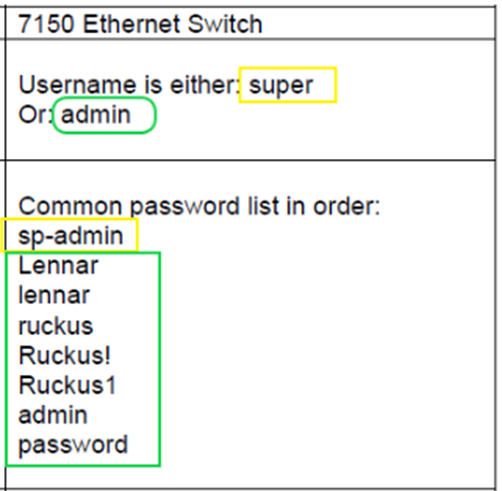
If your credentials are not working, you could try with the below combination once:
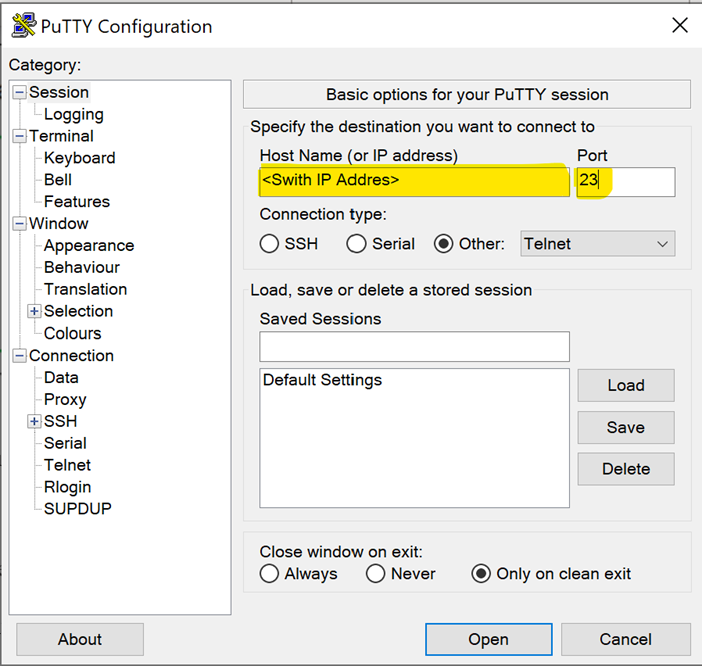
If any of the username and password does not work, you could reset them on Telnet login:
Now again reset your new credentials as mentioned in the steps below:
Edit the current or create a new password and username by using the below commands:
configure terminal
device(config)# username super password pass
Where the username is ’super’ and password ‘pass’ (You could choose any of your choices)
In order to allow the correct authentication please run the following commands:
Device(config)#crypto key generate rsa
device(config)# aaa authentication login default local
Now you could try using your new credentials to log in and add Switch on Unleashed.
Apologies for the delayed response, I was out of the town during this time. Looks like I need to upgrade the version.
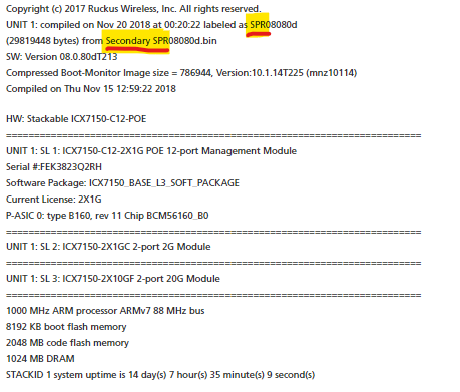
Please find below details of ICX show version output.
Copyright (c) 2017 Ruckus Wireless, Inc. All rights reserved.UNIT 1: compiled on Nov 20 2018 at 00:20:22 labeled as SPR08080d(29819448 bytes) from Secondary SPR08080d.binSW: Version 08.0.80dT213Compressed Boot-Monitor Image size = 786944, Version:10.1.14T225 (mnz10114)Compiled on Thu Nov 15 12:59:22 2018
HW: Stackable ICX7150-C12-POE==========================================================================UNIT 1: SL 1: ICX7150-C12-2X1G POE 12-port Management ModuleSerial #:FEK3823Q2RHSoftware Package: ICX7150_BASE_L3_SOFT_PACKAGECurrent License: 2X1GP-ASIC 0: type B160, rev 11 Chip BCM56160_B0==========================================================================UNIT 1: SL 2: ICX7150-2X1GC 2-port 2G Module==========================================================================UNIT 1: SL 3: ICX7150-2X10GF 2-port 20G Module==========================================================================1000 MHz ARM processor ARMv7 88 MHz bus8192 KB boot flash memory2048 MB code flash memory1024 MB DRAMSTACKID 1 system uptime is 14 day(s) 7 hour(s) 35 minute(s) 9 second(s)
Thank you for the response and the information you shared.
This issue is because your switch is running on the Routing code (SPR). The Switch should run on the Switching code (SPS) to avoid these issues for Lennar home users. Due to a power outage/power spike, the Switch boots up on the other partition which may be running on a ‘Routing Code’ results in causing this issue.
As I can see from the output you shared, your Switch is booted up on the secondary partition which is running on Routing code (SPR) as highlighted in the below screenshot.
Please Enter the below commands in CLI to fix this issue:
We suggest upgrading your switch to the latest stable version to avoid this issue in the future. Your Switch is on a older version that is 08080d. Please let us know once you complete the above process to assist you with the Upgrade of the Switch.
show version output after running above commands:
Copyright (c) 2017 Ruckus Wireless, Inc. All rights reserved.UNIT 1: compiled on Nov 20 2018 at 00:09:55 labeled as SPS08080d(25968884 bytes) from Secondary SPS08080d.binSW: Version 08.0.80dT211Compressed Boot-Monitor Image size = 786944, Version:10.1.14T225 (mnz10114)Compiled on Thu Nov 15 12:59:22 2018
HW: Stackable ICX7150-C12-POE
Can you please assist with version upgrade process.
Thank you for the response and the update.
Great!!! Good to know that your Switch is now on the Switching Code (SPS) which should resolve the issue.
Please follow the below steps for Upgrading your Switch to the latest stable version.
The recommended stable version is 8095g (08.0.95g)-
Below are the options or methods to perform the Upgrade on the switch: You could choose any one of these.
1st Option:
1. In this option, we will use a pen drive or USB flash drive in which we move the files to the pen drive and connect it to the Switch then through CLI we execute the commands to upgrade the Switch using the following guide as a reference:
How to Upgrade a Switch ICX-7150-C12P using a USB flash drive
https://community.ruckuswireless.com/t5/RUCKUS-Support-for-Lennar-Homes/How-to-Upgrade-a-Switch-ICX-7150-C12P-using-a-USB-flash-drive/td-p/46781
2nd Option:
2. The following guide is an example of an upgrade via TFTP server, by using an application (FREE) to send files or upload remote files to a device, in our case, we will use it to update a new version to the Switch, basically it will send the image version remotely from the computer to the switch.
How to upgrade a Switch ICX7150-C12P via TFTP
https://community.ruckuswireless.com/t5/RUCKUS-Support-for-Lennar-Homes/How-to-Upgrade-a-Switch-ICX-7150-C12P-via-TFTP/td-p/47187
3rd Option:
3. In this option we Upgrade the Switch from the Web Interface (GUI) of switch.
https://community.ruckuswireless.com/t5/RUCKUS-Support-for-Lennar-Homes/How-to-perform-an-Upgrade-via-Web-GUI-ICX7150-Switch/td-p/48200
Try to access your switch from a web browser by pasting the below URL in http or https form whichever that works.
https://0.0.0.0 or http://0.0.0.0 (IP address of Switch. 0.0.0.0 is just as an example)
As you can access CLI, I would suggest you follow the 2nd option.
Please follow the Upgrade process and share the screenshots if stuck at any step or error (if any) and let me know if you have any queries in this regard.
NOTE: Please feel free to mark the previous posts as ACCEPTED SOLUTIONS.
Thank you again for your patience and understanding.
I have successfully upgraded the switch to the recommended version, after the upgrade access points aren't back online yet. Do I need to perform any physical operations to bring them back online?
Please ignore, access points are back online now.
I am getting below error while adding the switch in unleashed portal
SSH service is not enabled on ICX 192.168.1.88. Please manually enable it on ICX.
Thank you for the information and update.
Could you please share a picture of the Switch panel showing the light status and port connections? (Please refer to the below screenshot)
Also, please enter the below commands in to the CLI and share the output.
show flashshow inline power show inline power detail
Actually, you need Not to add the Switch to the Unleashed, it will get added on its own after sometime.
Could you please share the screenshot of the error that you are getting on the Unleashed.
Error screen shot.
Please enter the below commands in to CLI and share the output.
show flash
Thank you for the information.
Please make sure the management approval is enabled (as described in the below link) and reboot your Switch once. And please check the unleashed dashboard after the reboot.
And as I see you have upgraded your Switch on 08095h (please refer to the below screenshot). Please upgrade the Switch on a stable version which is is 8095g (08.0.95g) as suggested in the previous upgrade post.
To avoid such issues, I would suggest upgrading your Switch to the recommended stable version for now, which is 8095g (08.0.95g)-
As suggested, I have upgraded switch to SPS08095g
Copyright (c) Ruckus Networks, Inc. All rights reserved.UNIT 1: compiled on May 6 2022 at 23:24:50 labeled as SPS08095g(31457280 bytes) from Primary SPS08095g.bin (UFI)SW: Version 08.0.95gT211Compressed Primary Boot Code size = 786944, Version:10.1.24T225 (mnz10124)Compiled on Thu Apr 21 06:08:52 2022
HW: Stackable ICX7150-C12-POE==========================================================================UNIT 1: SL 1: ICX7150-C12-2X1G POE 12-port Management ModuleSerial #:FEK3823Q2RHSoftware Package: BASE_SOFT_PACKAGECurrent License: 2X1GP-ASIC 0: type B160, rev 11 Chip BCM56160_B0
Also, I am able to login to switch though web but still getting same error message while adding switch via unleashed portal. Auto Approval is already enabled.
output of"show who" command:
Console connections (by unit number):1 established, privilege super-user30 minute(s) 58 second(s) in idleTelnet server status: EnabledTelnet connections (inbound):1 established, client ip address 192.168.1.114, privilege super-userusing vrf default-vrf.
you are connecting to this session3 second(s) in idle2 closed3 closed4 closed5 closed6 closed7 closed8 closed9 closed10 closedTelnet connections (outbound):11 closed12 closed13 closed14 closed15 closedSSH server status: DisabledSSH copy-received-cos status: DisabledSSH connections:SSH connections (inbound):1 closed2 closed3 closed4 closed5 closed6 closed7 closed8 closed9 closed10 closedSSH connection (outbound):11 closed12 closed13 closed14 closed15 closed16 closed17 closed18 closed19 closed
As I can see from the ‘show who’ command output you shared, the SSH server status is Disabled. (Please refer to the below screenshot)
To enable the same, please refer to the below video and follow the process up to 2:30 mins
https://www.youtube.com/watch?v=F1_tLiGEGAQ
Please follow to the above process and once again confirm if the SSH status is enabled from the ‘show who’ command. Once it is confirmed, please check the Switch status on the Unleashed dashboard.
Thanks for the assistance, I can see switch is added to the unleashed app now.
1 established, privilege super-user23 hour(s) 8 minute(s) 59 second(s) in idleTelnet server status: EnabledTelnet connections (inbound):1 established, client ip address 192.168.1.114, privilege super-user, in config modeusing vrf default-vrf.
you are connecting to this session28 second(s) in idle2 closed3 closed4 closed5 closed6 closed7 closed8 closed9 closed10 closedTelnet connections (outbound):11 closed12 closed13 closed14 closed15 closedSSH server status: EnabledSSH copy-received-cos status: DisabledSSH connections:SSH connections (inbound):1 established, client ip address 192.168.1.167, server hostkey DSA, user is super, privilege super-user, in config modeusing vrf default-vrf.1 minute(s) 12 second(s) in idle2 closed3 closed4 closed5 closed6 closed7 closed8 closed9 closed10 closed