Many of Cloudpath customer request for option to create DPSKs in bulk, currently Cloudpath enrollment system does not give an option to create multiple DPSK altogether or via file upload from the DPSK pool setting, this article explains a workaround for bulk DPSK creation via uploading excel file on Cloudpath Enrollment System
Table of Contents
- DPSK Pool Config
- Property Management
DPSK Pool Config
Browser Configuration>>>DPSK Pools>>>Add DPSK Pool
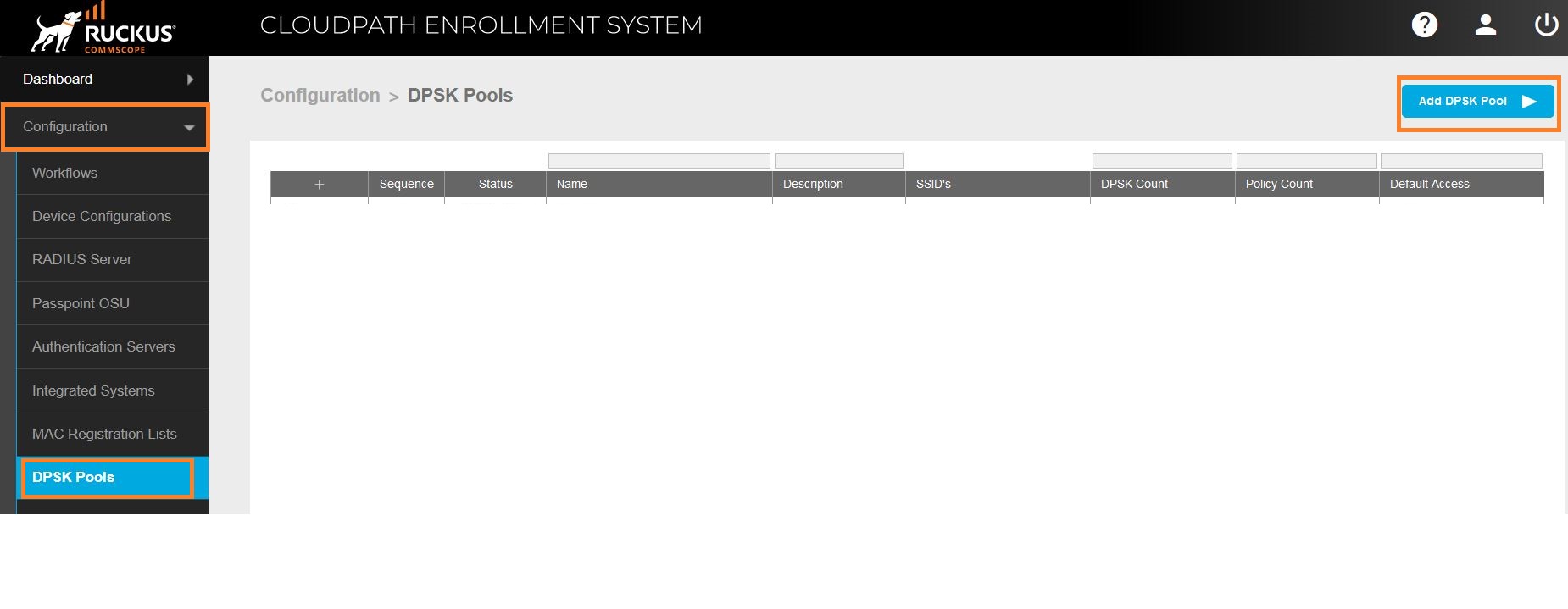
Create DPSK Pool with below settings
- Display Name: Name as it is required.
- Passphrase: Length of Password
- SSID: SSID name.
- Device Limt: Number of devices allowed per DPSK.
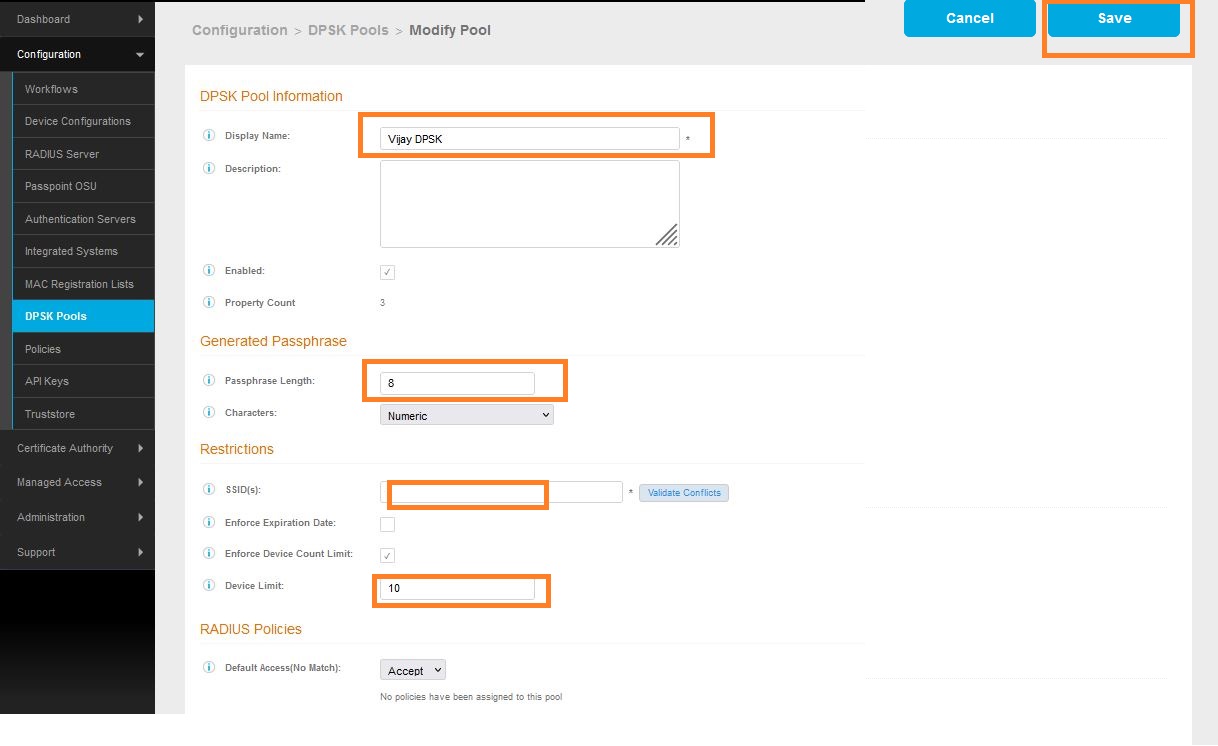
and Click Save.
Once DPSK pool is created, start creating Properties.
Property Management
Properties>>>Managed Access>>>Add Property.

Create Property with below settings
- Display Name: Name as it is required.
- Pool: Select DPSK Pool created earlier
- Name: Name as it is required.
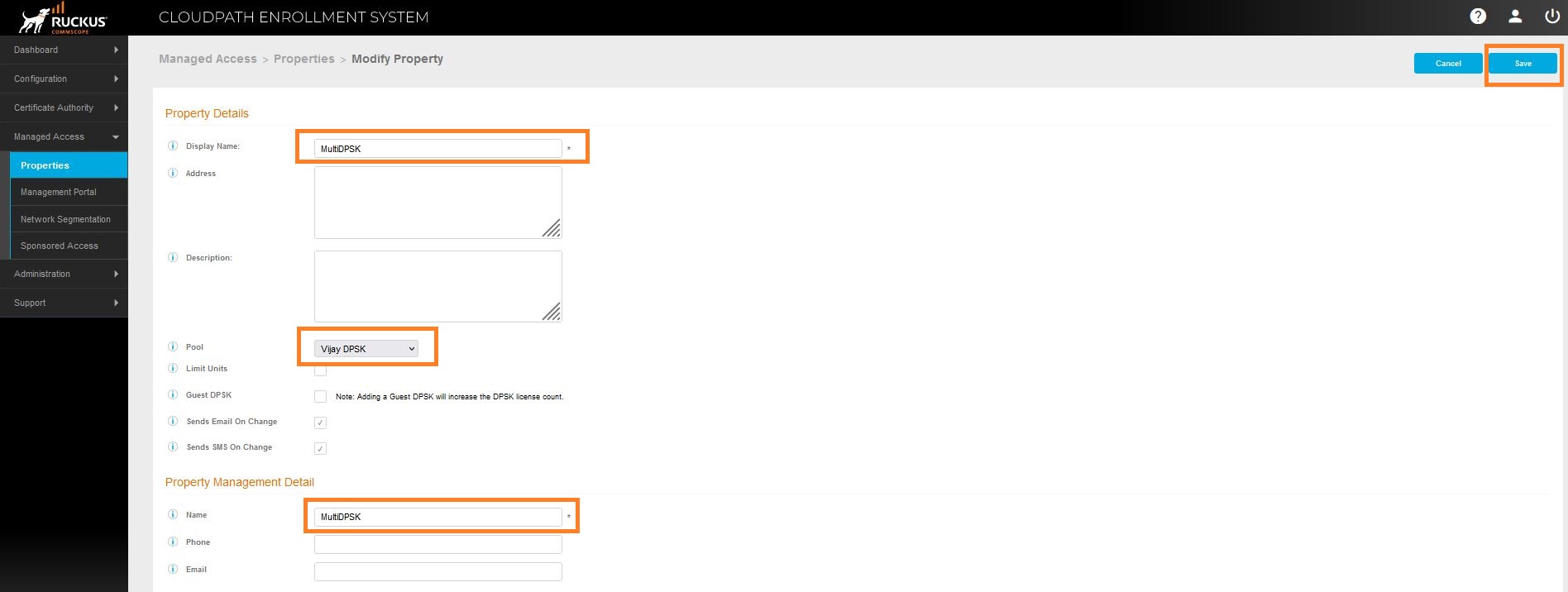
and Click Save.
Once property is created select Unit>>>Download Template.
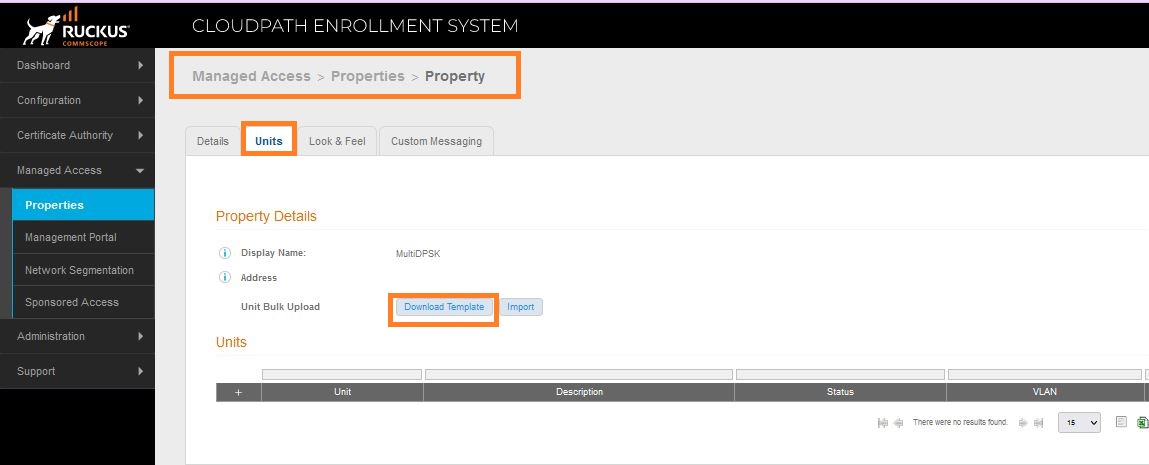
Sample Downloaded Template as below
Modify details in excle, below setting is mandatory for creation, rest of the details are optional.
- Unit Number: Unit number in order, should not duplicate.
- DPSK Secret: Create DPSK, should not duplicate.
- Contact Name: Name of the Contact Person.
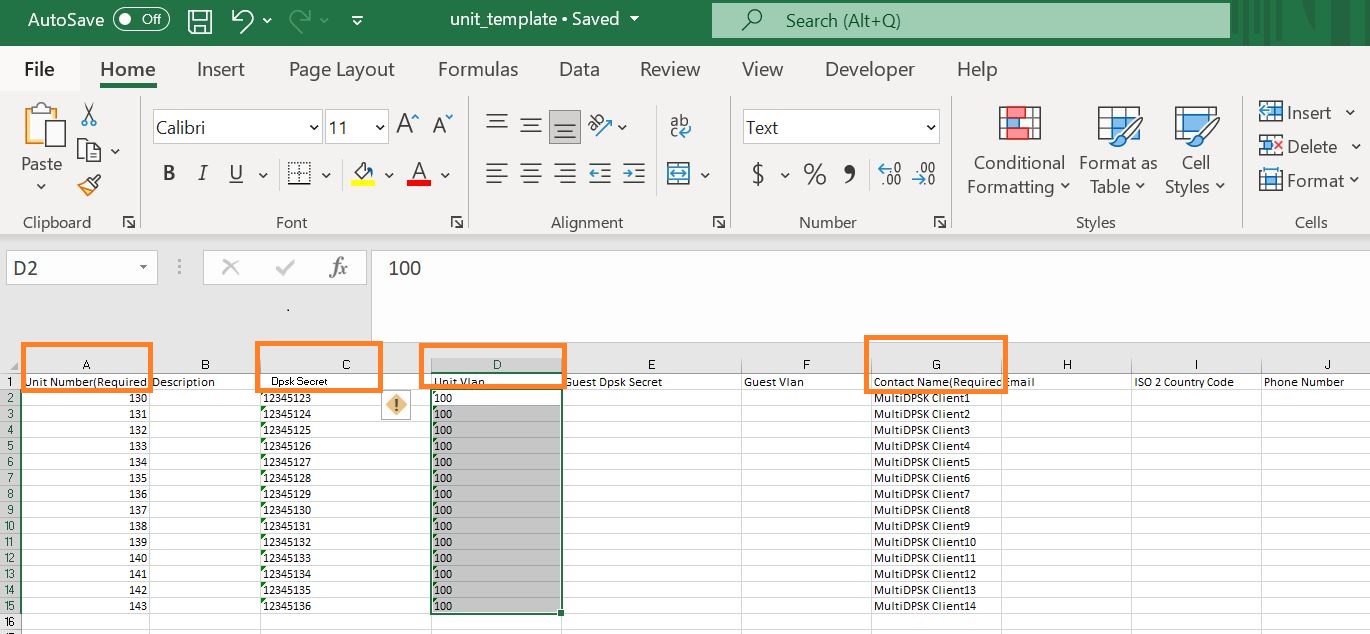
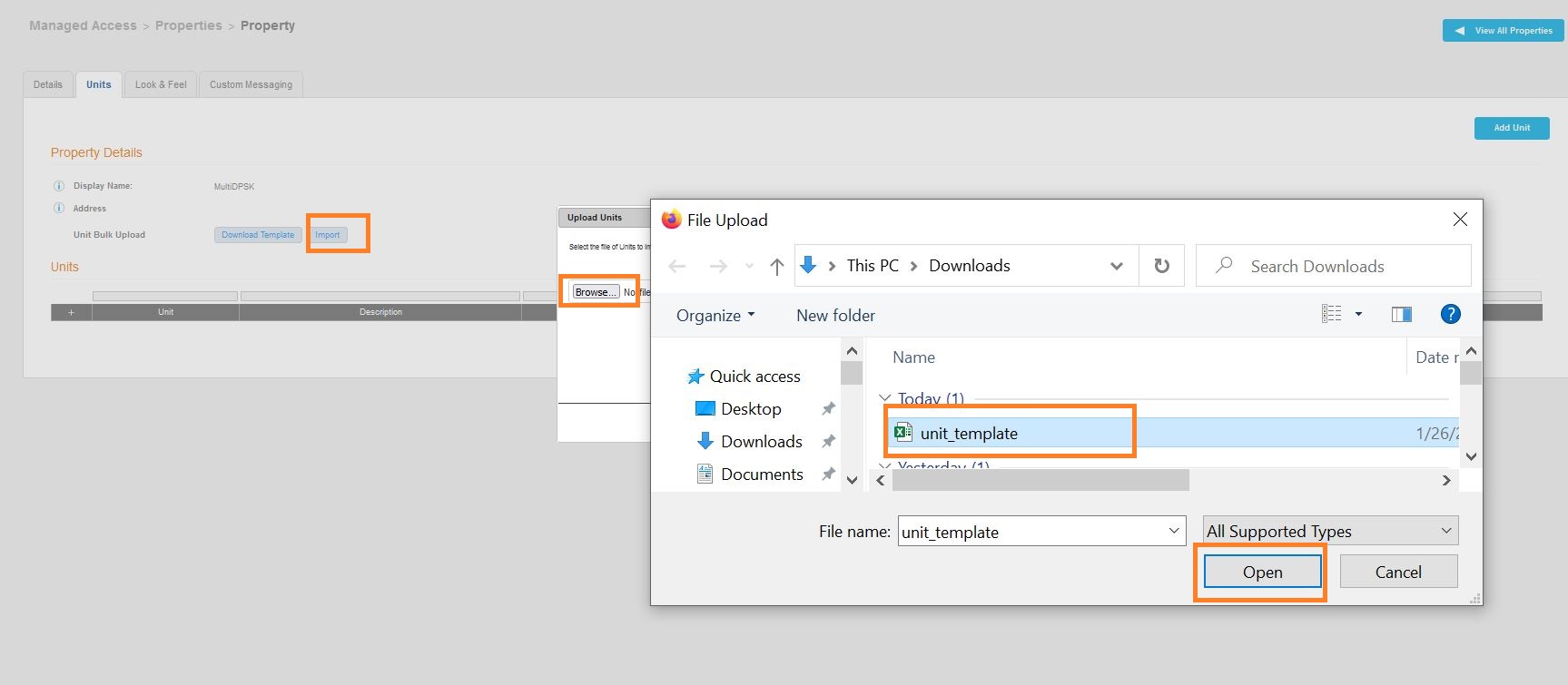
Once unit_template excel sheet is ready, upload using Import in Units as shown below.
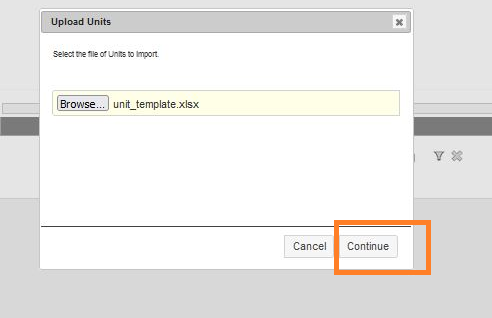
Once file is selected, click Continue.
On successful import you will see Unit uploaded Results as below.

click Done.
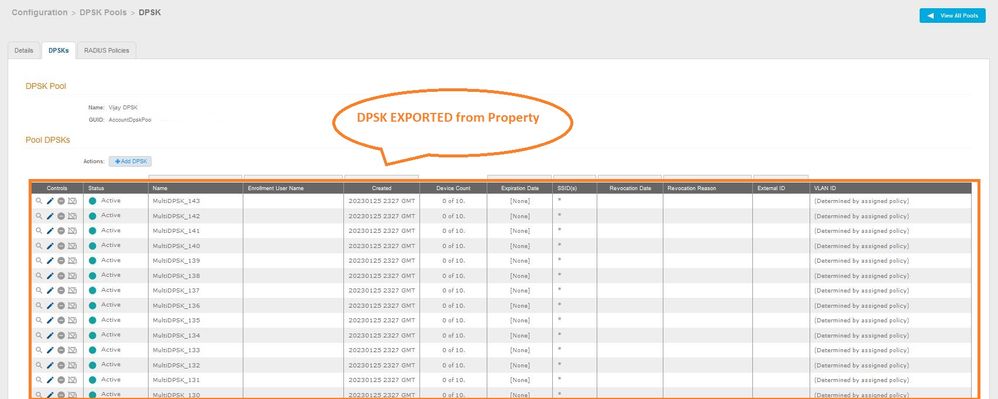
 Imported units will apear in the property as shown above and the entries will come up in DPSK pool as well shown below.
Thank You
