You will need one of the following cables:
- An USB console cable with Type-C connector (In one side you will have a Type-C USB and in the other side a normal USB)
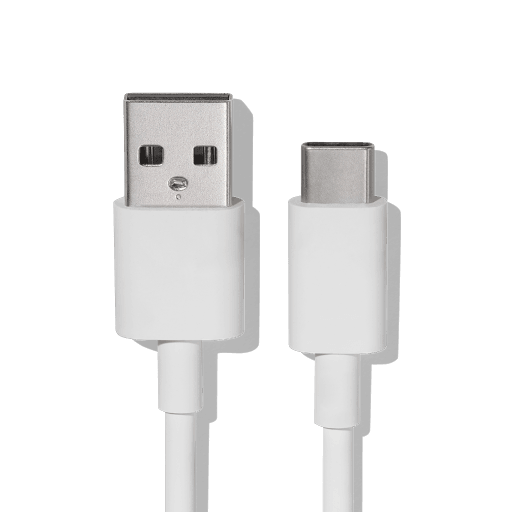
Or
- A serial console cable with an RJ-45 connector (In one side you will have a RJ-45 connector and in the other a normal USB)
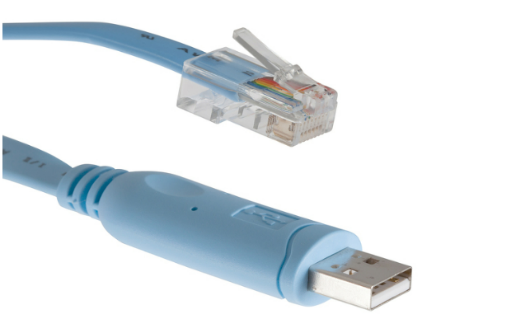
- Then you will need to locate the console port on the device, it will depend on the cable you have:
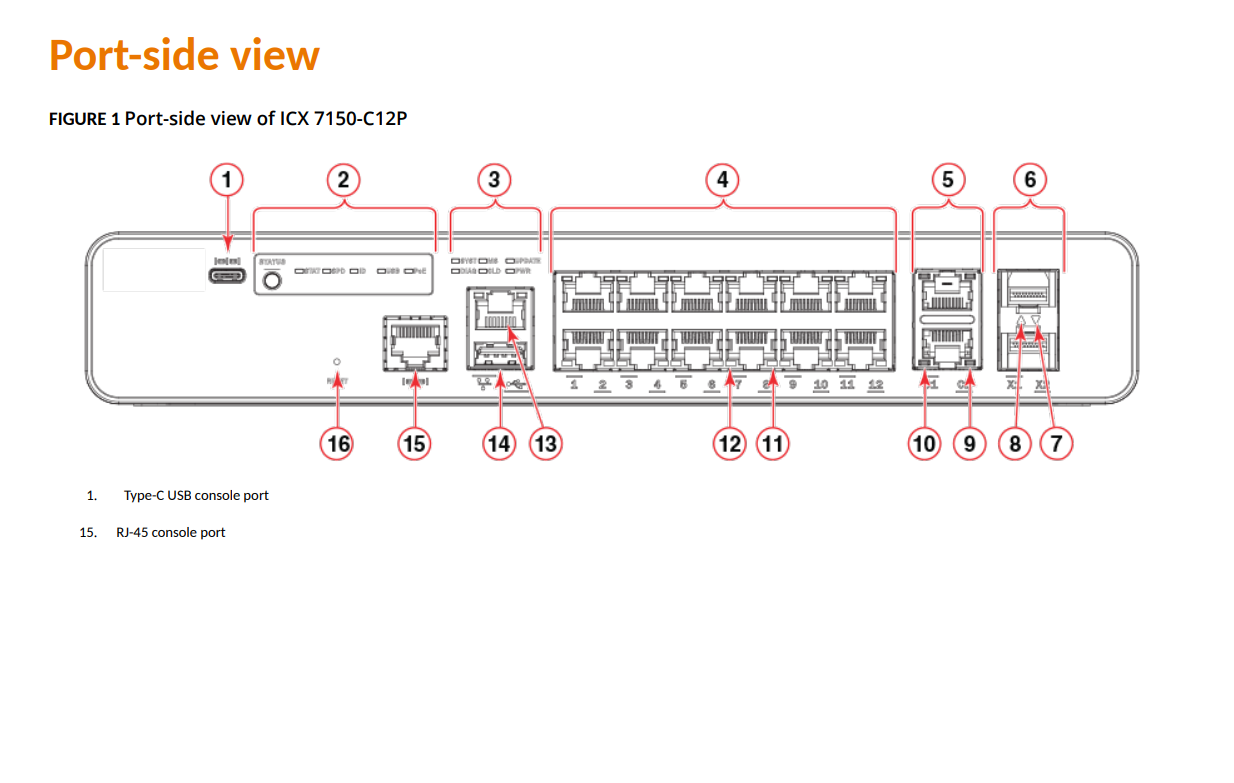
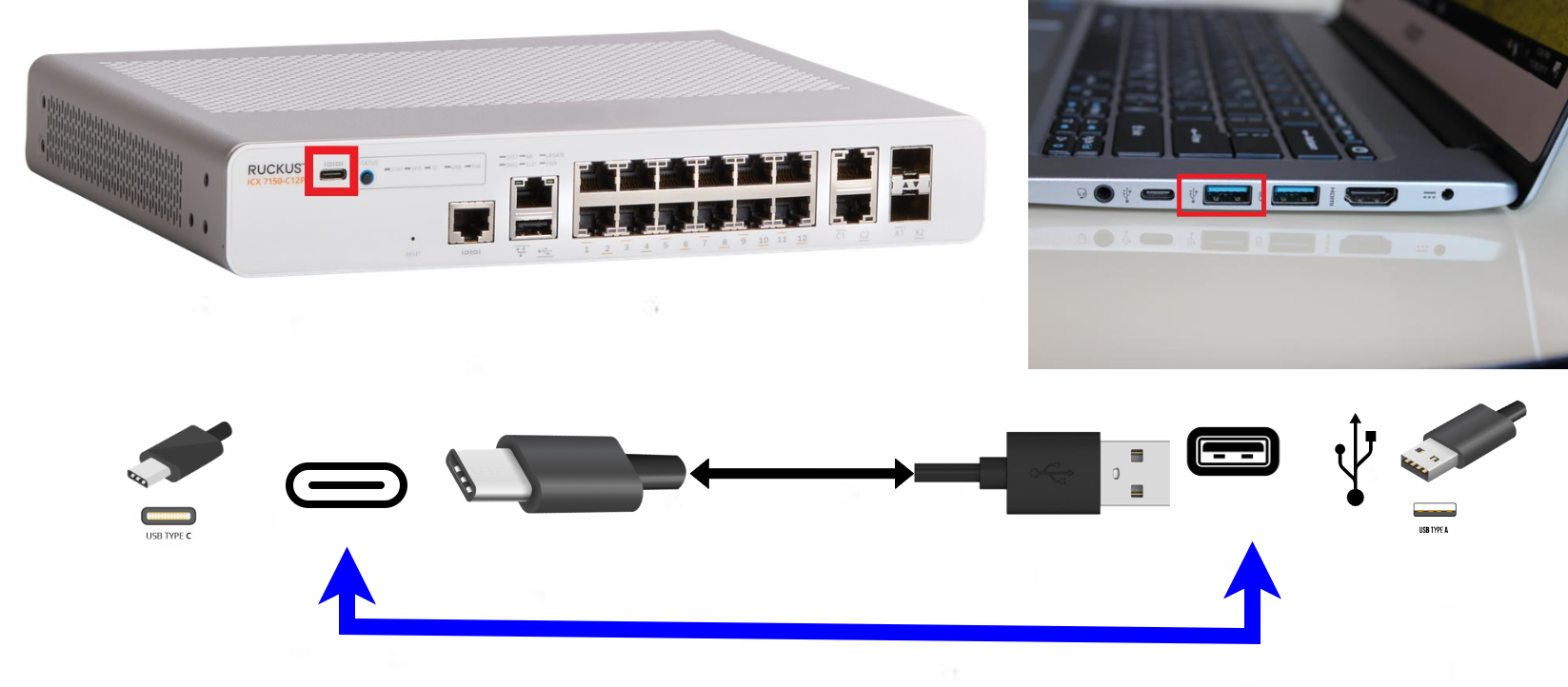
2-You will need to connect the console cable into the console port (Number 1 or 15 depending on your cable) and connect to a USB on your workstation (Computer).
3-A terminal software is required to connect to the device
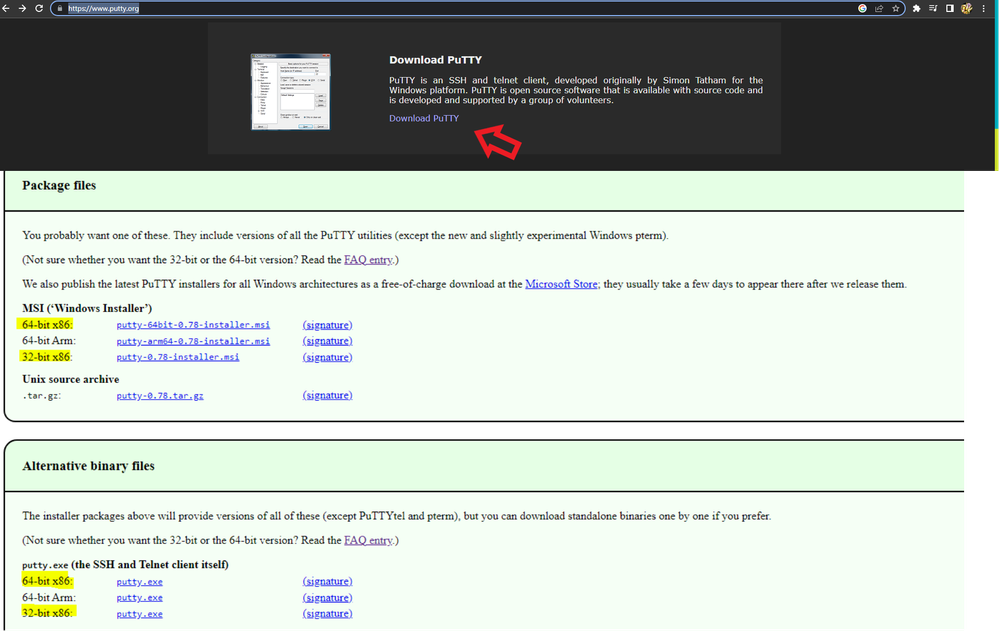
Here is where you can download:
Putty:https://www.putty.org/
Mobaxterm: https://mobaxterm.mobatek.net/download-home-edition.html
4-To access by console must install a driver so that the workstation/pc/desktop or laptop can recognize the cable
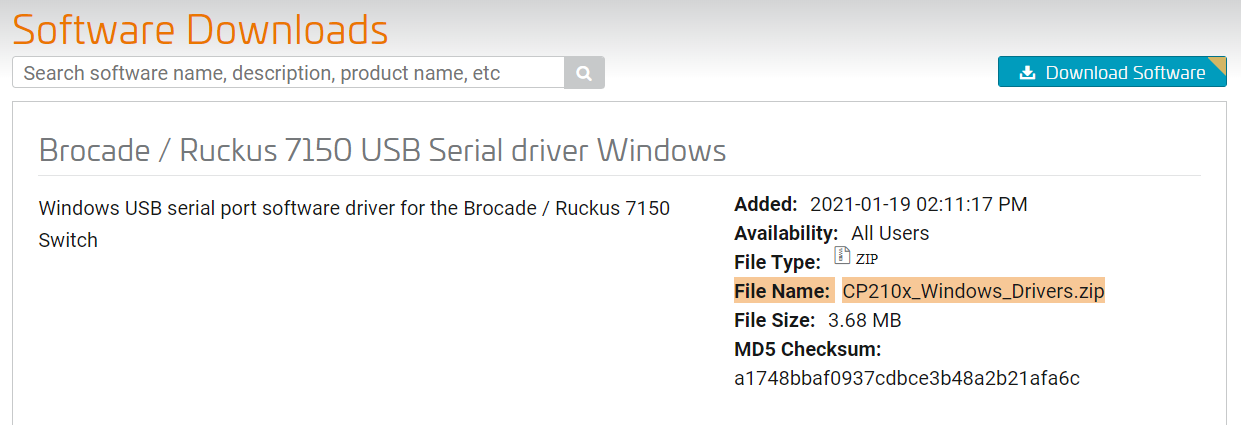
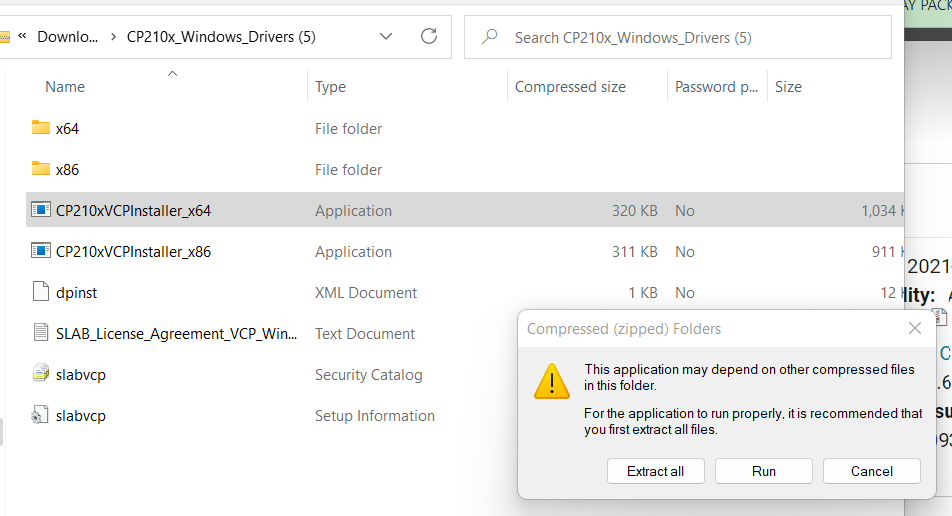
Make sure to download the zip drive for the file below & "extract all". Once it's extracted, run the file ,driver should be installed.
Link:https://support.ruckuswireless.com/software/1414-brocade-ruckus-7150-usb-serial-driver-windows
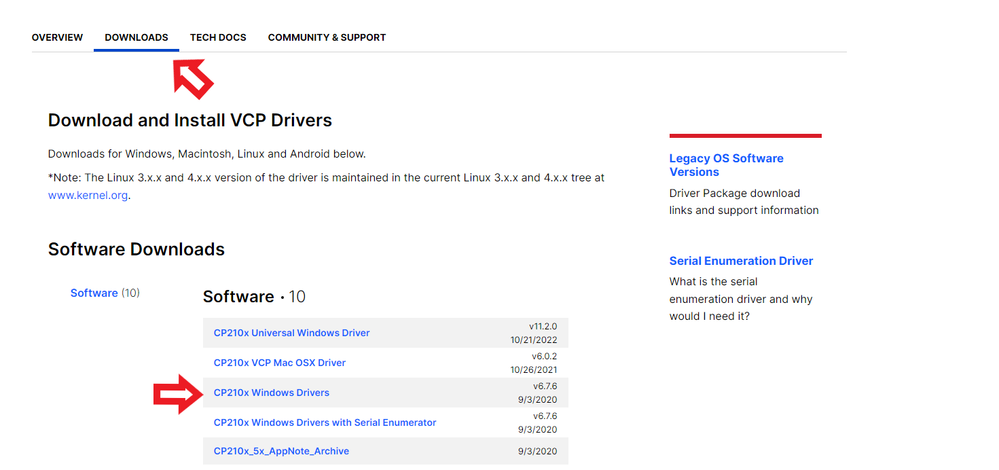
Link: silabs.com/developers/usb-to-uart-bridge-vcp-drivers?tab=downloads
5-Open a session in putty or MobaXterm with the following settings:
This is a putty session:
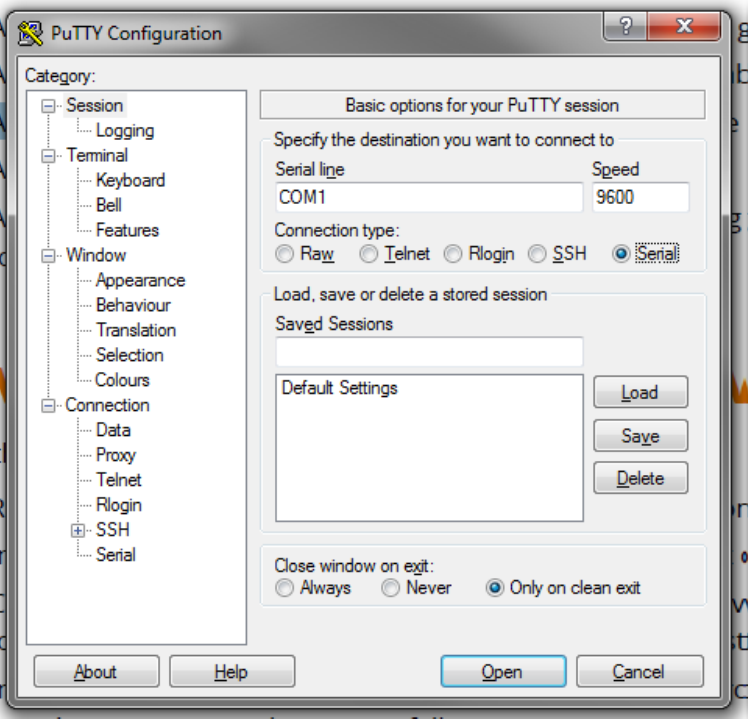
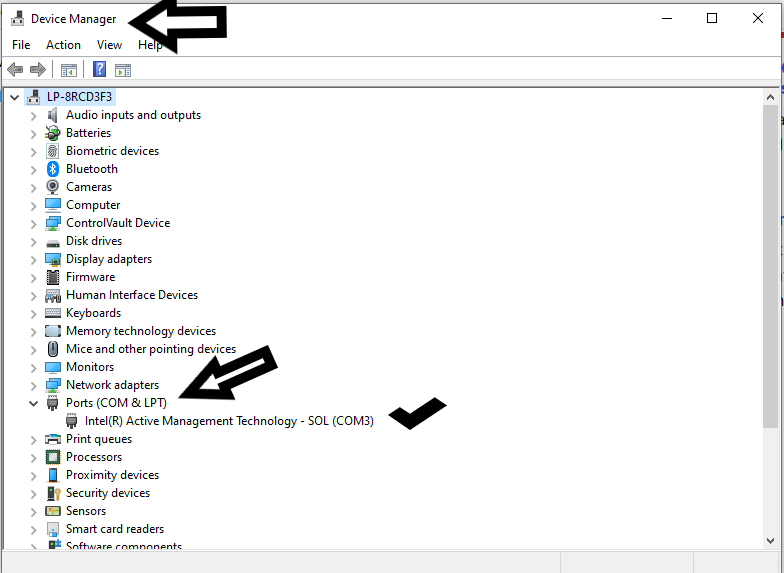
NOTE: The “Serial line” will change from “COM1” to “COMx”, it depends on how many connections your computer currently has. To identify the one, we need go to “Device manager” and locale the USB console connection. In the following example is letting us that the USB is on COM3
The MobaXterm app will recognize automatically the USB connection.
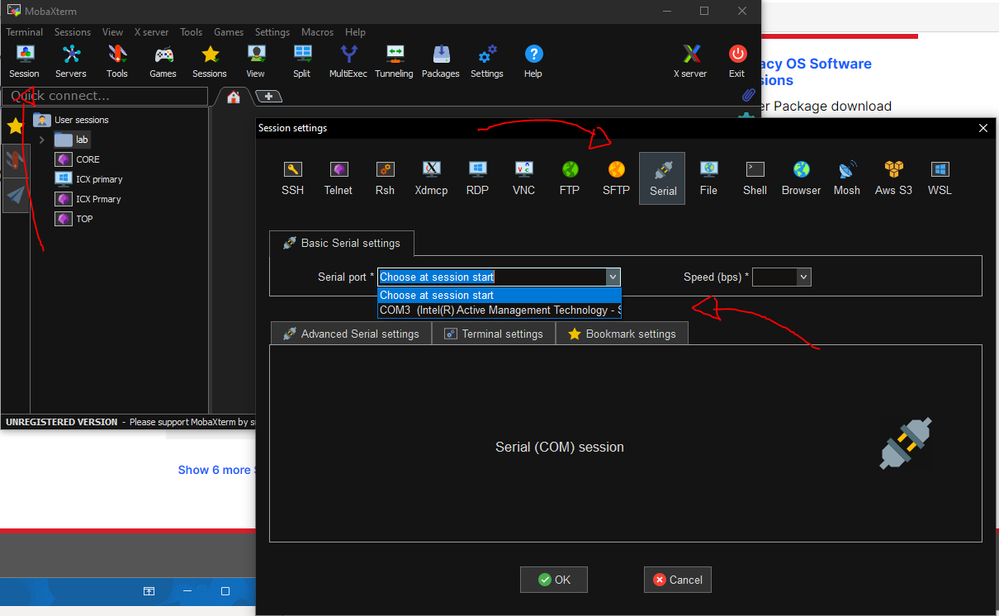
6-Then hit ok and you are going to see a prompt like the following:
ICX7150-12 Router>
ICX7150-24P Switch>
Here is a video link that we can use as reference: https://www.youtube.com/watch?v=YXR4xhkw3q8
Mac iOS system solution
1-Install the drivers on your machine to read the cable type C to console the switch ( ICX-7150-C12P )
Software:
Link:https://www.silabs.com/developers/usb-to-uart-bridge-vcp-drivers?tab=downloadshttps://www.silabs.com/developers/usb-to-uart-bridge-vcp-drivers?tab=downloads
Link:https://support.ruckuswireless.com/software/1413-brocade-ruckus-7150-usb-serial-driver-mac
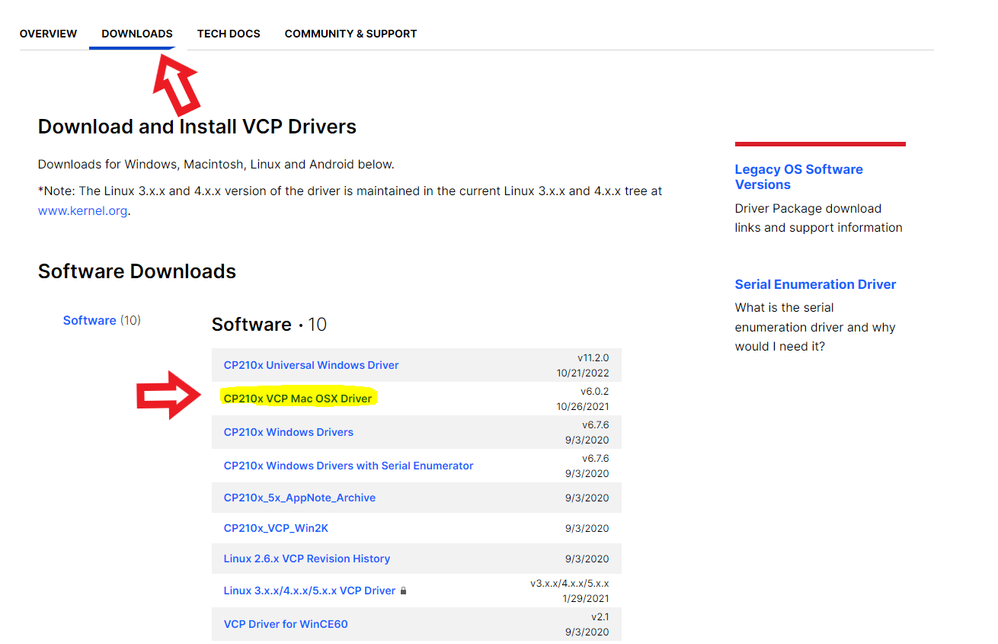
2-After successfully installing the Mac Drivers, open the Mac terminal, when you see the command prompt do the following:
Enter this command:
ls /dev/cu.*
This command will display something like this:
One of those logs will say something similar to /dev/cu.SiLabs_Serial (which is related to the drivers you installed)
3-Then enter the following command using the name of the installed driver that was displayed:
screen /dev/cu.SiLabs_Serial 9600
4-Hit Enter and you will have access to the ICX7150’s CLI. (Comand Line)
Video link as reference: https://www.youtube.com/watch?v=1AcJokMm78U
