How to Install a Certificate on SZ/vSZ?
- Generate the CSR from any node, or the same can be generated from a third part device:
System >> Certificates >> CSR >> Generate
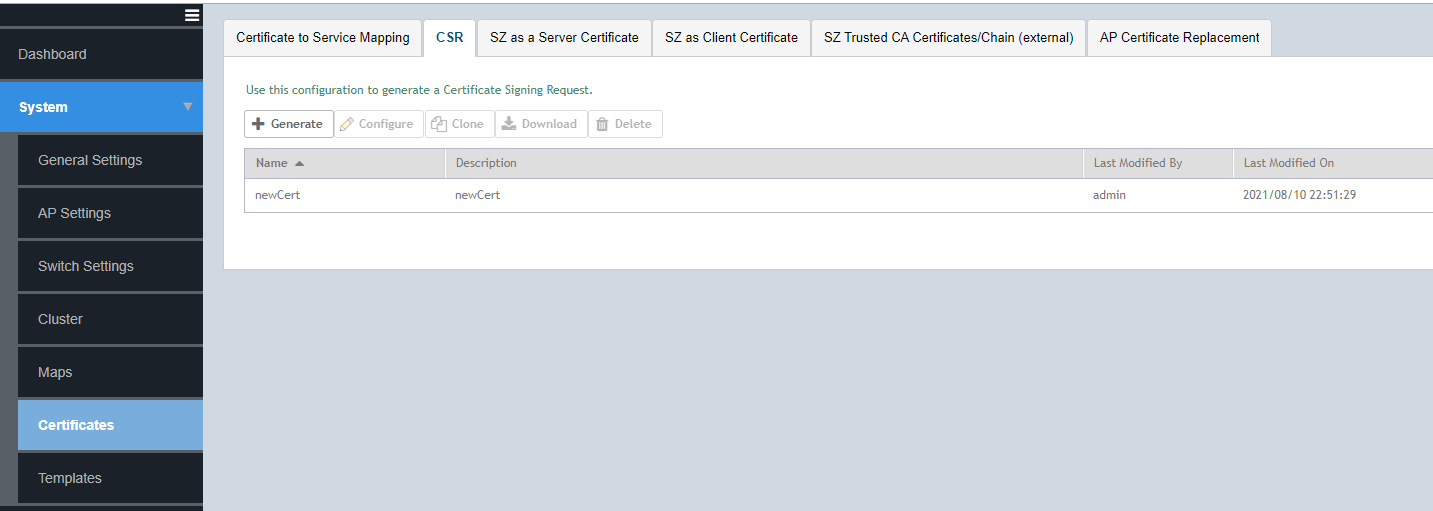
- Fill in the details and submit the same to a CA authority
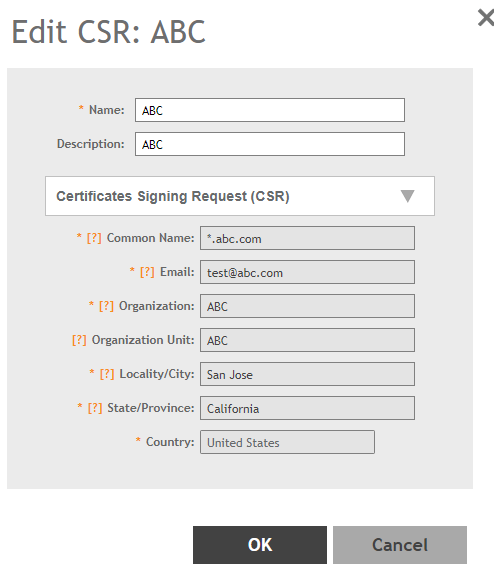
Now, you will be able to see the same CSR in all nodes in the cluster
- Once the certificate is received, import the certificate to SZ from System >> Certificates >> SZ as a Server Cert
Browse and select the Server, Intermediate and Root certificates accordingly for the intended certificate
Alternatively, you may chain all the related certificates to a single file in .pem format and map the same against Server Certificate
Chaining order: Server, Intermediate and Root
- Apply Private Key
Select the CSR associated with the certificate for private key
For a third party generated CSR, upload the private key along with the associated certificates
Note: The certificate formats supported are only PEM and CRT
- Click on the Validate certificate and Click OK once the validate summary is displayed
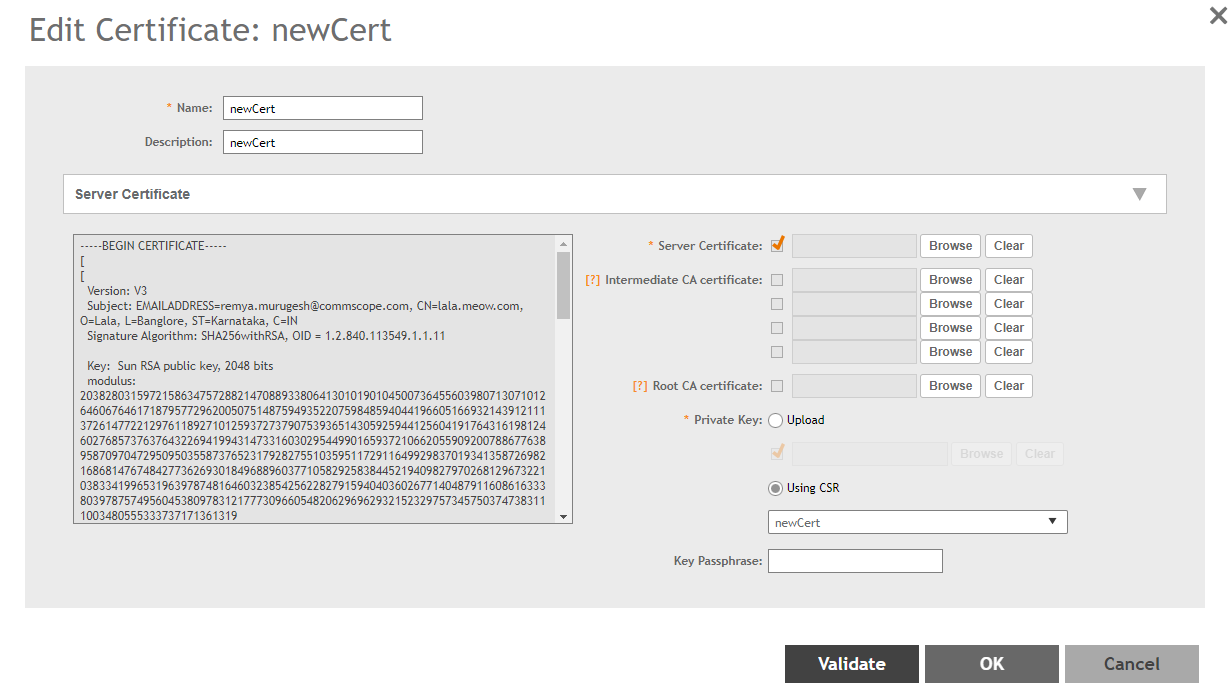
Once the certificate is successfully uploaded, you can again crosscheck the certificate availability on each node in cluster
- Then the certificate can be mapped against the preferred services from System >> Certificates >> Certificate to Service Mapping
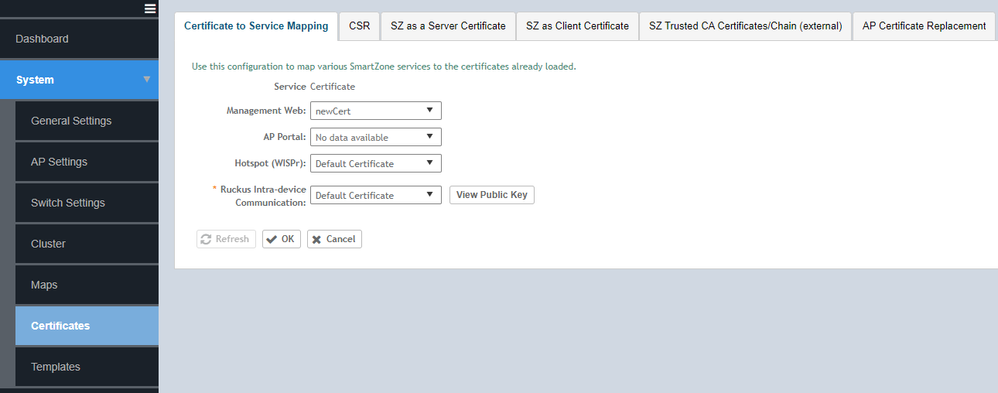
- Management Web : Used by Web UI and Public API traffic
- AP Portal: Used by Web Auth WLAN and Guest Access WLAN control traffic
- Hostpot Wispr: Used by WISPr WLAN control (Northbound Interface, Captive Portal, and Internal Subscriber Portal) traffic
- Ruckus Intra device: Used by AP control traffic
This will again be synced among the cluster nodes.
Please note that the certificate import would initiate a service restart on the web and subscriber management applications. You can verify the status of the services from SZ CLI:
>en
<enable password>
#show service