Summary:
In this article we will look into the configuration involved in setting up Guest portal authentication with the Self Sign IN using Google
Step 1: Setting up SSID with the Captive Portal - Self Sign IN
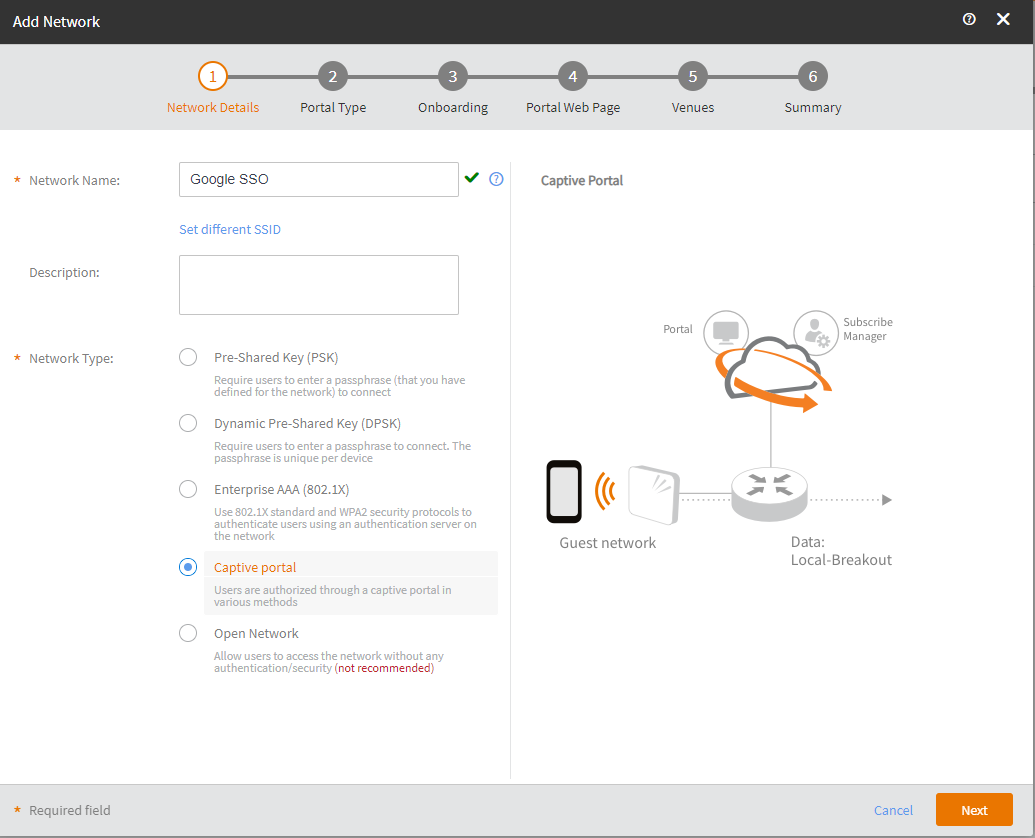
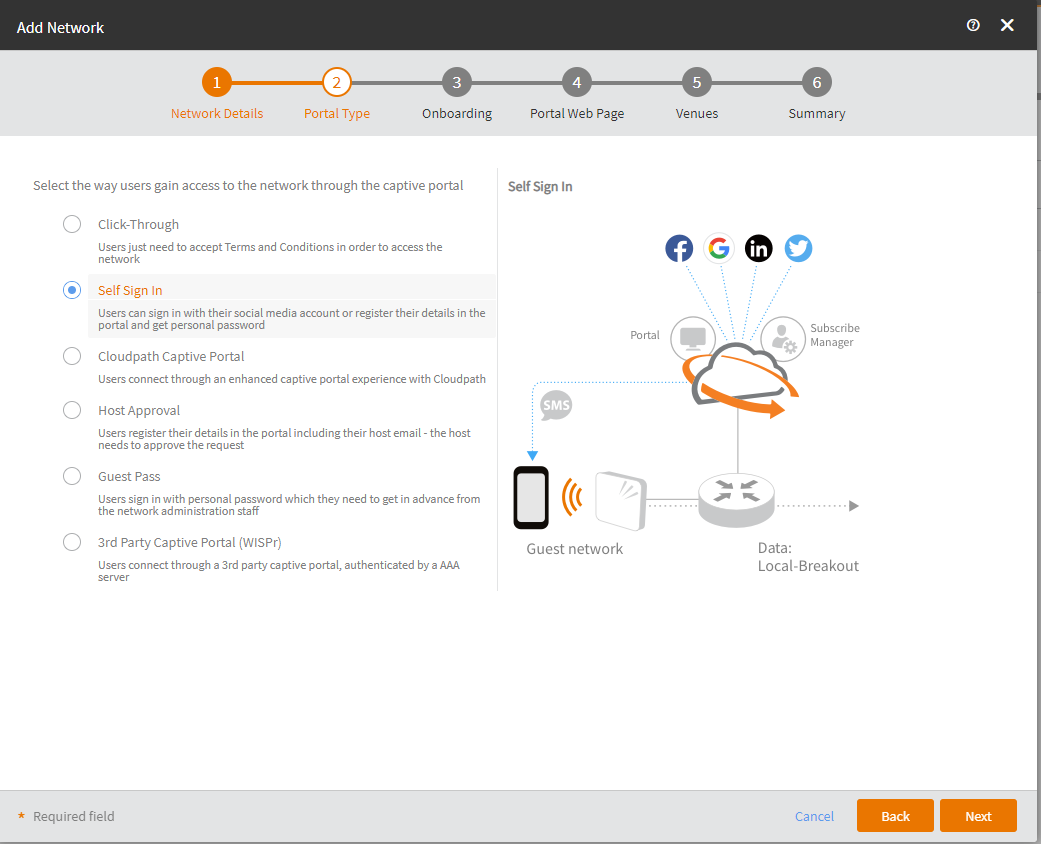
Step 2: Select the Self Sign In under Portal Type
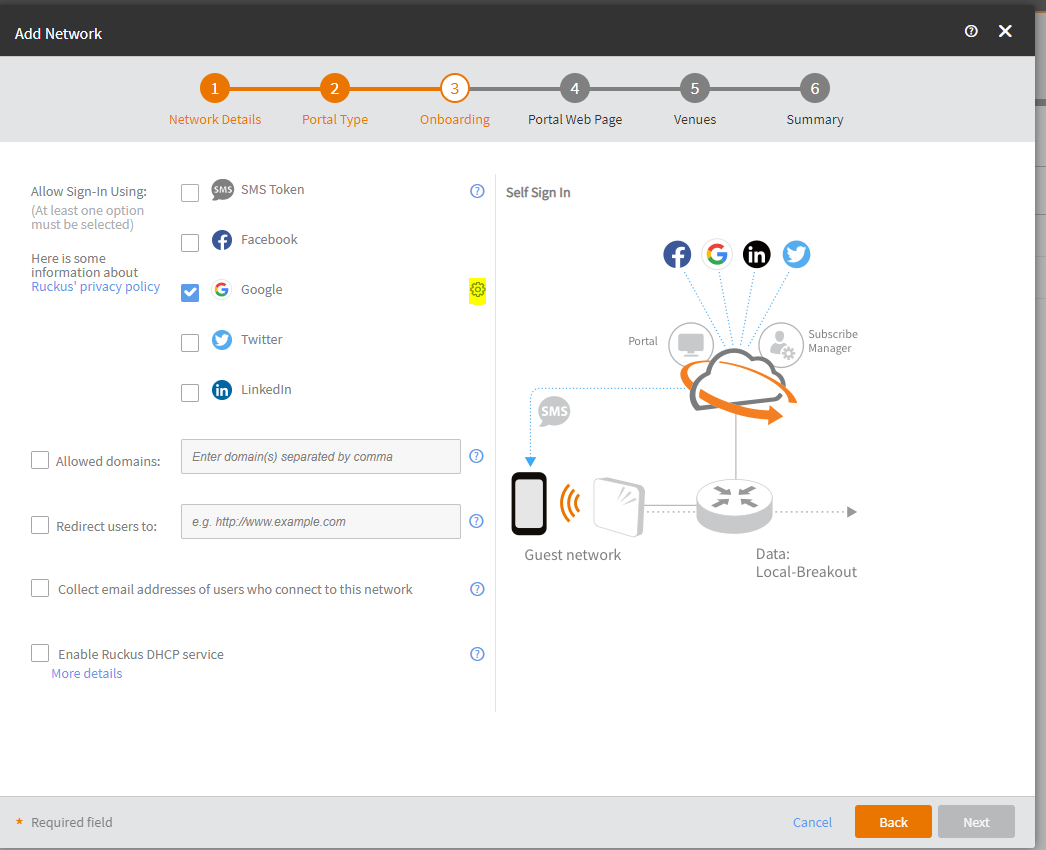
Step 3: Select Google and click on setting as highlighted
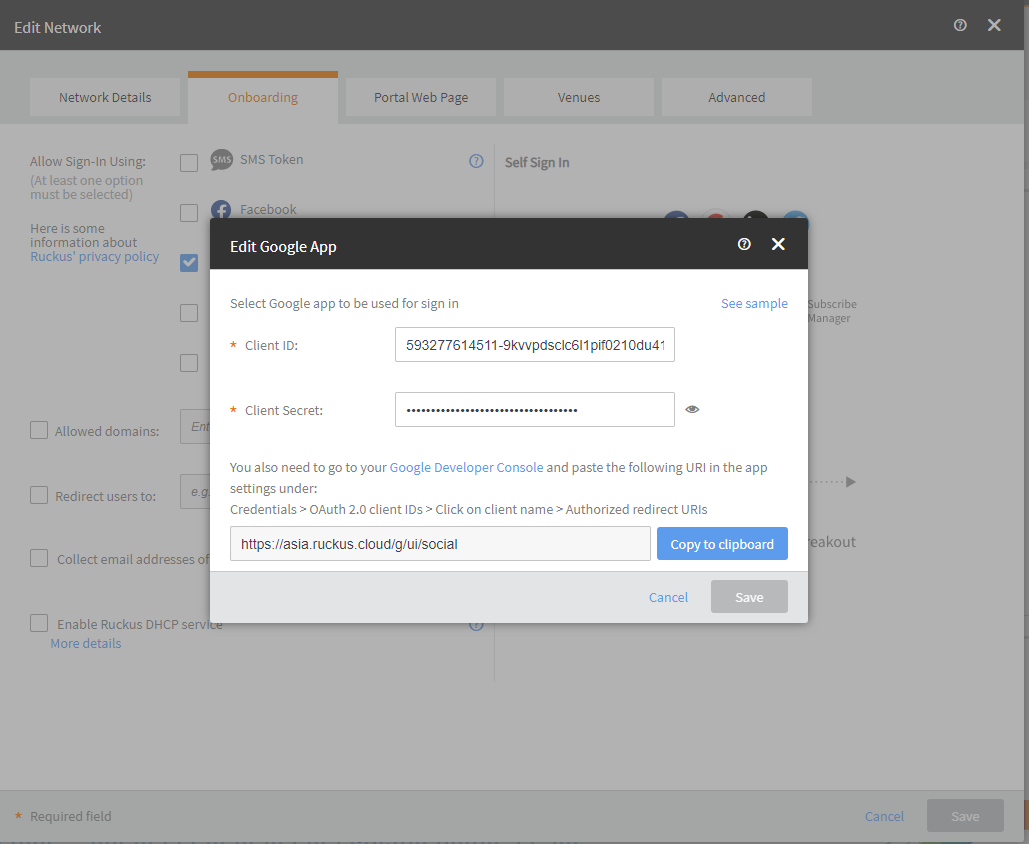
Step 4: We would need to enter the Client ID and Client Secret
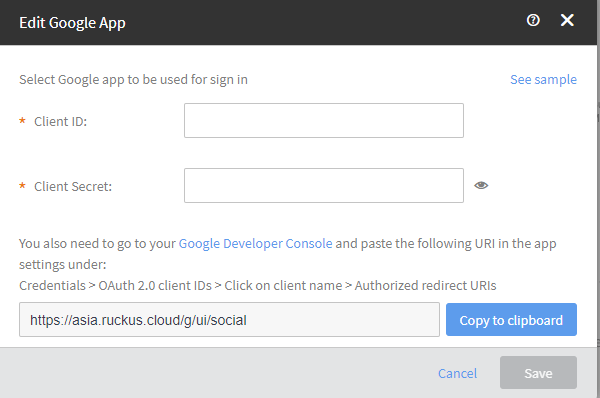
Step 4a, To generate the Client ID and Client Secret, Click on the Google Developer Console
- Create a new Project
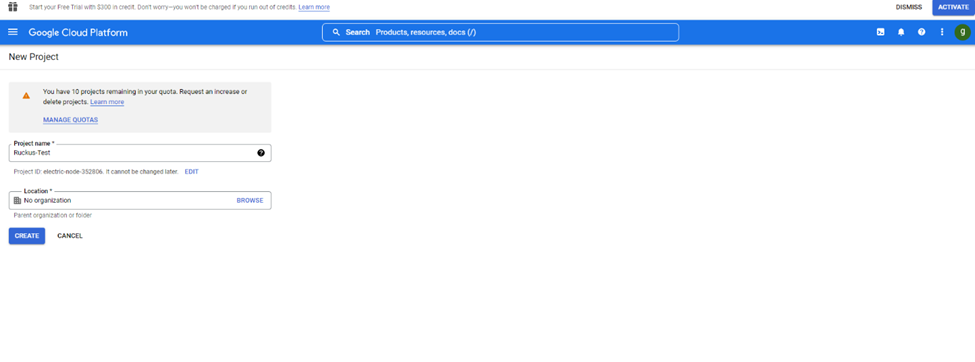
- Click on Credentials > +CREATE CREDENTIALS > OAuth Client ID
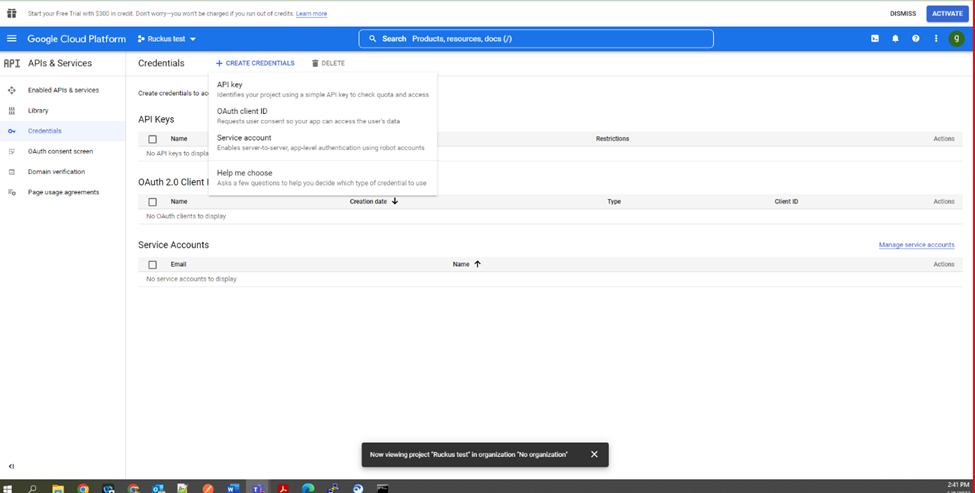
- In OAuth Client ID > Application Type as Web Application , then type Name
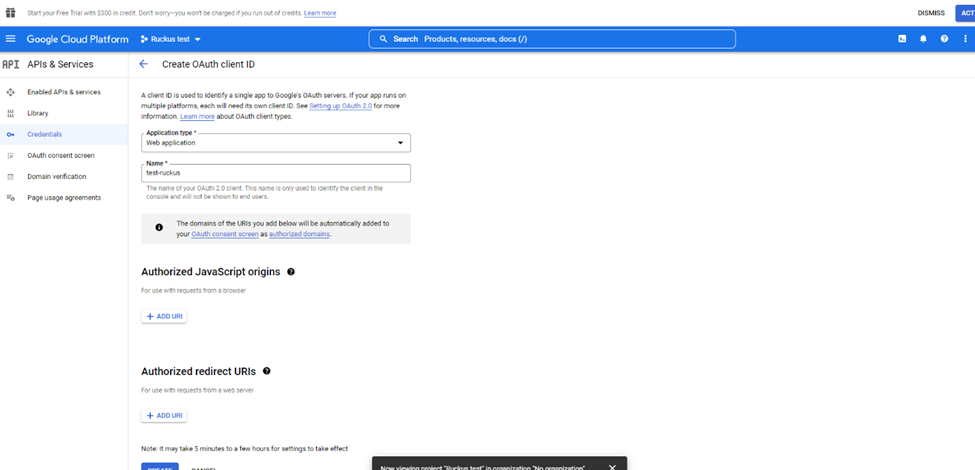
- Now Click at Authorized Redirect URIs , +ADD URI. Navigate to the Ruckus Cloud and copy the URI
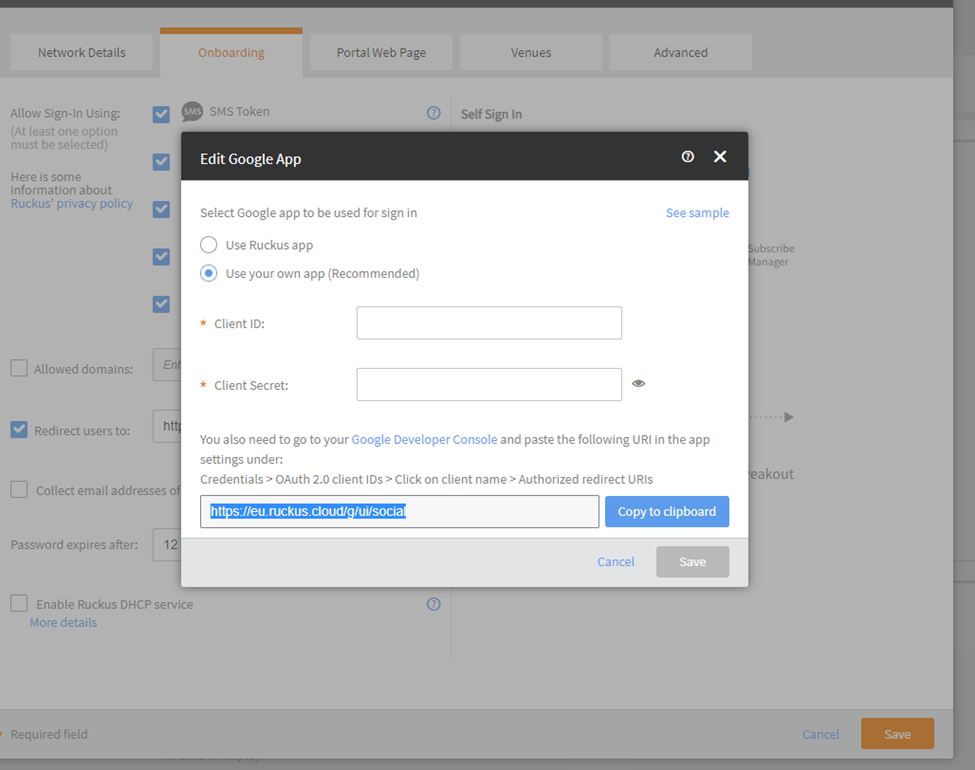
- Paste the URI and save
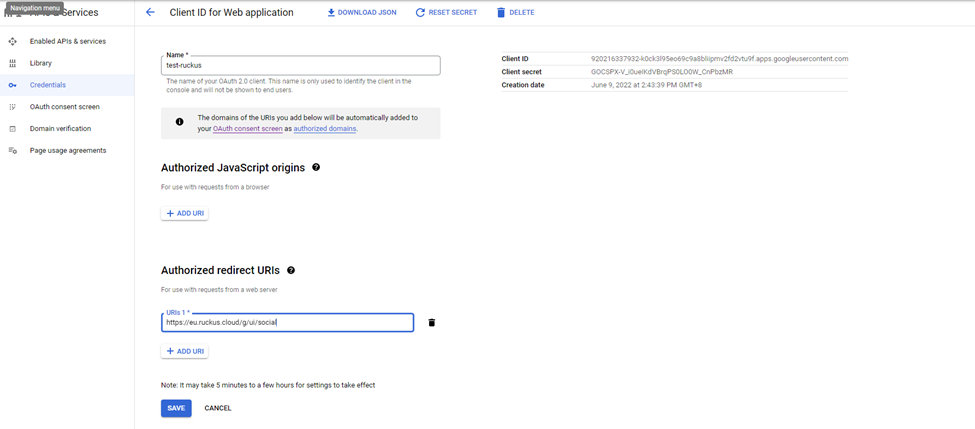
- Get into the Client ID for Web Application for the Client ID and Client Secret
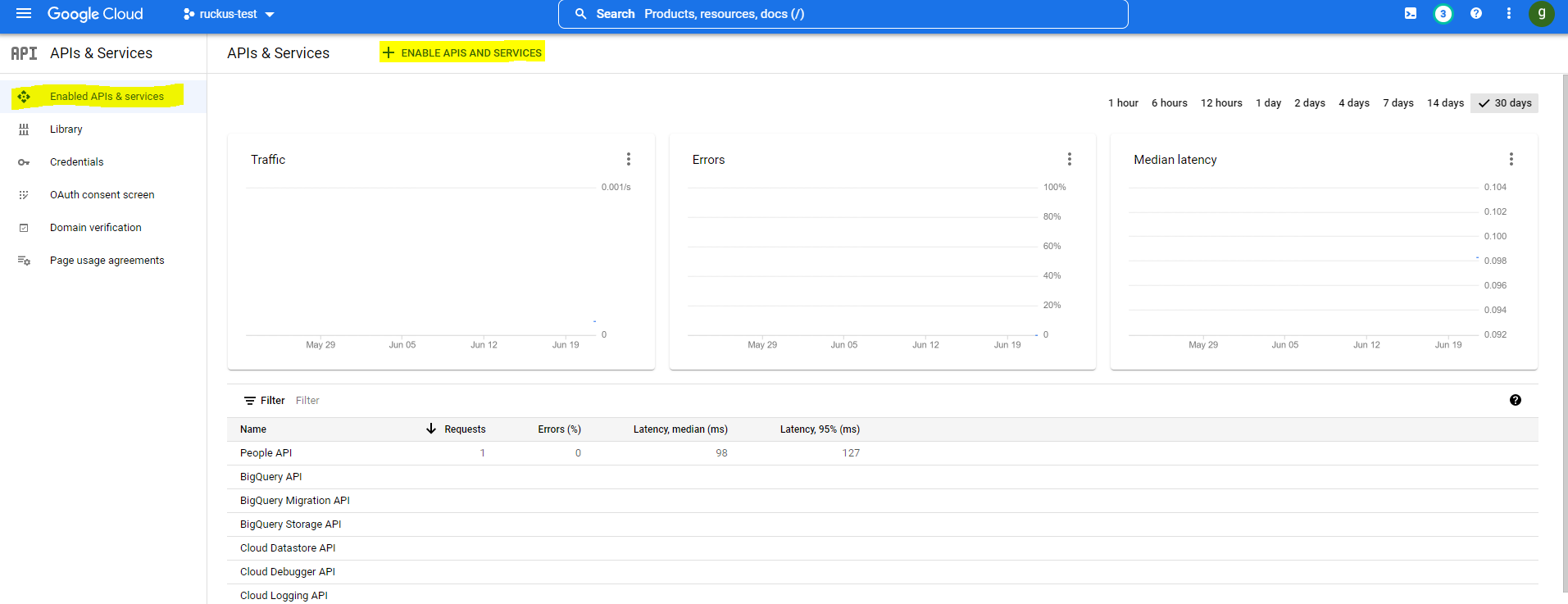
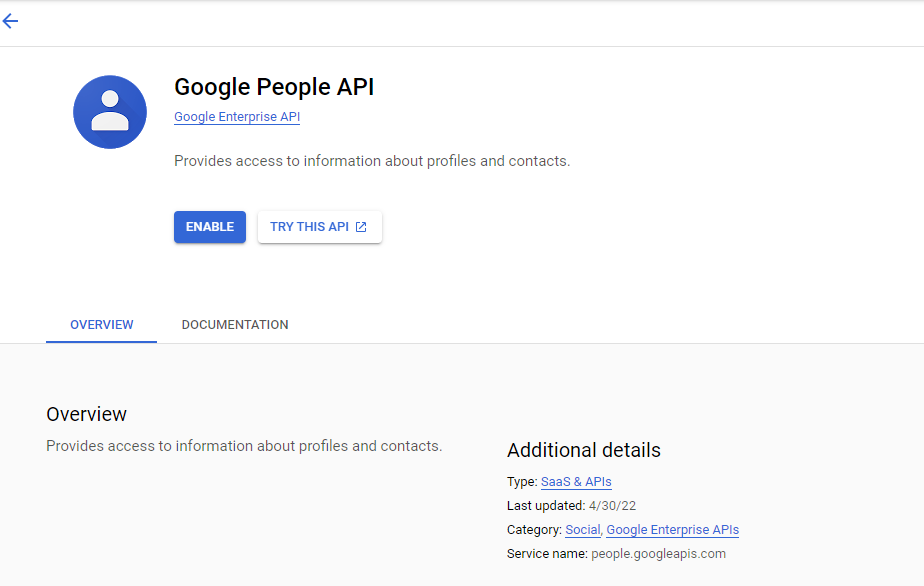
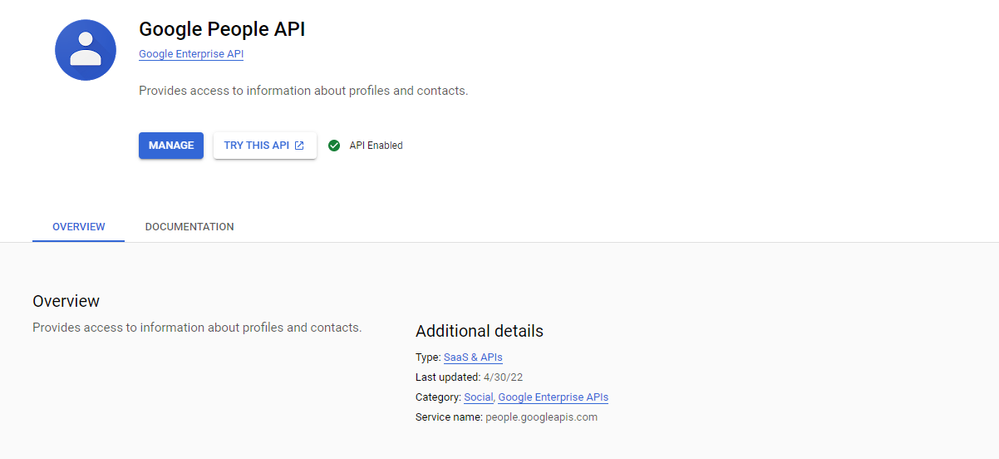
Step 4b: Enable People API from Google console
- In Enabled APIs & Services, Click + ENABLED APIS AND SERVICES
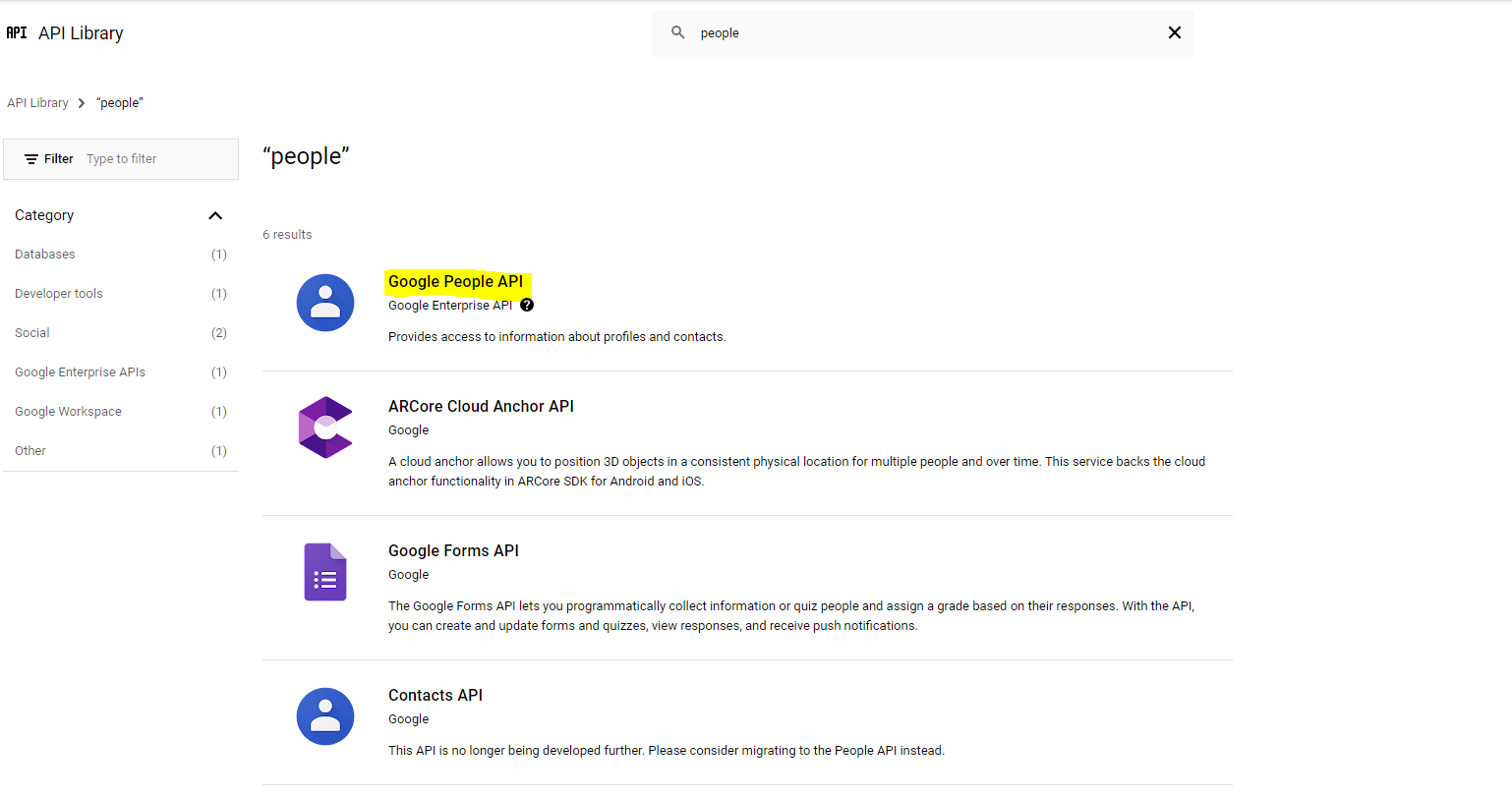
- In the API Library, look for Google People API and have it enabled.
Step 5: Client will now have the successful authentication