Called the support line and was told to open a post here. My APs will not power on after the power outage. The switch has power and the ATT router is working but the APs will not power on. Please advise on how to restore my APs.
icx-7150-c12p
This is what my unit looks like, power is not reaching the access points
Hi @what_ruckus83
Greetings of the day,
Thanks for your details provided.
To solve this issue please follow the below steps and let us know the result.
1-Please try to disconnect from the Power outlet the ICX-7150 and reconnected.
2-Please try to press the reset button using a paper click or a small stick
https://docs.commscope.com/bundle/icx7150-installguide/page/GUID-D3B5DB74-53A7-4F8D-82F9-6EB600879EE...
Video link:https://www.youtube.com/watch?v=6jHMTdo_hK4
Please let us know if you have any queries in this regard.
Best regards,
Jayavidhya
Lennar Home Community
Hi, i have completed the reset and the lights are showing the same as the image above. The APs are still offline as well.
Thanks for your response.
If the resetting process does not work we need to try performing software recovery process.
Please follow the below link to perform software recovery process.
How to perform a Software recovery on an ICX7150 switch
https://community.ruckuswireless.com/t5/RUCKUS-Support-for-Lennar-Homes/How-to-perform-a-Software-recovery-on-an-ICX7150-switch/m-p/47483
Ruckus ICX Recovery Load boot code from boot monitor
https://www.youtube.com/watch?v=RHriOYYD_iI&t=7s
Are these directions valid? Am I downloading the correct files because i see options for new files. I downloaded the ones specific to the directions but the driver for example is not recognized. In my system I do not have an ethernet card, how do i find my static IP? Is this chat forum the only support option available?
To configure your Computer’s IP address, this must be statically assigned in order to have connectivity to your switch, remember you have an Ethernet cable from your computer to the Management port in the switch, so we require configure the computer with the same subnet.
Start>type control panel>View network status and Task>change adapter setting>Ethernet>right click properties>Internet Protocol (TCP/IPv4)>Select Use the following IP address>insert the same information I have>Click OK
Also please confirm the console connection of the switch using the below guide.
How to console in the ICX-7150-12CP 'Ruckus Switch'
https://community.ruckuswireless.com/t5/RUCKUS-Support-for-Lennar-Homes/How-to-console-in-the-ICX-71...
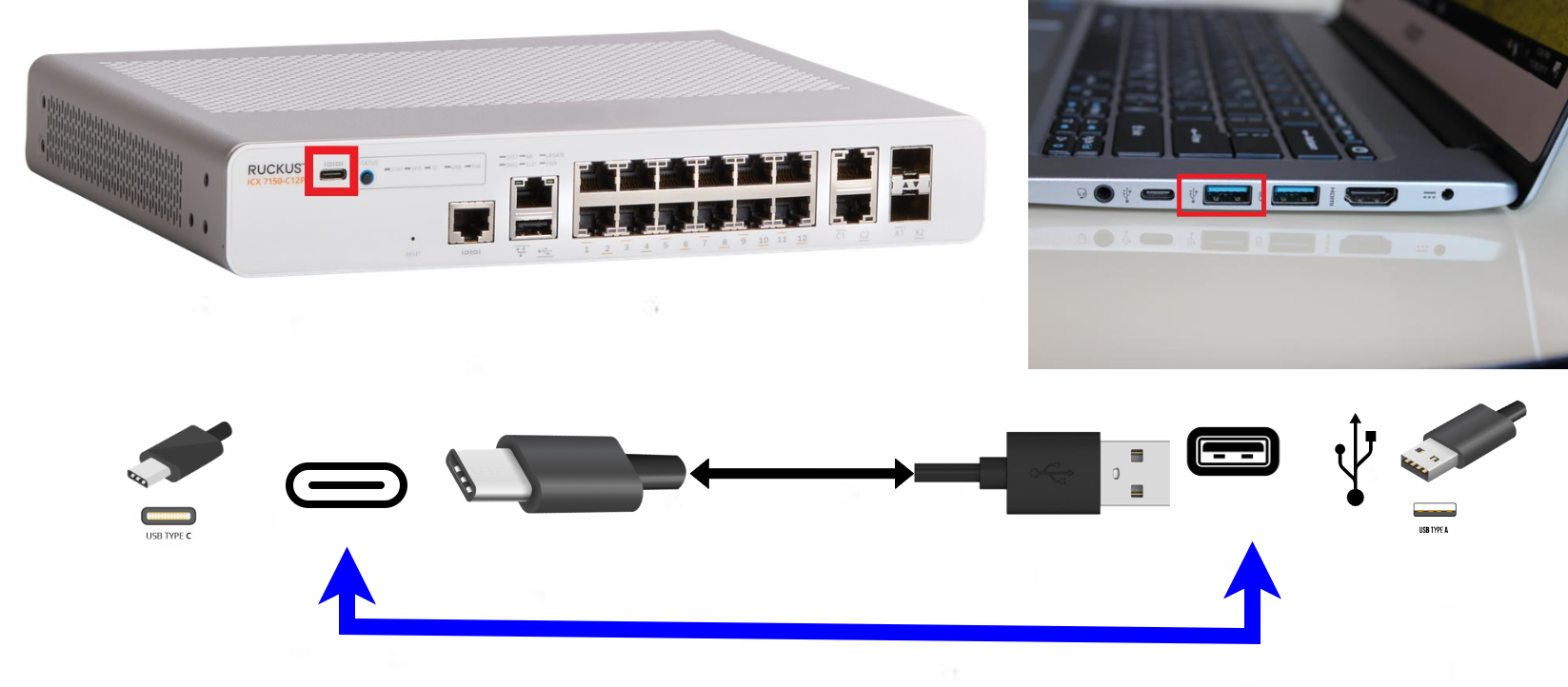
2: A console cable connected between your Computer to the ICX 7150 Switch Type-C USB console port.
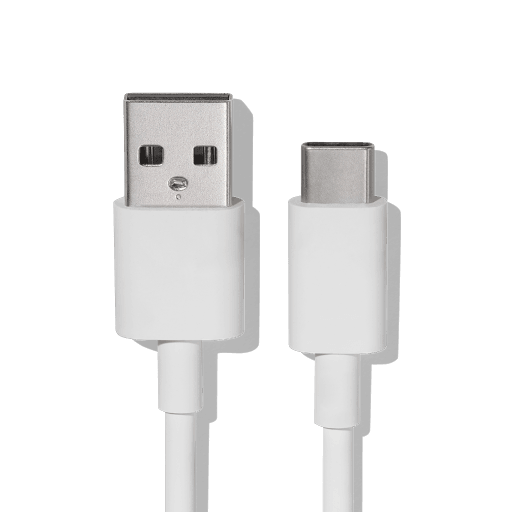
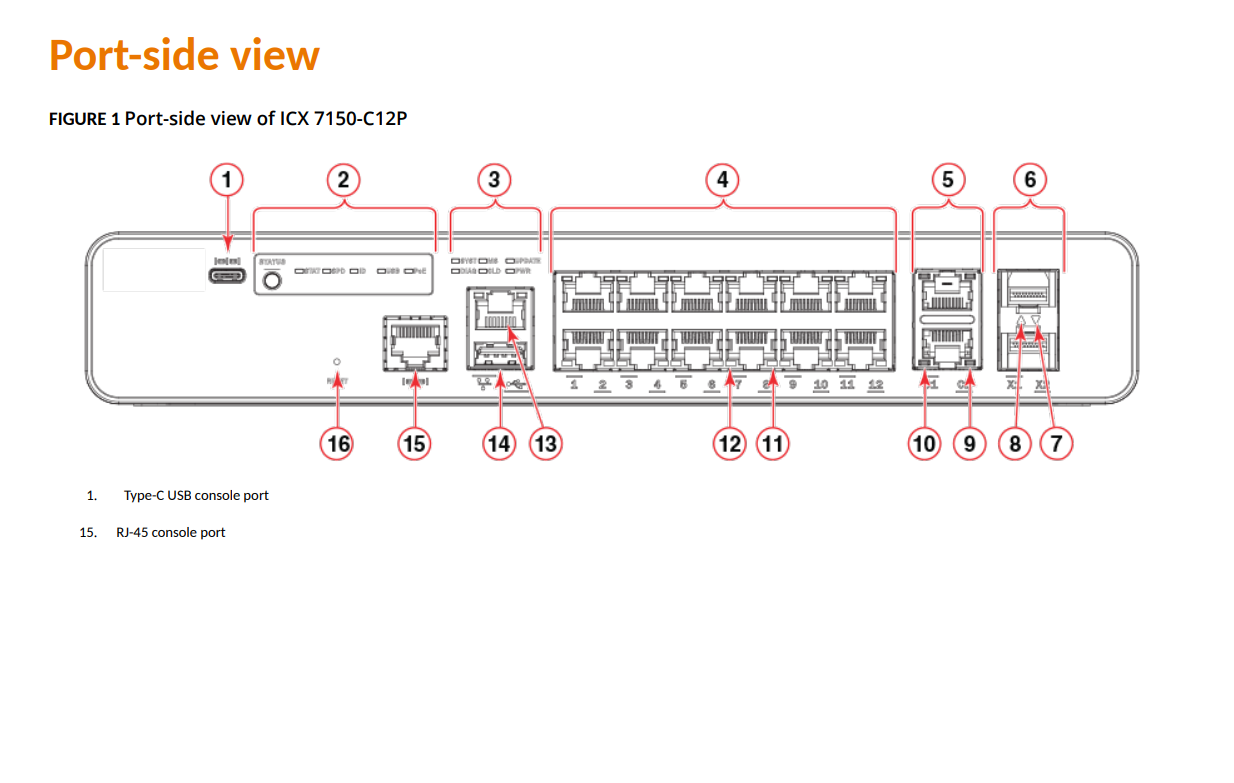
Note: The cable type will be USB to type C, where the USB it’s going to your computer and the type C to the Type C connection in your switch, is the port number#1 in the next guide.
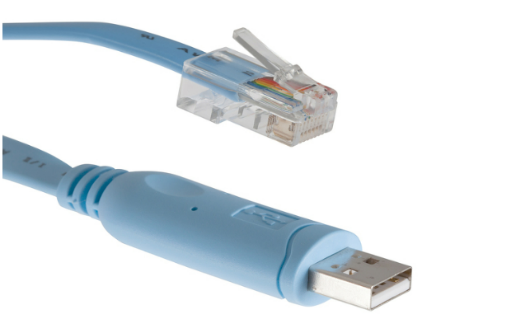
I am using this console cable, do I also need an ethernet connection? the guide does not 100% explain that, for the cable it says either not both
There are two ways to make console connection to the switch. You can use either way using USB console cable with Type-C connector or serial console cable with an RJ-45 connector
Or
Now using the RJ45 cable you need to connect the cable to the console port on the switch.
Using the below image please connect the RJ45 cable to the port no 15 on the switch as mentioned below.
2-You will need to connect the console cable into the console port (Number 1 or 15 depending on your cable) and connect to a USB on your workstation (Computer).
3-A terminal software is required to connect to the device
Here is where you can download:
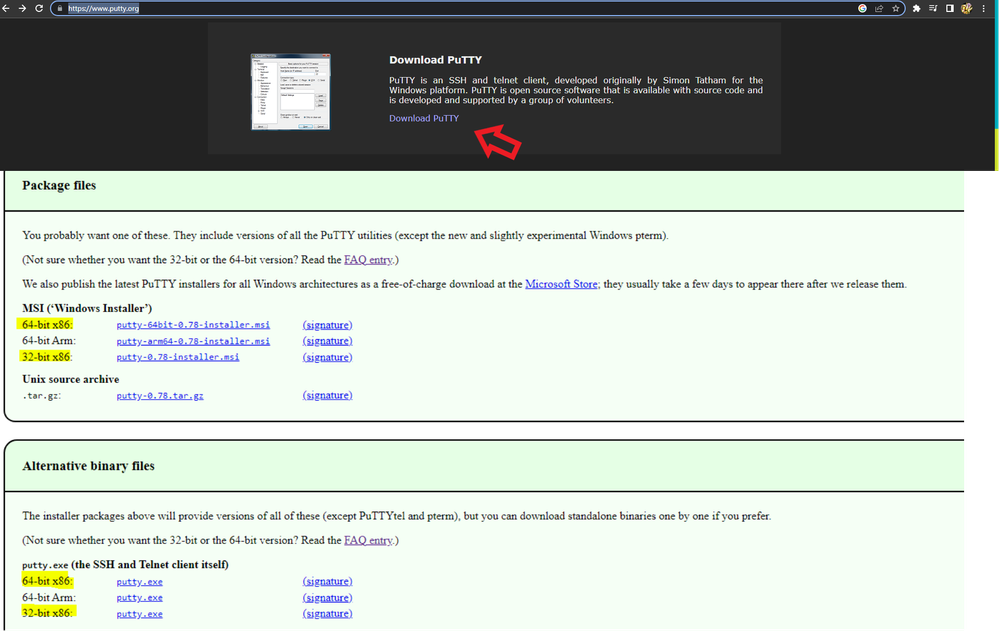
Putty:https://www.putty.org/
Mobaxterm: https://mobaxterm.mobatek.net/download-home-edition.html
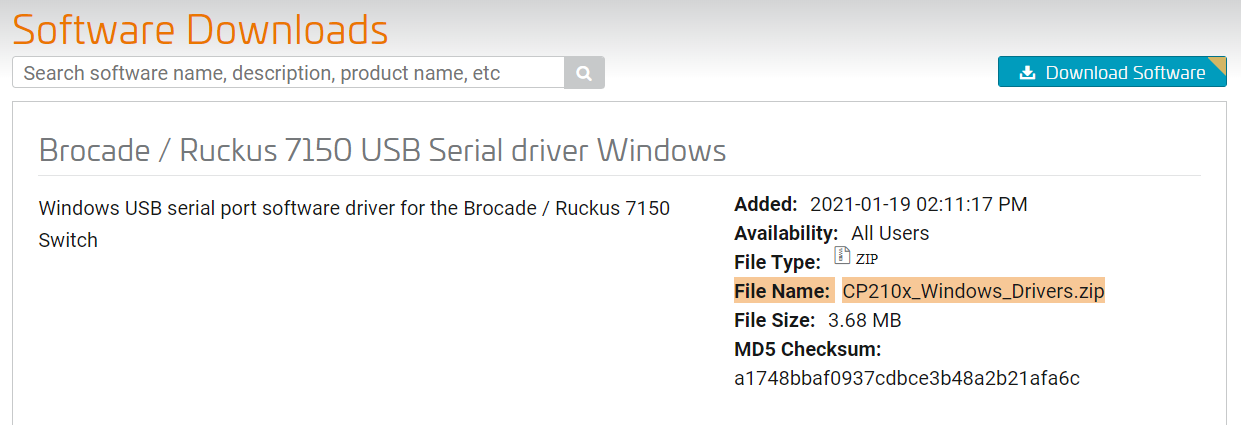
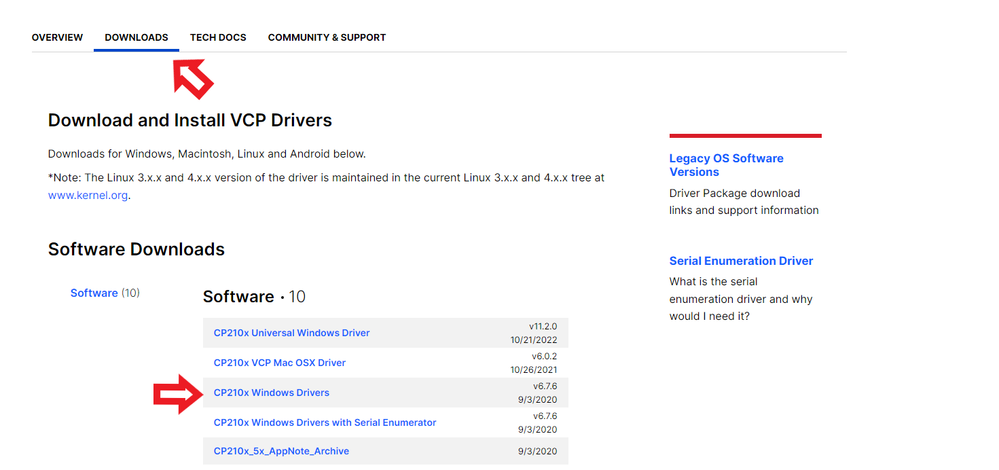
4-To access by console must install a driver so that the workstation/pc/desktop or laptop can recognize the cable
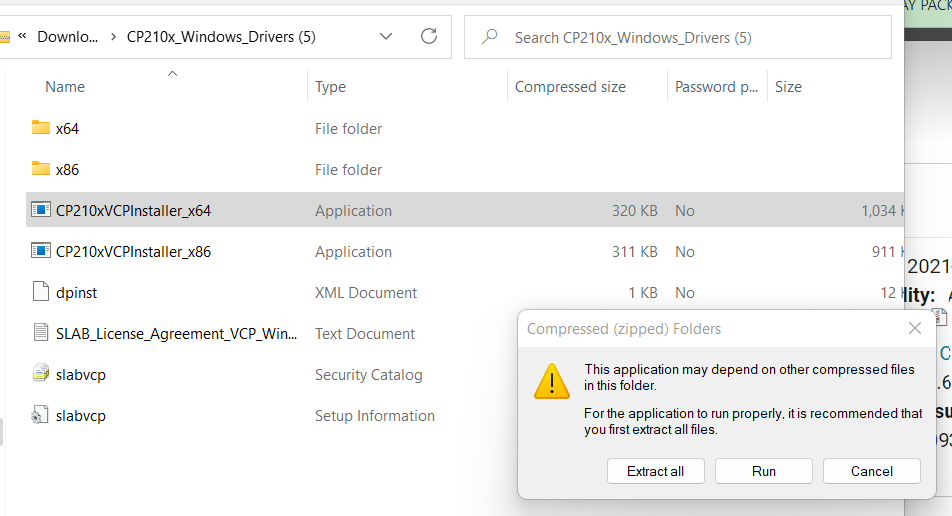
Make sure to download the zip drive for the file below & "extract all". Once it's extracted, run the file ,driver should be installed.
Link:https://support.ruckuswireless.com/software/1414-brocade-ruckus-7150-usb-serial-driver-windows
Link: silabs.com/developers/usb-to-uart-bridge-vcp-drivers?tab=downloads
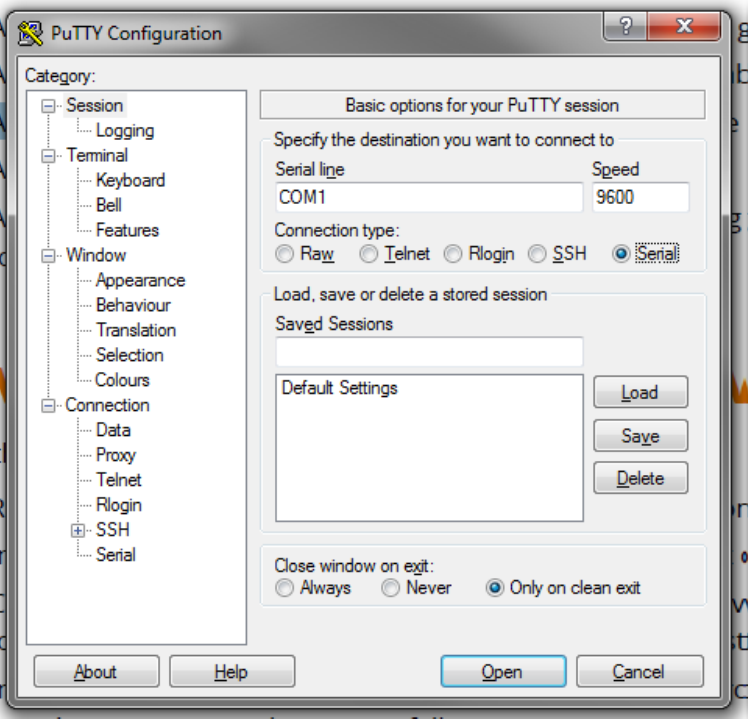
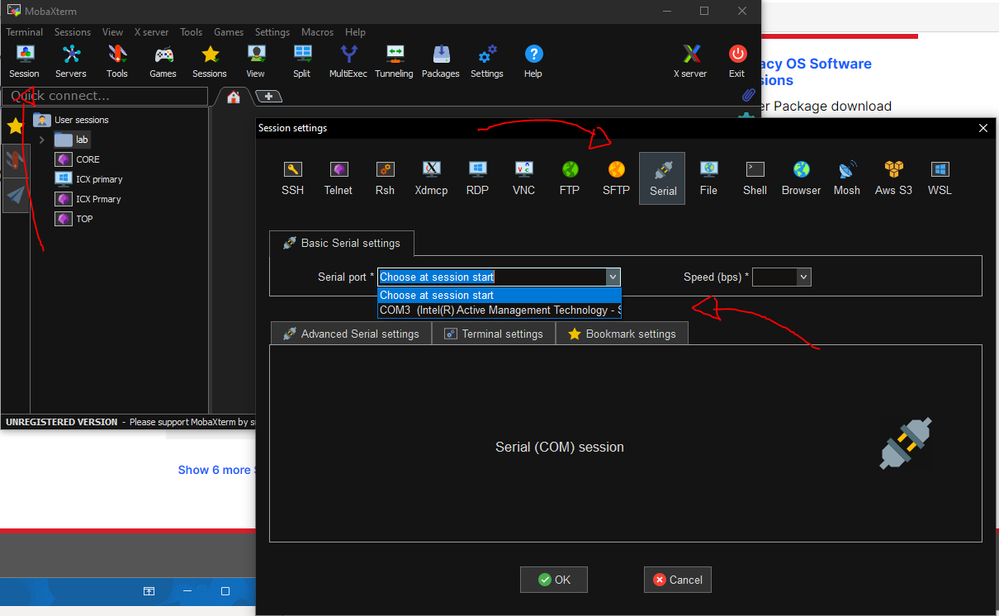
5-Open a session in putty or MobaXterm with the following settings:
This is a putty session:
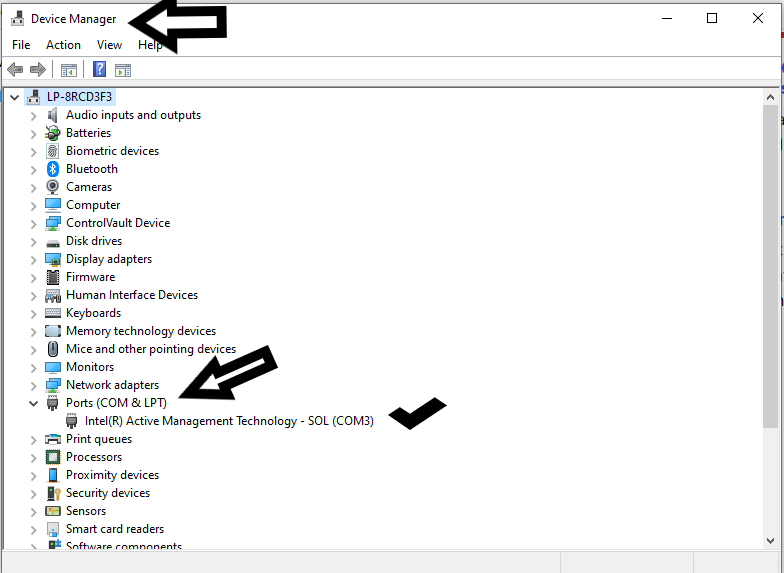
NOTE: The “Serial line” will change from “COM1” to “COMx”, it depends on how many connections your computer currently has. To identify the one, we need go to “Device manager” and locale the USB console connection. In the following example is letting us that the USB is on COM3
The MobaXterm app will recognize automatically the USB connection.
6-Then hit ok and you are going to see a prompt like the following:
ICX7150-12 Router>
ICX7150-24P Switch>
Here is a video link that we can use as reference: https://www.youtube.com/watch?v=YXR4xhkw3q8